
Exporting Calendar to Google or Outlook
Export Calendar
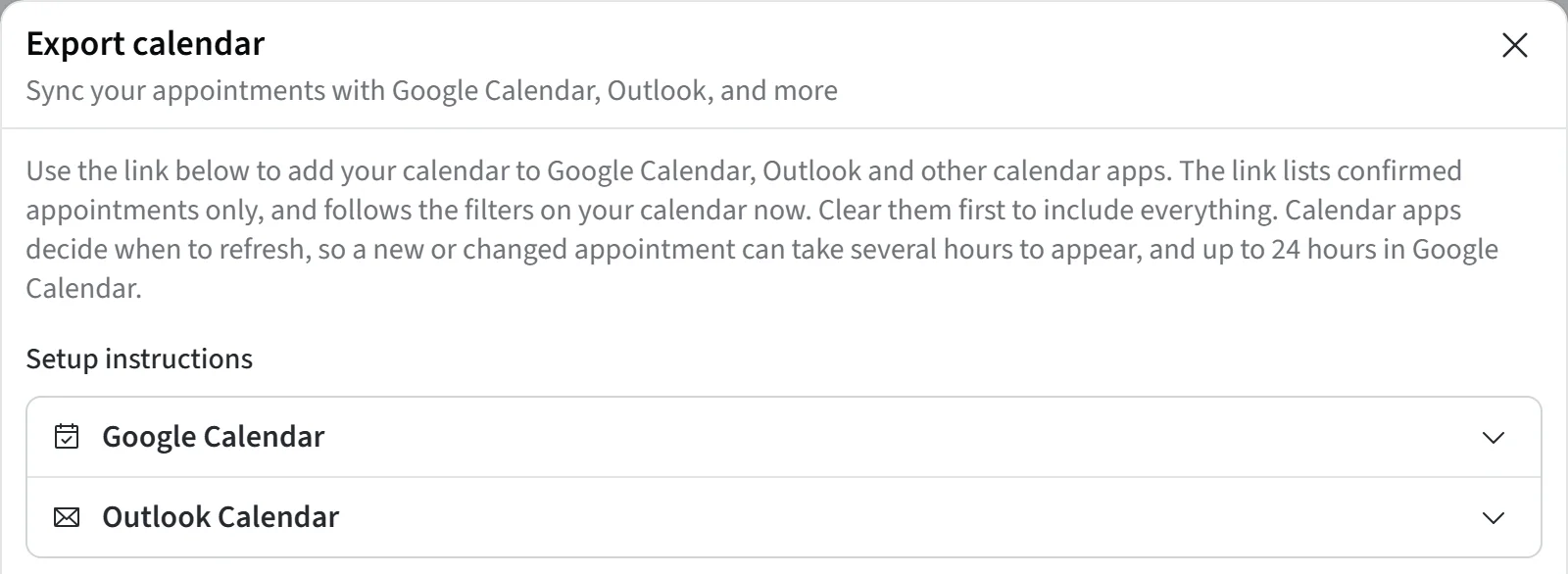
CloudBridal allows you to export your appointments to popular third-party calendar applications like Google Calendar and Outlook. This creates a live feed that automatically syncs your CloudBridal appointments with your external calendar.
Important Notes
- Time Zone Required: You must set a Time zone under Region & language in Settings > General before exporting
- Confirmed appointments only: the feed lists confirmed appointments from the past month up to as far ahead as customers can book (12 months at most)
- Sync Delays: Third-party services refresh periodically - new appointments may take several hours to appear (up to 24 hours)
- Filter Integration: The export respects your current calendar filters, allowing you to create specialized feeds
Setting Up Calendar Export
- Access Export Feature: Click Export calendar above your appointments calendar
- Copy Export URL: Copy the Calendar feed URL at the bottom of the window and use it to set up the calendar feed in your preferred application

Google Calendar Setup
- Go to Google Calendar
- In the Other calendars section (bottom left), click the + button
- Select From URL
- Paste the CloudBridal export URL
- Click Add calendar
- CRITICAL STEP: Visit Google's calendar synchronization page
- Select your new CloudBridal calendar from the list
- Click Save
Outlook Calendar Setup
- Follow Microsoft's official instructions for subscribing to a calendar
- Use the Subscribe to a calendar section
- Enter your CloudBridal export URL when prompted
Customizing Your Export
Filter the calendar before clicking Export calendar to build a specialized feed, for example:
- By staff member: only one stylist's appointments
- By appointment type: separate feeds for consultations and fittings
- By room: one feed per fitting room
Troubleshooting
Calendar Not Syncing:
- Verify time zone is set in CloudBridal settings
- For Google Calendar, ensure you completed the synchronization page step
- Allow up to 24 hours for initial sync
Missing Appointments:
- Check your filter settings - they affect what gets exported
- Only confirmed appointments are exported; pending requests appear once confirmed
- New appointments may take several hours to appear in third-party calendars
Outdated Information:
- Third-party services cache calendar data
- Changes in CloudBridal may take time to reflect in external calendars
This export feature helps you maintain a unified view of your schedule across all your calendar applications while keeping CloudBridal as your primary appointment management system.
Updated on: 19/10/2026
Thank you!