
Mailchimp Integration (Email Marketing)
Plan Requirement: Ultimate
Mailchimp is an email marketing service that allows you to send bulk email messages and marketing campaigns to your contacts. This is a great way to further increase engagement with your customers and keep them aware of things like sales and other special events. CloudBridal integrates with Mailchimp and allows you to sync your contacts from CloudBridal → Mailchimp.
How the Mailchimp Integration Works
- Contacts are synchronized from CloudBridal to Mailchimp automatically every few hours, or on demand
- The following details are synchronized: Email Address, First Name, Last Name, Made Purchase, Customer type
- If you're running the integration for the first time, it will synchronize up to the last year of contact data
- The integration will only sync contacts who have an email address on record and do not have communications paused
- Contacts who opted out of marketing emails in CloudBridal, or who unsubscribed via the link in a CloudBridal email, sync to Mailchimp as Unsubscribed — so Mailchimp won't email them either
Configuring the Mailchimp Integration
Obtain Mailchimp API Key
- If you haven't done so already, sign up for a Mailchimp account at this link
- Navigate to this link or go to your Profile > Extras > API Keys > Create A Key
- Name the API Key: CloudBridal
- Click Generate Key
- Copy the key for later
Enable Mailchimp Integration in CloudBridal
- Go to Settings › Integrations
- Find Mailchimp, click Set up, then Turn on
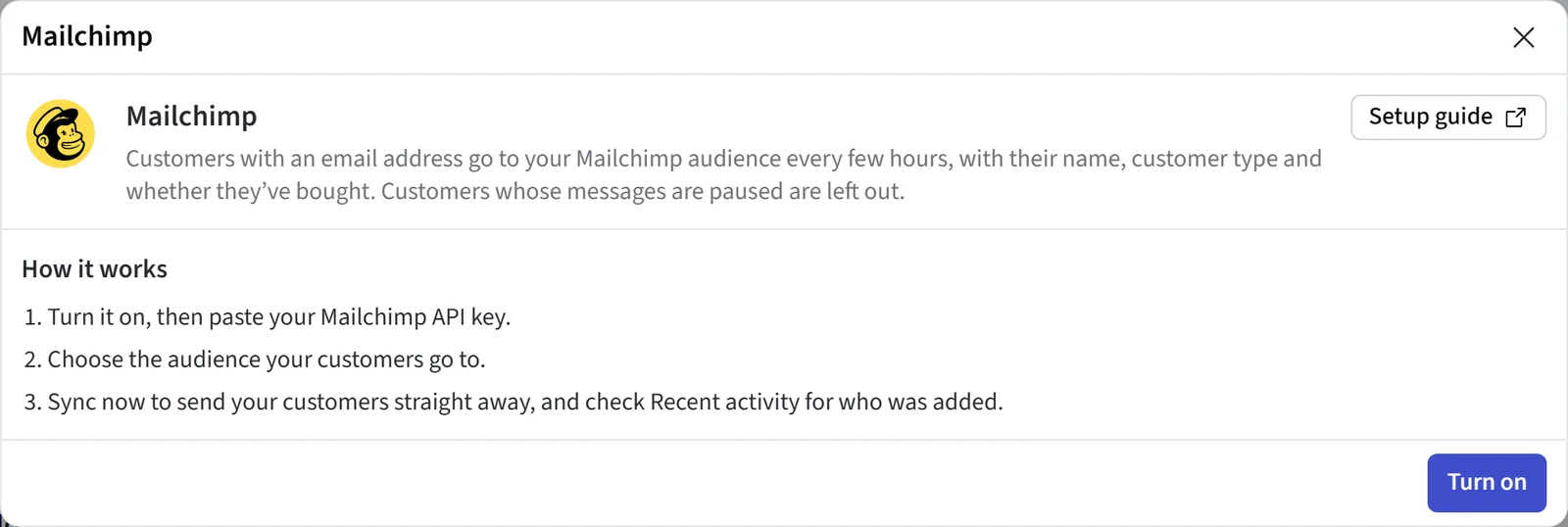
- Paste your API key from earlier and click Save. Once saved, the key isn't shown again: the field stays empty and says it's saved. To replace it, enter a new key; leave it empty to keep the saved one.
- Choose the Audience your CloudBridal contacts should sync to. Click Test connection any time to check that CloudBridal can reach Mailchimp.
- Click Save. Your contacts will then sync automatically every few hours.
- Optionally, click Sync now to do your first sync straight away, and check Recent activity for who was added.
Using Mailchimp
For more guidance on the best use of Mailchimp, please refer to their help center at this link. You can use the Made Purchase and Customer type tags to further segment your audience for more specific emails.
Updated on: 19/10/2026
Thank you!