
Initial Data Import
Plan Requirement: Free Trial or Ultimate
Import from a spreadsheet helps you move to CloudBridal from another system or set up your store with bulk data, using Excel spreadsheets instead of typing everything in. Find it in Reports & tools › Tools › Import from a spreadsheet. It needs permission to change settings.
Available Import Types
CloudBridal currently supports importing three types of data:
Inventory Items Import
Supported fields:
- Customer type: The type of customer the item is for, or blank if it's not customer specific. Must exactly match one of the customer types you have defined in Customer Settings.
- Item type: The type of item the item is. Must exactly match one of the item types you have defined in Settings › Items.
- Vendor name: The name of the vendor/designer the item is from. CloudBridal will automatically create a new vendor if the name is not found in your existing vendors.
- Item Internal Name: The item's name/style ID/SKU from the vendor.
- Item Display Name: The name you would like to display to your customers. If blank, uses the Item Internal Name.
- Quantity: The quantity of the item you have in stock.
- Size: The size of the item, or variation name if it's a non-dress item.
- Color: The color of the item, if applicable.
- Wholesale price: The price you pay for the item.
- Retail price: The recommended retail price of the item.
- Sale price: The actual price that the customer pays for the item. If blank, uses Retail price.
- Comments: Any notes you would like to include about this item.
Customers Import (Contact Data)
Supported fields:
- Customer type: The type of customer the item is for. Must exactly match one of the customer types you have defined in Customer Settings.
- Name: The customer's full name.
- Email: The customer's email address.
- Phone number: The customer's phone number.
- Event Date: The customer's event date, such as their wedding date. This creates an event on the customer's Events tab — or updates the date on the event they already have.
- Home address: The customer's home address.
- Notes: Any notes you would like to include about this customer.
Customers + Appointments Import
This import type lets you migrate historical appointment data while automatically creating customer records. It's ideal for stores transitioning from another booking system.
Supported fields:
- Appointment type (required): The type of appointment. Must match one of your existing appointment types defined in Appointment Settings (matching is case-insensitive).
- Date (required): The appointment date. Supports various formats including
yyyy-MM-dd,MM/dd/yyyy, anddd/MM/yyyy. - Start time (required): The appointment start time. Supports
HH:mmformat (e.g.,14:30) or text format (e.g.,2:30 PM,9am). - End time (required): The appointment end time. Same format options as Start Time.
- Customer name (required): The customer's full name.
- Customer email: The customer's email address.
- Phone number: The customer's phone number.
- Event Date: The customer's event date, such as their wedding date.
- Home address: The customer's home address.
- Referred from: How the customer was referred to your store.
- Internal notes: Private notes about this appointment (not visible to customers).
How customer matching works:
When importing appointments, CloudBridal will:
- First try to match an existing customer by email address or phone number
- If no match is found, create a new customer record with the provided information
- Link the appointment to the matched or newly created customer
Import Process
Follow these steps to import your data:
Step 1: Download the Template
- Open Import from a spreadsheet.
- Choose what to import: Items, Customers, or Customers and their appointments.
- Click Download template. For items, you can instead click Download your current items to edit what you already have.
Step 2: Fill in Your Data
- Open the template in Excel or another spreadsheet application
- Fill in your data according to the column headers
- Save the file when complete
- See the fields reference above for more information on what each column means
Step 3: Upload and Verify
- Click Upload file and select your filled-in file.
- CloudBridal checks it straight away and shows what will be imported.
- Review the summary to make sure it matches what you expect.
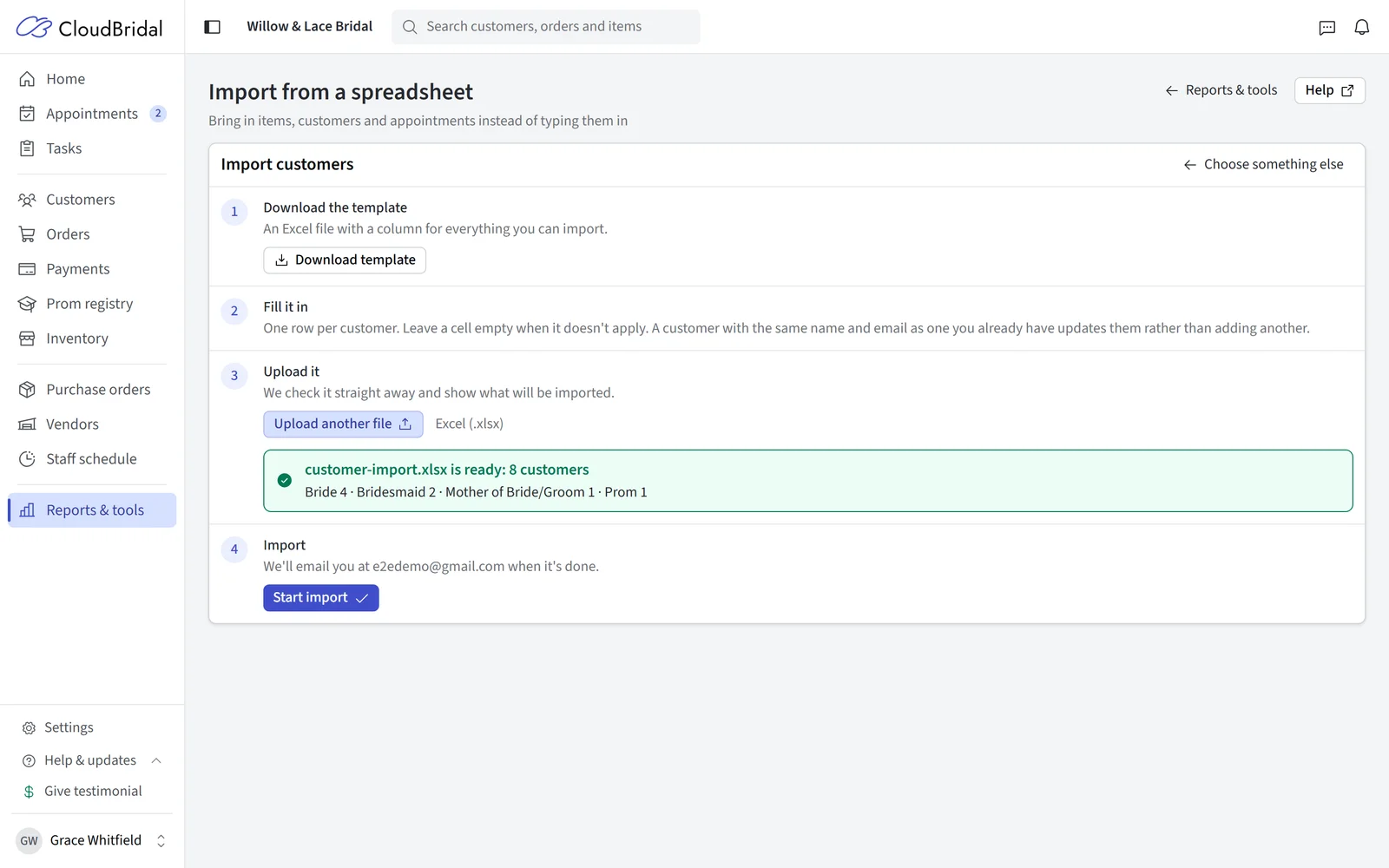
Step 4: Begin Import
- Click Start import and confirm.
- The import runs in the background, so you can keep using CloudBridal.
- You'll receive an email with the results and any issues when it's done.
Reimporting Data
You can run imports multiple times to make any corrections as needed:
- Inventory Items: If CloudBridal finds a matching item (same vendor and item name), it will update that item instead of creating a new one
- Customers: A customer with the same name and email address as an existing one updates that customer instead of adding a new one. A matched customer's event date updates their existing event rather than adding a second one
- Appointments: CloudBridal matches existing appointments by the combination of date, start time, and customer name. If a match is found, the appointment is updated rather than duplicated.
Troubleshooting
If you encounter issues during import:
- Check that your template follows the required format
- Look for required fields that might be missing
- Verify that date fields are in the correct format
- For appointment imports, ensure all appointment types exist in your Appointment Settings before importing
- For very large imports, try splitting into smaller batches
- Review the email results for specific error messages
If you need assistance with importing your data, contact CloudBridal support at support@cloudbridal.com.
Updated on: 19/10/2026
Thank you!