
Appointments
The appointment system in CloudBridal helps you manage your bridal shop's schedule while providing a professional booking experience for your customers. This guide covers how to effectively use the system in your daily operations.
Initial Setup
To configure your appointment system, refer to the Appointments Setup documentation.
Calendar Overview
The appointment calendar serves as your central hub for managing customer appointments. You can view your schedule in day, week, or month format, with each view optimized for different planning needs.
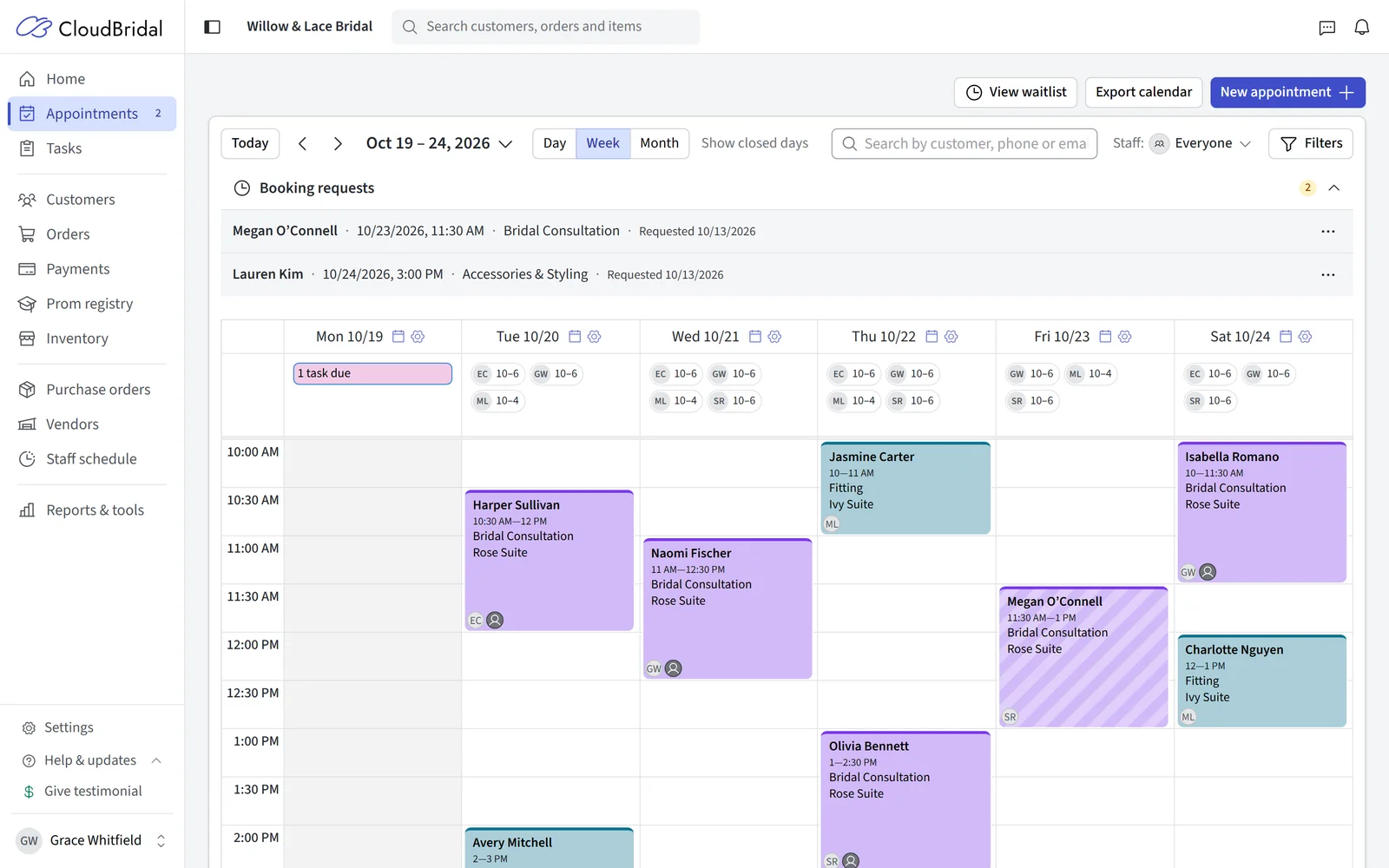
- In Day view, each appointment shows the customer's event date, using your shop's own label for it (such as "Wedding date").
- On a phone, Day view is a list of the day's appointments in time order. Tap one to open it.
Booking Requests
Appointments waiting for you to confirm, including waitlist requests whose time has opened up, are listed under Booking requests above the calendar. While a status or visit stage filter is on, the list is hidden and a note says so.
A request opens as Appointment request (or Waitlist request), and one made online shows the date it was requested.
Understanding Appointment Statuses
Each appointment status serves a specific purpose and may trigger different system behaviors:
Pending
Description: Awaiting staff confirmation
When It Occurs: Customer requests appointment through booking system. Can be skipped altogether if Automatic confirmation is turned on for the related appointment schedule.
System Actions:
- Appears under Booking requests
- Staff receives notification via email and notification center
- Customer notified of request receipt
Confirmed
Description: Approved and scheduled
When It Occurs: Staff confirms a pending appointment or creates new appointment
System Actions:
- Sends confirmation email to customer
- Creates customer's profile in the system
- Processes payment if applicable (e.g. paid appointment)
- Can be charged as no-show if applicable
Declined
Description: Rejected by staff
When It Occurs: Staff declines a pending appointment request
System Actions:
- Sends declination email (optional)
- Releases time slot for rebooking
- Can include reason for declination
Cancelled
Description: Cancelled by customer or staff
When It Occurs: Customer cancels or staff cancels confirmed appointment
System Actions:
- Sends cancellation notification
- Releases time slot
Incomplete
Description: Appointment didn't complete as planned
When It Occurs: Staff marks completed appointment as incomplete (no-shows, etc.)
System Actions:
- Can be charged as no-show if applicable
- Easily distinguishable in calendar
Cancelled, Declined, and Incomplete all mean the appointment didn't take place. They share the same badge in appointment lists, and they're greyed back on a customer's profile.
Creating Appointments
Ways to Start a Booking
- New appointment at the top of the calendar: choose First-time, Follow-up or Schedule block.
- Click a time in Day or Week view: choose First-time appointment, Follow-up appointment, Schedule block or Task. Task creates a task due that day; it's offered when task management is on and you can manage tasks.
- A customer's profile: book a follow-up straight onto that customer.
The Scheduling Assistant
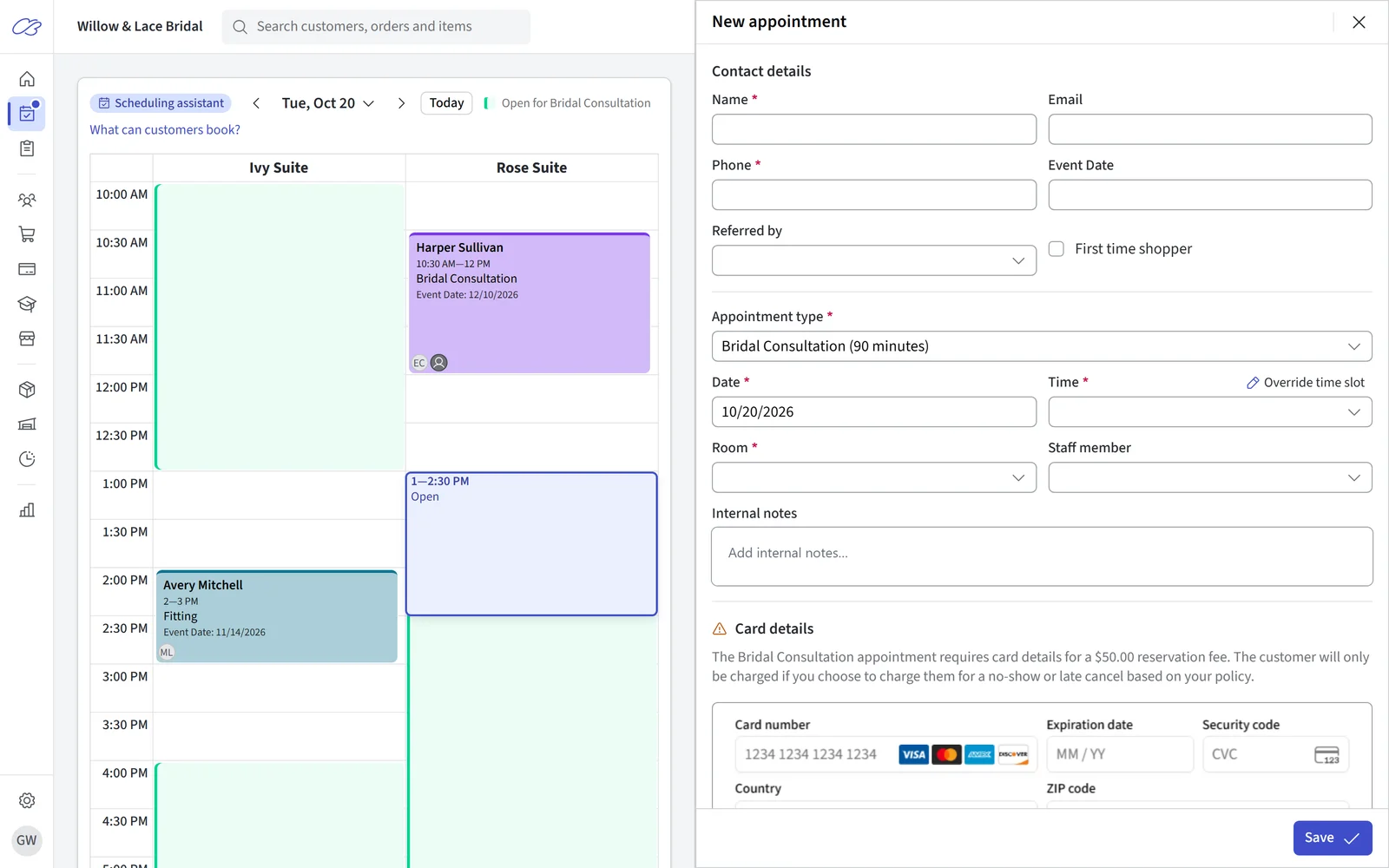
While you book, the calendar becomes a one-day view beside the appointment form:
- Choose the appointment type first. The day then shows only the rooms that type books into, with its open times shaded. The link beside the rooms shows all of them, and arrows page through rooms when there are many.
- Point at a time to preview the booking there, and click to place it. Drag the placeholder to move it.
- Use the arrows or click the date to change day. On a day with no rooms open, Override schedule for this day opens it, if you can manage appointments.
- What can customers book? shows which times customers can book online for that type and day, and why other times aren't offered.
Choosing a Time in the Form
CloudBridal works out the possible slots within an appointment schedule and shows whether each one is available for booking.
Slot Status Indicators
🟢 Available: Time slot is open and recommended
🔴 Unavailable: Time slot is fully booked or blocked
🔒 Staff only: Slot restricted to staff bookings only
Override Options
- Override time slot: Manually set times outside recommended slots
- View slots: Switch between manual time entry and slot picker
- System warns about potential conflicts while maintaining flexibility
Staff Assignment
For schedules based on staff scheduling, the staff field pre-fills with the person CloudBridal would assign automatically, marked Automatic — leave it as-is to keep automatic assignment, or pick someone specific. The dropdown shows each person's status for the selected time (Available, Booked at this time, Not working at this time, or At daily limit), and choosing someone with a conflict shows a warning.
When you save, CloudBridal re-checks the slot and staff member. If either was taken while you were editing, you'll be asked to confirm before overbooking — no accidental double-bookings.
Printing a Customer's Appointments
Click the printer icon in the Appointments section of a customer's profile to generate an appointment summary.
Appointments that didn't take place are left off by default. Turn on Display Cancelled, Declined & Incomplete Appointments in the Display Options bar to include them — each row is labelled with its own status. The toggle only appears when the customer actually has one of those appointments.
Payment Integration
If enabled, the payment system integrates directly with appointment creation and management. All payment processing is handled securely through Stripe. For more information, see Stripe Integration.
Booking a Paid Appointment
When staff book an appointment type that charges at booking for a customer with a saved card, the Card details section offers Card on file or New card. Pick a saved card, or enter a new one.
If the payment fails, the appointment is still saved, so you can fix the card and save again without booking it twice.
Choosing a saved card needs permission to manage both appointments and customers.
Abandoned Bookings
If a customer starts booking an appointment type that requires a card but never completes the payment step, the booking isn't scheduled — but it isn't lost either. It appears under Abandoned bookings at the top of the Appointments screen for 14 days, with the customer's contact details, so you can reach out and rebook them. The customer is never charged and no time slot is held while a booking sits on this list. Dismissing an entry removes it for good; opening one shows a warning that its payment step was never completed.
Waitlist Management System
How Waitlists Work
When a desired time slot is fully booked, customers can:
- Join Waitlist: Request to be notified if slot becomes available
- Flexible Waitlist: Indicate willingness to accept nearby time slots
- Specific Time: Request exact time slot only
If the slot becomes available, the appointment will surface under Booking requests, where a staff member can confirm the appointment after ensuring the customer is still interested.
Customer Self-Service
Customers can join a waitlist when a slot is full and remove themselves later from their request page, without calling the store. Each customer can hold one active waitlist request at a time.
Schedule Blocking and Time Management
Managing a Day's Schedules
Open Manage day to adjust a specific date without touching your regular weekly schedules. Rooms are grouped by how they're staffed — fixed-hours rooms, staff-scheduled rooms, and rooms you've opened just for this day — and each room can be opened or closed for the date, with a reset button to return it to its default.
In the Day view, click Day notes above the calendar. In the Week and Month views, click the gear beside a date.
For staff-scheduled rooms you can also:
- Set a booking window for the date — bookable times stay driven by staff working hours, but only inside the window
- See exactly which staff members are working that room that day, with a shortcut to adjust their shifts
- Enable Allow bookings without staff coverage to let the day be booked even when nobody is scheduled — useful for trunk shows and special events; those appointments save without an assigned staff member
CloudBridal warns you when a booking window extends beyond staff hours, so a date is never silently unbookable.
Types of Schedule Blocks
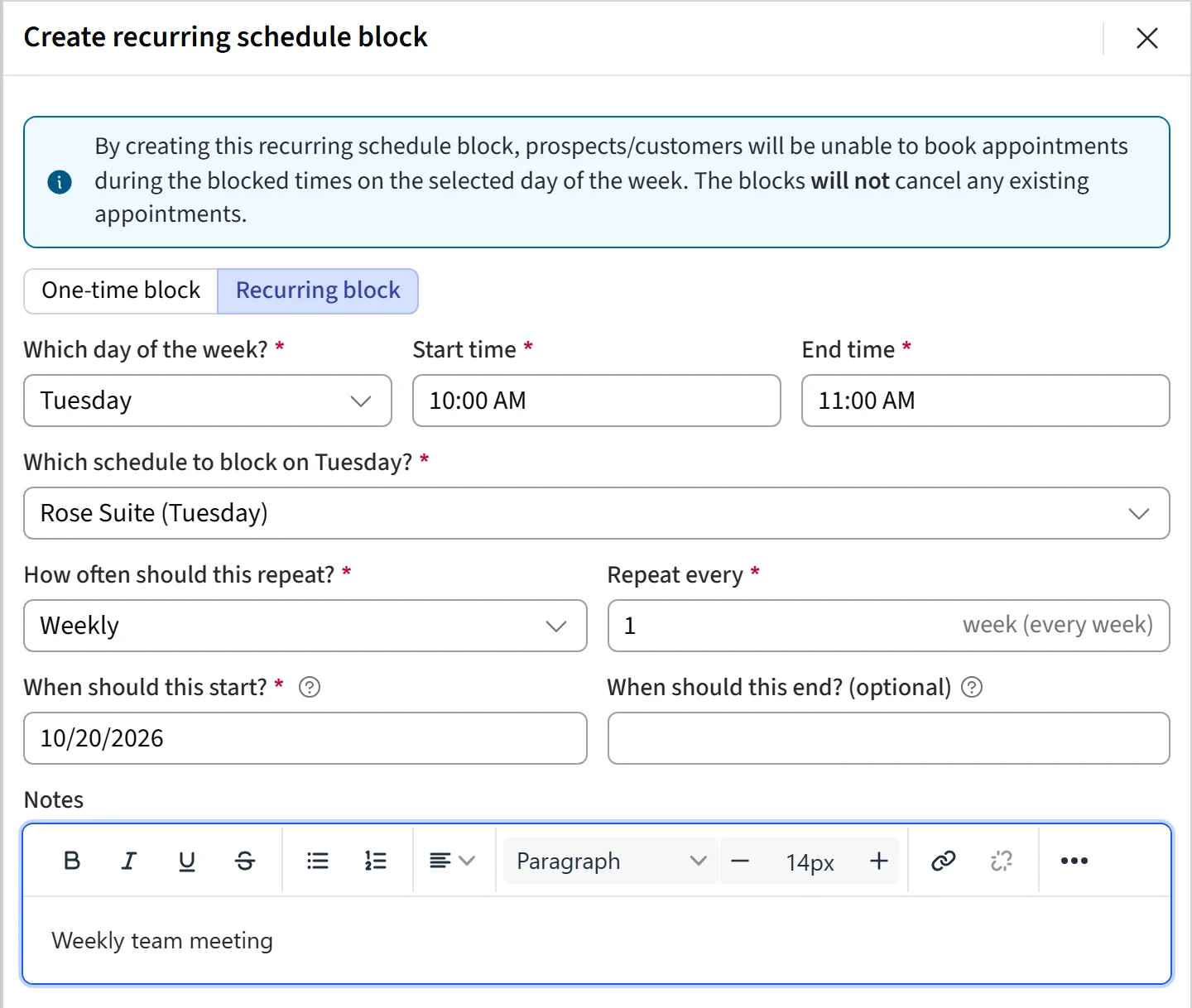
Create a one-time or recurring block from New appointment › Schedule block on the calendar.
Closing the Store
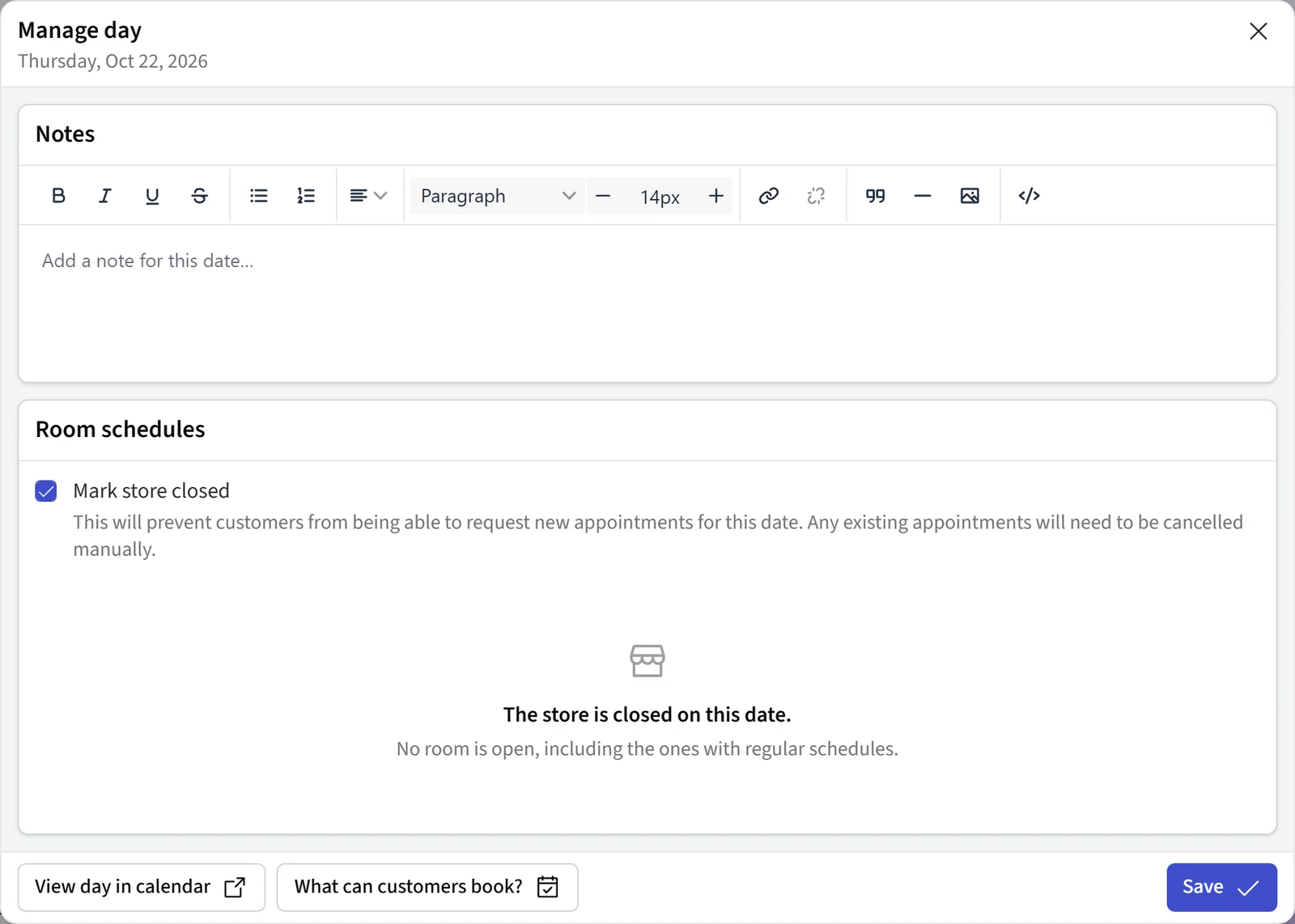
You can mark the store as closed for a given date. This prevents all bookings for that day and is great for holidays. Open Manage day for that date and tick Mark store closed.
One-Time Blocks
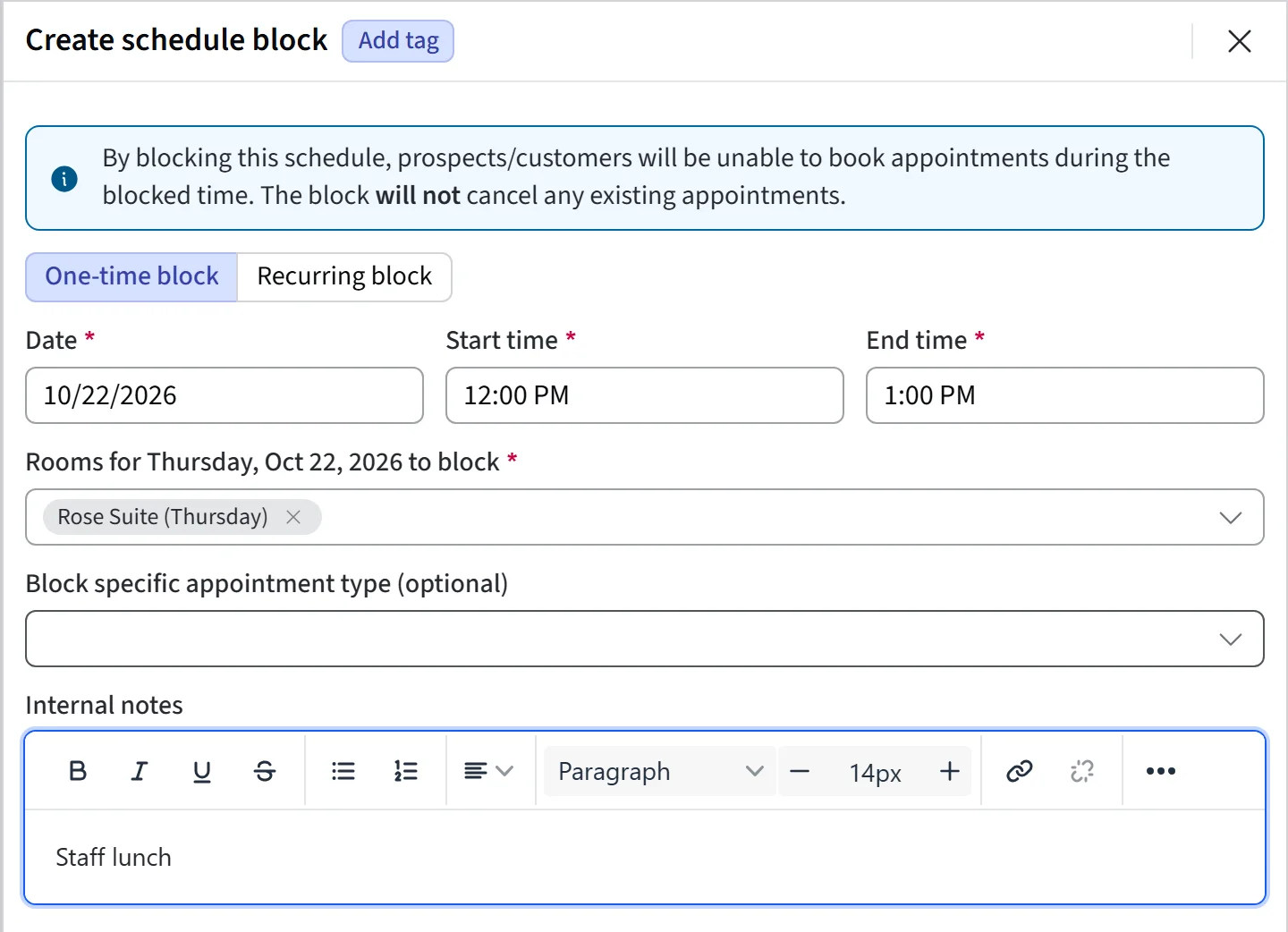
You can block a given schedule using a One-time block. This allows you to prevent bookings for a given time range for a specific date.
Recurring Blocks
You can block a schedule with a Recurring block. This will repeat based on your configured schedule unless removed. You can still control and override individual dates by modifying a recurring block just for a given date.
Updated on: 19/10/2026
Thank you!