
Payments & Processing
Payments & Processing
CloudBridal includes various useful features to help you keep track of your customers' payments and outstanding balances. To summarize, there are two primary options for handling payments:
- Integrated payment processing using the Stripe Integration. See the linked reference for instructions on how to connect with Stripe.
- Bring-Your-Own-Processor: Allows you to use your processor of choice to charge the customer, while using CloudBridal to maintain their payment history and balances.
Both these options use our payment tracking system, which is what this article covers.
Customer Payments
To access a customer's payment history, you can navigate to their profile. The Overview tab includes a Payments section that shows all payments for the customer across all orders. Additionally, you can view their outstanding balance due.
The payments list shows:
- All payments made for the customer, grouped by order
- Remaining balance due
- Payment dates and methods
- Status of each payment (Paid or Pending)
Creating a New Payment
To record a new payment:
- From the payments list, click New payment. The payment form opens straight away, set to Collect now.
- To record a payment due in the future instead, or to send the customer a link to pay later, switch to Schedule for later at the top of the form.
- Fill out the payment details:
- Associated order: The order to apply the payment to. With no order picked, a line under the field says the payment becomes credit that the customer can use on any order later.
- Amount: The payment amount, with quick buttons above it: Pay in full, Pay half, or a percentage with Pay %
- Date: When the payment was made. Defaults to today's date.
- Payment method: How the customer paid (Cash, Credit Card, Check, etc.), shown in the order set in the payment settings, where you can add more and drag them into order. When you pick a cash method, enter the Cash received under it to see the Change due.
- Add a tip and Add a note: A tip or a note opens its field when you click its link
- Click the button at the bottom, which names what it will do, for example Record cash payment. Until a payment method is picked, it reads Pick how they're paying.
Processing with Stripe
If you have the Stripe integration enabled, Charge a card with Stripe is the first payment method. If your shop starts new payments with Stripe (in the payment settings), it's already picked. With it picked, the button at the bottom reads Charge and the amount; click it to choose how to charge under Charge with:
- Card reader: Process the payment on your Stripe terminal device
- Card on file: Charge a card saved to the customer's profile (offered when they have one)
- Type the card: Enter card details directly, for phone orders
- Payment link: Send the customer a link to pay online
Then click Charge (or Send to card reader, or send the link) to complete the charge. Nothing is saved until you do, so Back returns you to the details as you left them. The payment is recorded under your card payment method once the card goes through. See Stripe Integration for setup instructions.
While a card reader payment is in progress, CloudBridal keeps checking its status. If five checks in a row fail, it stops and shows Couldn't check this payment with the reason. Click Check again once the reader is back online, or Cancel payment on reader.
Changing a Past Payment
Changing the amount, payment method or date of a payment taken before today needs the Change payments already made permission (admins have it). See Staff Members & Roles.
Credit Card Surcharging
*Requires Stripe integration
Surcharging lets you pass credit card processing fees on to customers as a percentage. Turn on Add a card surcharge in Payments settings, set your rate, and accept the surcharging agreement.
- Available for stores in the US, Canada, and New Zealand.
- In the US and Canada it applies to credit cards only; in New Zealand it applies to all card types.
- While surcharging is on, customers pay by card at checkout — Apple Pay and Google Pay aren't offered.
- It's itemized at checkout and on receipts, works for in-store card-reader payments, and can be waived on an individual payment.
- A ready-to-print surcharge sign, pre-filled with your rate, is available from the settings page.
Surcharging rules vary by region and card network. You are responsible for meeting your local notification, signage, and rate-cap requirements.
Payment Status Options
Payments have one of two statuses:
- Paid: Payment has been received and processed
- Pending: Payment is scheduled for the future or awaiting processing
Scheduled Payments
When you switch to Schedule for later, the payment is created with a Pending status. Scheduling needs an order that still has a balance, so the switch only shows when one does. Scheduled payments are useful for:
- Tracking upcoming balances due
- Sending payment reminders to customers
- Allowing customers to pay via payment link or client portal
- Setting up automatic charging on the due date
Auto-Charge
*Requires Stripe integration
When creating a scheduled payment, you can enable Auto-Charge to automatically charge the customer's default card on the due date:
- Create a scheduled payment and set the Due date
- In the Auto-charge section, check Turn on auto-charge for this payment
- The system will display the customer's default card if one is set
Requirements:
- The customer must have a default card on file with confirmed authorization
- A due date must be set on the payment
Note: If no default card is set, you can still enable auto-charge. The payment will be charged automatically once a default card is added to the customer's profile.
Payment Links
Plan Requirement: Core or Ultimate
The payment links feature allows customers to pay online through the Stripe integration.
- Create a new Scheduled payment, or pick Charge a card with Stripe in the payment form and choose Payment link
- In the payments list, click the link icon in the payment actions
- Choose how to send the link:
- Email: Send a payment link via email
- SMS: Send a text message with the link
- Direct link: Get a URL to share through other means
- The customer can complete the payment online
- The payment is automatically marked as Paid when completed by the customer
Cards on File
*Requires Stripe integration
Cards on file allow you to securely store customer payment information for quick future payments and automatic charging.
Adding a Card
To add a card to a customer's profile:
- Navigate to the customer's profile
- In the Overview tab, find the Cards on file section
- Click Add card
- Enter the card details
- Optionally add a Card nickname (e.g., "Visa ending 4242")
- Confirm that you have obtained proper cardholder authorization for future payments
- Click Save card
Authorization Requirements
Cards require authorization confirmation before they can be used:
- You must confirm you have written authorization from the cardholder
- Cards without confirmed authorization show a Requires Confirmation badge
- Only authorized cards can be selected for payments
Managing Cards
From the Cards on file section on a customer's profile:
- Click any card to view details or make changes
- Set a card as the Default for automatic payments
- Deactivate cards that are no longer valid
Using a Card on File
When processing a payment with Stripe:
- Pick Charge a card with Stripe as the payment method and click Charge at the bottom
- Select Card on file under Charge with
- Choose the card to charge (authorized cards only)
- Click Charge and confirm
Payment Receipts
After recording a payment, you can send a payment receipt to the customer. If you are using the Stripe integration and processing an in-store payment, the system will prompt you to do so automatically.
If you are using an external processor for in-store payments, we strongly recommend sending the receipt through the external system as it will contain full context about the payment such as their EMV card information.
To send or print a receipt yourself:
- Find the payment in the customer's payments list. Receipts are available for paid and refunded payments, including payments not on an order
- Open the payment's ⋯ menu and click Receipt
- Choose how to send it:
- Email or Text: The button names the customer's email address or phone number, so one click sends it. With none on file, it asks for one. Texting needs an SMS integration
- Receipt printer: Print on a receipt printer or card reader
- The print and download buttons print it on paper or save a PDF
Each way sends once per opening, so a double click won't send it twice. The receipt includes payment details, date, and method. If processed through Stripe, it also contains the card details required on card receipts.
Refund Processing
Refunds start from the payment, not the order: in the customer's payments list, open the payment's ⋯ menu and click Refund. CloudBridal first asks what the refund is for — the order is being cancelled or returned, the sale is being reduced, money is being returned on an order whose total already came down, or the payment is being swapped for another method. Choosing a cancellation hands you into Cancel order, which settles the money, the stock and any scheduled payments together; the other answers keep the order open. You then enter the amount, any tip to return, and whether it goes back to the original payment method or becomes store credit. When a cancellation returns money across several payments, they appear on one screen and card refunds run one after another.
Stripe payments are refunded through Stripe automatically. For other processors, CloudBridal records the refund and you return the money through that processor.
To let customers know, switch on the Payment refunded email under Payments in Settings > Communications. It is off by default and goes out once money has actually been returned: when Stripe confirms a card refund, or when you record a cash or check refund. It covers order payments and appointment fees, and you can add your own introduction. Store-credit refunds do not send it.
See Returns, Refunds & Exchanges for the full walkthrough, the cancellation reasons, and returning items to stock.
Releasing Overpayments as Store Credit
When an order has been overpaid, you can release the overpayment as store credit. A preview shows the amount before you confirm.
Tip Tracking
CloudBridal allows you to record tips on a payment. You can run a report in the reports tool to list all tips made in a certain period based on the payment date, including the staff member associated to the sale.
Payment Processed with Stripe
Tips are automatically tracked if you enable them in your Stripe reader settings. When a customer leaves a tip through the terminal, the tip amount will be tracked in the system automatically.
Payment Processed Outside of Stripe
If you use an external payment processor, you can still track the tip amount in CloudBridal. On or after recording the payment, click Add a tip and enter the amount.
The tip link is hidden while Charge a card with Stripe is picked on a new payment, because Stripe collects the tip itself.
Payment Plans
For structured payment schedules, use the Payment Plans feature to create installment-based payment arrangements. Payment plans support auto-charge, allowing all scheduled payments in the plan to be automatically charged on their due dates.
Payment Settings Reference
The Payments settings page controls how your shop takes payments.
Card Payments With Stripe
Connect Stripe, see its status, and turn card payments in CloudBridal on or off. Manage shows your Stripe account and fees. See Stripe Integration.
Paying When They Book
Shown once Stripe is connected:
- Let customers pay when they book: Appointment types can then ask for a deposit or full payment when booked online
- Save the card when customers book: So you can charge a no-show or late-cancellation fee later
Taking Payments
- Start new payments with: choose Stripe or Another card machine (recorded only). Staff can switch for each payment
- Payment methods: The methods staff choose from, in the order shown. Drag to reorder
- Record tips with payments: Lets you record tips, which show up in your reports
- Usual payment percentage: Fills the box beside Pay % when staff take a payment (1–99)
- Add a card surcharge: See Credit Card Surcharging
- Take payment for alterations separately (and for additional work or additional fees): Only shown to shops that already take these payments apart from the item. Once turned off, it can't be turned back on
Payment Plans and Reminders
Plan Requirement: Core or Ultimate for payment plans
- Starting values for new plans: The initial deposit, number of installments and how often to collect. Staff can change them for each customer. Show example schedule previews a plan with your values. See Payment Plans
- Payment reminders: Shows whether reminders for scheduled payments are sending. Manage reminders opens them in Communications
The payment link, payment reminder and receipt emails are edited in Communications.
Card Readers
Lists the Stripe card readers on your account, with steps to set one up. See Stripe Integration.
Receipt Printing
USB receipt printer settings, and the logo and text printed on receipts, are in Devices & printing in General settings. See Printing Receipts With a Thermal Printer.
Payments Dashboard
The Payments Dashboard provides a birds-eye view for all recent transactions. This includes received payments but also provides a view of any pending or overdue payments, making the dashboard a great way to view a holistic overview of your payments.
You can navigate to the dashboard by clicking the Payments link in the left sidebar. Note that you will either need to be in the Admin role or have the See the payments dashboard permission. See Staff Members & Roles for instructions on how to manage and assign roles.
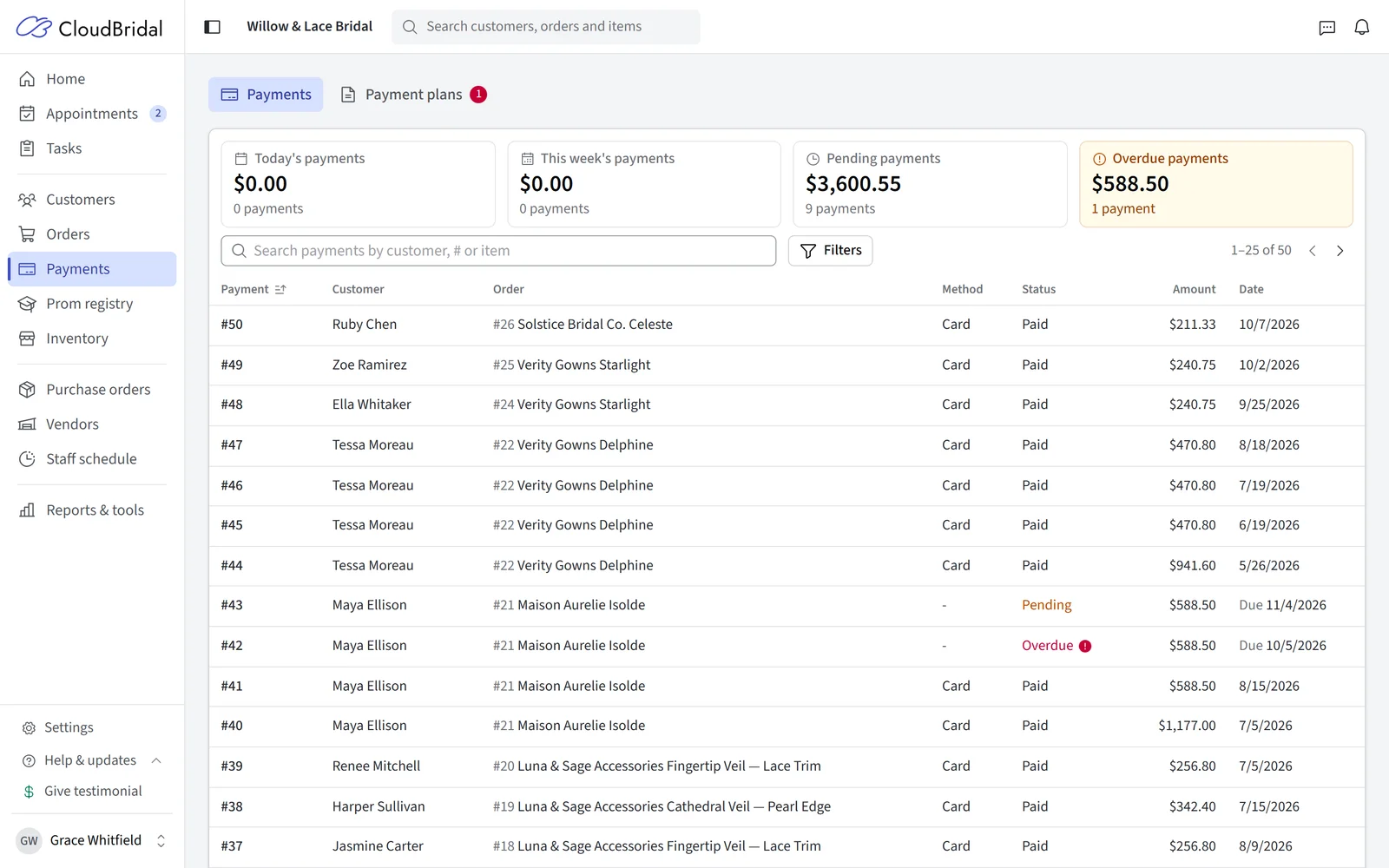
The dashboard is grouped into two tabs:
- Payments: Shows all recent transactions and allows you to filter payments by date and status.
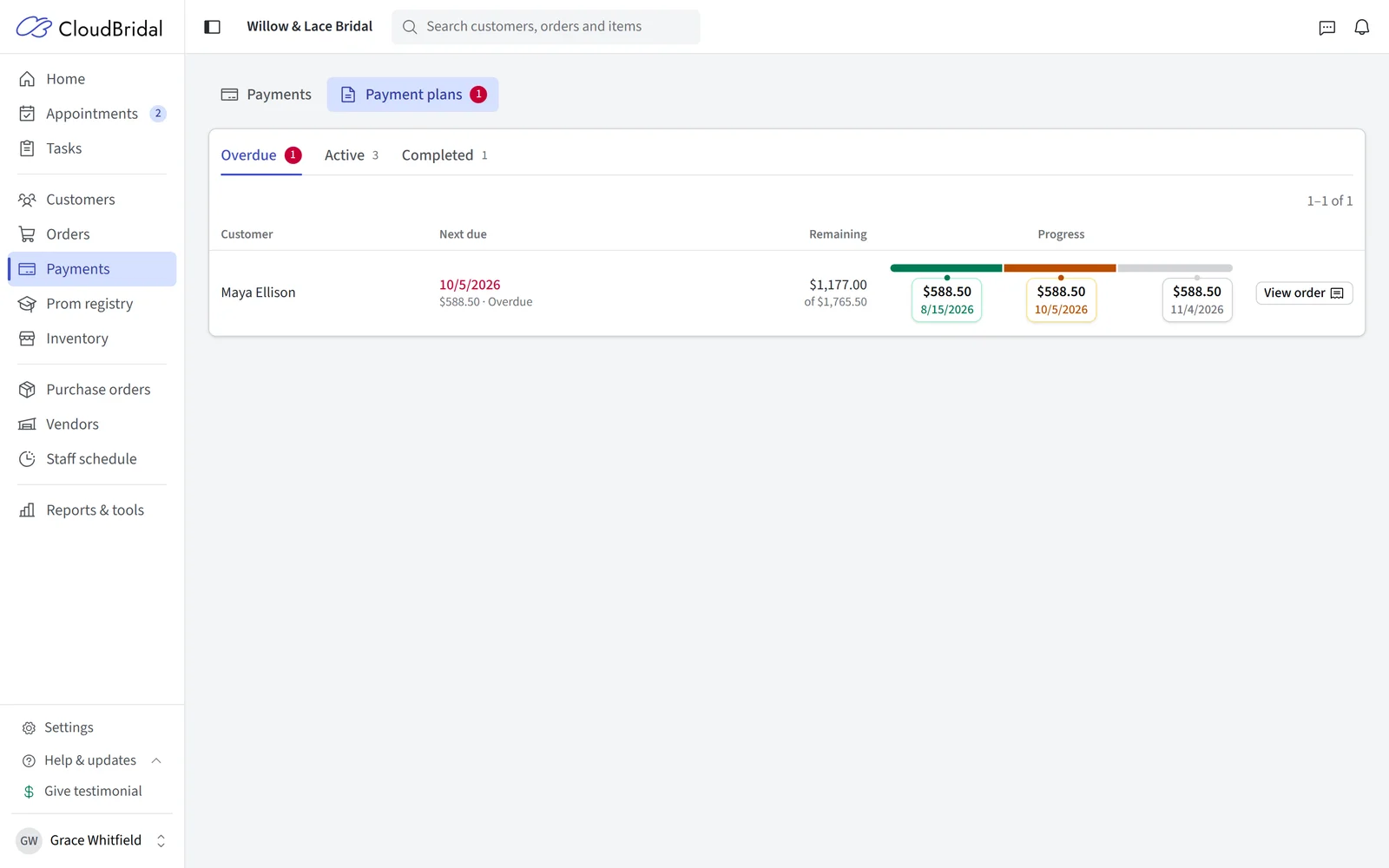
- Payment plans: Shows all payment plans created in the system, grouped by Overdue, Active, and Completed. Each payment plan includes a visual timeline with indicators based on payment status.
Updated on: 19/10/2026
Thank you!