
Pre-Registration Questionnaire
Plan Requirement: Ultimate
The Pre-registration form lets you design a customized registration experience for customers before they arrive for their appointment. This pre-appointment data collection streamlines your in-store process and captures valuable customer information.
When to Use Pre-Registration Questionnaires
Pre-registration questionnaires are most effective when you want to gather detailed information from customers after they've committed to an appointment but before they arrive at your store. This timing is ideal because customers have already made the decision to visit, so they're more willing to invest time in providing comprehensive information.
Pre-Registration vs. Appointment Questions
While pre-registration questionnaires and appointment questions both collect customer information, they serve different strategic purposes in your customer journey and should be used at different stages of the booking process.
Use Pre-Registration Questionnaires for:
- Detailed style preferences and shopping history
- Extensive background information about their event
- Optional information that enhances the experience but isn't required for booking
- Questions that might be overwhelming during the initial booking process
- Information that helps your staff prepare personalized recommendations
Use Appointment Questions for:
- Essential information required to confirm the appointment
- Critical information that affects appointment availability or pricing
- Simple, quick questions that won't deter bookings
How Customers Get the Form
Set this up on Settings > Pre-registration, under How customers get it:
- Invite customers to pre-register: Customers get a link to the form with their first-time appointment confirmation, and staff can send it from any appointment. The invitation's wording is edited in Settings > Communications.
- Form for a tablet in the shop: A link to open on a shop tablet. Customers fill it in while they wait, then hand it back so staff can finish it with them. Useful for walk-ins. For a customer who already has an appointment, send the invitation from the appointment instead: it's tied to her profile.
- Client portal: Customers with a confirmed appointment can also pre-register from the Client Portal, when Let customers complete pre-registration is on in its settings.
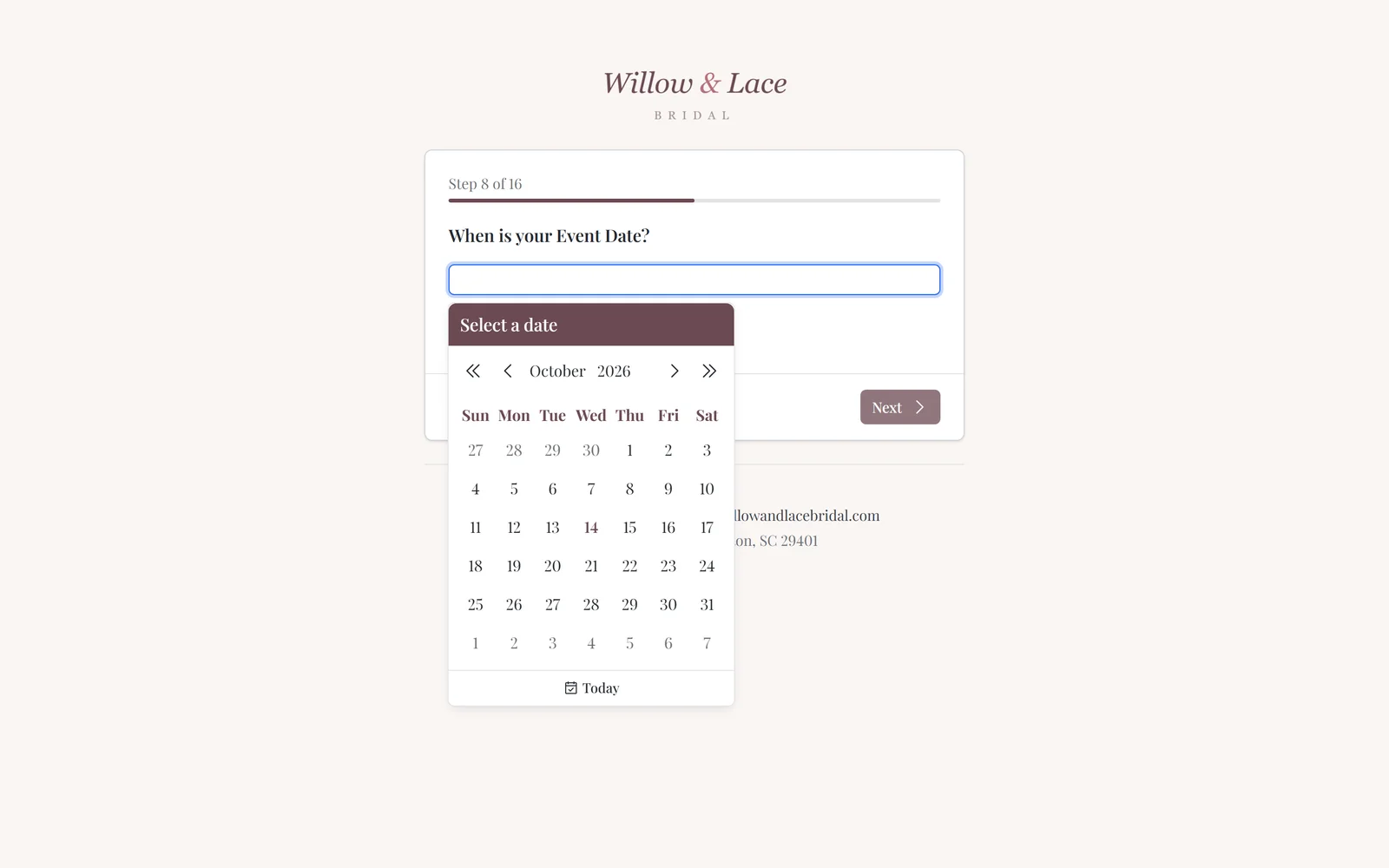
Questions
The Questions card lists the form's questions, one per page, in the order customers see them. Drag to reorder. Click Add and choose Question for something customers answer, or Page of text for a message between questions.
For each question you write, set:
- Where answers go: choose Save answers as a note on their profile, which is quickest; staff read the answers in the customer's notes. Save answers to a customer field puts the answer in one of your customer fields, for answers you want to filter, report on or use in automations.
- Question, plus optional Extra text shown with it.
- Answer type. Turn on List of answers to offer Choices, and Several answers to let customers pick more than one.
- Require an answer: Customers can't finish the form without answering.
- Who's asked: choose Everyone, Only on the shop tablet, or Only from their own link. Use Customer types to ask only customers of certain types.
Built-in questions, such as name, phone number and event date, fill in a detail on the customer's profile; each one's dialog shows what it Fills in.
To stop asking a question, open it and click Hide question, or Remove it. Hidden questions stay in the list, greyed out, so you can show them again. Removing a question keeps the answers customers already gave.
Customers don't choose their stylist or seamstress on the form. On the shop tablet, staff pick who helped the customer after it's handed back.
Welcome and Finish Pages
The pages around the questions are listed under Welcome and finish, for each way in: From their own link (Welcome, Review your details, Finish) and On the shop tablet, which adds Hand over to staff and Staff review. Click a page to edit its text.
Collecting the Venue
Venue is a built-in question that writes to the customer's event, so you know where the wedding or party is being held before the customer arrives.
It starts hidden. To use it, open Venue in the Questions list and click Show question.
You can also collect the venue on the appointment booking form — see Appointments Setup.
Field Pre-Population
A registration invitation sent by your staff prefills the form from the customer's profile, so she doesn't re-enter details you already hold.
A self-booked appointment prefills only what the customer typed when she booked. Nothing is pulled from a profile — a booking made with someone else's email address would otherwise read that person's address and event details back out.
How Pre-Registration Data Reaches Customer Profiles
When customers complete pre-registration, their answers populate their customer profile:
- System field responses (name, email, phone, address, etc.) update the corresponding customer profile fields
- Event fields (event date, venue) are written to the customer's event
- Answers saved to a customer field appear with the customer's other fields on their profile
- Answers saved as a note, including style preferences, are compiled into internal notes that staff can quickly review
How much is written back depends on how the customer reached the form:
- Staff-sent invitation — answers update the linked profile in full.
- Self-booked appointment that matched an existing profile — answers fill only the fields still blank. Anything already on the profile is left alone.
- Tablet form — creates a new customer, unless the email and phone answered both belong to an existing customer. Then the answers fill only the blanks on that profile, and it's marked as pre-registered, the same as a self-booked appointment.
Updated on: 19/10/2026
Thank you!