
Orders Setup
Orders settings control how orders move through your shop: what happens after a new order, which status steps you use, cancellation reasons, smart order helpers and rentals.
New Orders
- Customers sign off on new orders: When on, a new order's document opens for the customer to sign, or for you to print, before payment. When off, a new order goes straight to payment.
Order Statuses
Where special orders start:
- Placed with a vendor: Orders start as "New" until you place them with a designer, factory or other vendor. Most shops use this.
- Made or placed right away: Orders start as "Ordered", for orders you make yourself or place as you take them.
Quick orders and rentals are never placed with a vendor.
Turn on the optional steps your shop uses:
- Add a Scheduled step before Ordered: For orders you plan to place but haven't yet. Purchase orders get the step too.
- Add a Work in progress step: For orders being altered after they arrive.
- Add a Work finished step: For orders that are ready to collect.
- Add an In storage step: For ready orders you keep until they're collected.
The Orders move through preview shows the steps your orders will follow. Any order can also be put on hold.
When staff move an order to a step that has a date, it's dated today unless they change it.
Cancellation Reasons
Staff pick a reason every time they cancel an order or record a return, and the reason shows on the order and in its change history. Click Edit reasons in the Cancellation reasons card to manage the list. CloudBridal starts you with ten common reasons.
- Rename: orders already using the reason show the new name
- Retire: stops the reason being offered on new cancellations while keeping it readable on existing orders
- Delete: available only while no order uses the reason
See Returns, Refunds & Exchanges for the cancellation workflow itself.
Smart Order Helpers
Plan Requirement: Ultimate
Helpers act on new orders automatically, such as adding a fee or applying a bridal party discount. Your helpers are listed in a table showing what each does and which orders it applies to.
- Click Add helper and give it a Name
- Under When a new order matches, click Add condition to limit it by order type, item type, customer type or vendor. With no conditions, it applies to every new order. It only runs when all its conditions match.
- Under Then, choose what it does:
- Apply a discount: an amount or a percentage
- Add an item: pick the item to add and the type of order to add it as. E.g. add a tariff to special orders
- Approval: turn on Ask staff to approve each change to let staff accept or undo it before saving
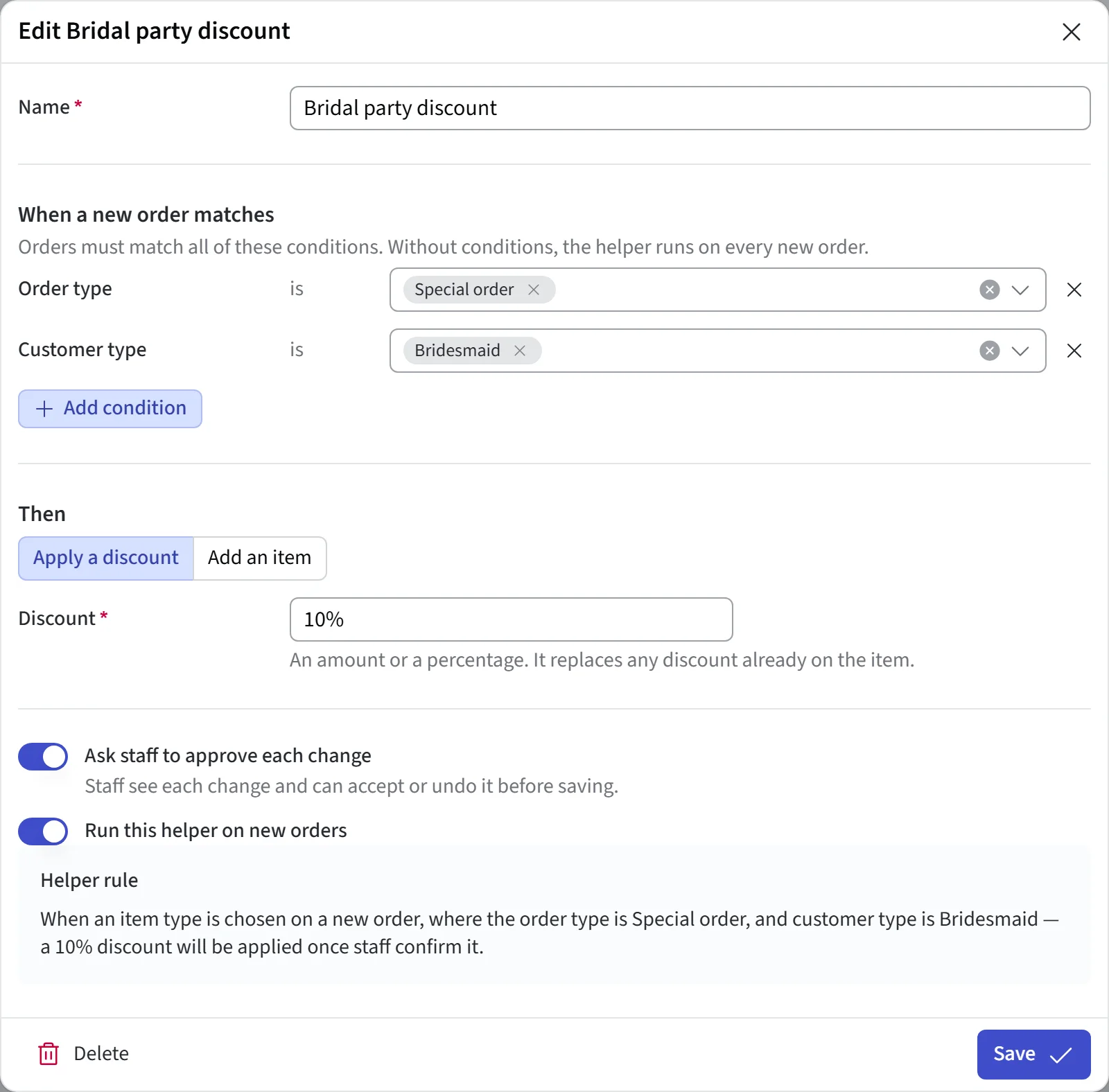
To stop a helper without deleting it, open it and turn off Run this helper on new orders. Paused helpers are hidden from the list until you tick the toggle above it.
Rentals
Plan Requirement: Ultimate
- Rent out items: Turns on rentals, with the dates items are reserved and when they're due back
- Reserved dates around the event: How many days before and after the event a rental keeps the item booked, so it isn't rented to anyone else
To record measurements on rentals, turn on Record measurements for rentals in Measurements settings.
Custom Order Fields
Add your own fields to orders to capture information specific to your business. See Custom Fields.
Updated on: 19/10/2026
Thank you!