
Prom Registry
Plan Requirement: Ultimate
The Prom Registry feature helps prevent duplicate dress styles at the same event by tracking which dresses have been purchased for specific schools, venues, or events. This ensures each customer has a unique look for their special occasion.
Key Features
- Track dress registrations by school/venue and season
- Prevent duplicate dress sales for the same event
- Support multiple prom seasons simultaneously
- Export registrations to Excel
- Include venue and season information on receipts
- Be alerted of prom registry conflicts when entering a sale
Configuring the Prom Registry
To set up the registry, navigate to the Prom Registry Settings page:
- Turn on Use the prom registry
- Configure the following options:
Registering a Dress
- Season: New registrations start in this season (e.g., "Spring 2025"), and the registry opens on it. You can change it any time.
- Schools and venues: The schools and venues staff pick from when registering a dress. Individual venues can also be entered at the time of sale, so you don't need to enter every venue.
- Allow the same dress in a different color: Registrations reserve only the color ordered, so others going to the same prom can buy the style in another color. Staff can change it for each dress.
- Register prom dresses on new orders: Add to prom registry starts ticked on new orders that can use the registry. Staff can untick it.
Choosing Which Orders Use the Registry
An order can be added to the registry when both its item type and its customer type use it. The When it applies section of the settings page lists them.
- Customer types: edit the type in customer type settings and turn on Prom registry. Customers with no type can be added too.
- Item types: edit the type in Settings › Items and turn on Prom registry.
Registering Dresses to the Registry
There are two ways to register a dress on an order that can use the registry:
1. Through an Order
When creating an order:
- Complete the order details form
- Check the Add to prom registry option
- Select the venue/school and season
- Complete the order
2. Directly in the Prom Registry
For existing orders that weren't registered at the time of sale:
- Go to the Prom Registry page
- Click New registration
- Search for an existing customer's order
- Select the venue/school and season
- Submit the registration
Using the Prom Registry
Viewing Registered Dresses
Navigate to the Prom Registry page, then select a season and, if you want, a venue. Search narrows the list further.
Each row shows the customer, venue, item, color, season and the order total for that registration. Use the row actions to open the customer's record, or edit or delete the registration.
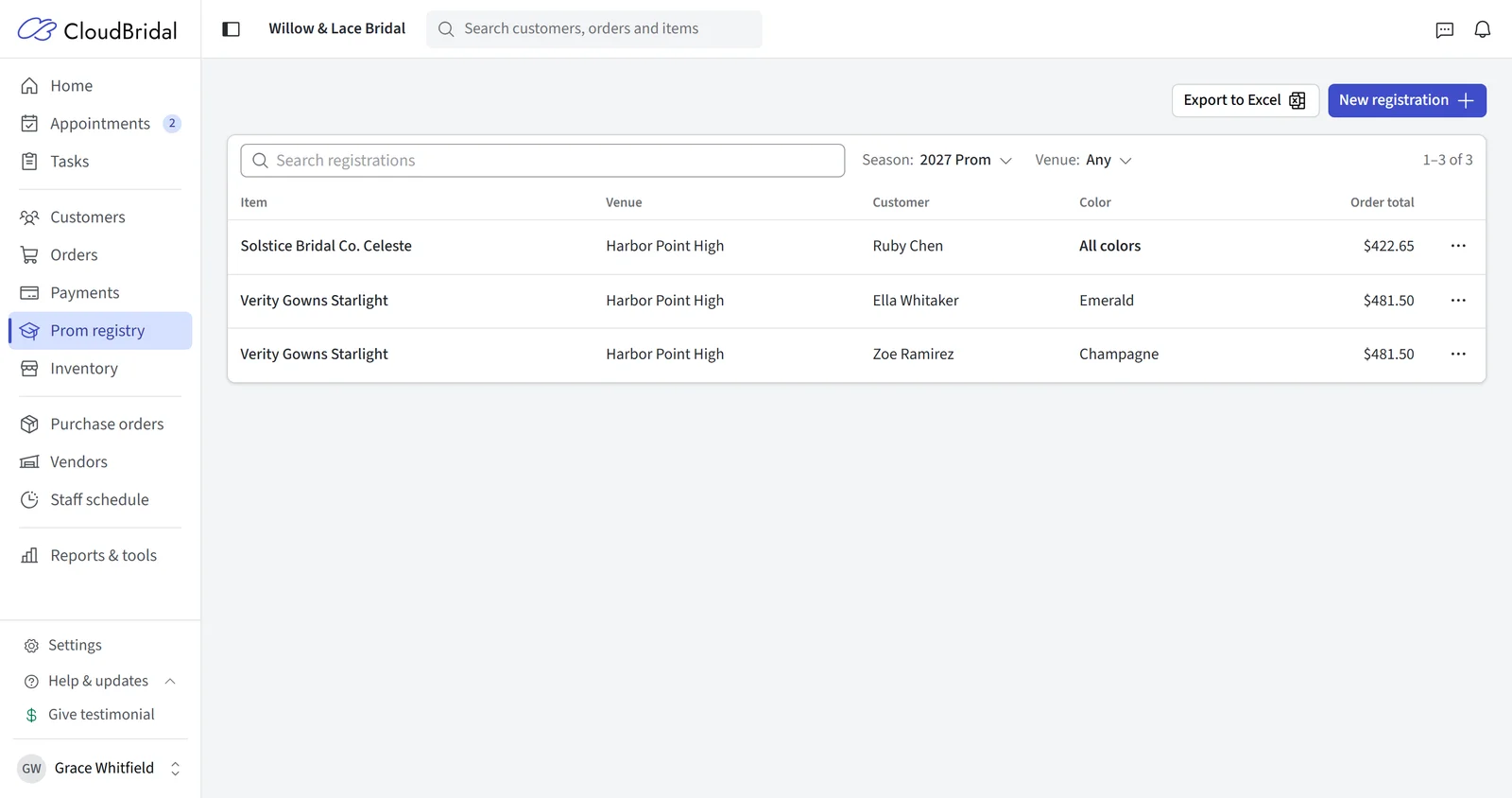
Click Export to Excel to download whatever the current season and venue selection is showing.
Conflict Prevention
The system automatically prevents duplicate registrations:
- When attempting to create an order for a dress that's already registered to the same venue/season
- A warning will appear showing that a different customer has already purchased a dress for the same venue/season
- You can then suggest alternative colors or styles
Receipt & Order Document Integration
You can display prom registry information on customer order documents:
- Go to Receipt Settings
- Enable the Prom Registry Venue and Prom Registry Season options when editing the document template
- These details will appear on the customer's order document
Updated on: 19/10/2026
Thank you!