
Sales Goals
Plan Requirement: Core or Ultimate
Give each sales associate a monthly net sales goal, then follow their progress on Home and in the Staff member sales report.
Who Can Set and See Goals
Two permissions, under Reports and goals in each role in Settings › Staff members:
- Set sales goals: open Set goals to change goals and what counts towards them. Includes everything See sales goals allows.
- See sales goals: see everyone's goals and progress on Home, and the goal columns in the Staff member sales report.
Admins have both. The Manager starting point includes both, and the Stylist starting point includes See sales goals, so a role started from it sees the whole team's goals. Untick it if stylists should see only their own.
Only sales associates can have a goal — staff members with Sales associate ticked under Can be picked as. See Staff Members & Roles.
Setting Goals
- Click Set goals. You'll find it:
- on Home, at the top of the Team goals card (or in the Sales goals card before any goals are set)
- in the Sales goals card in Settings › Staff members
- beside View report in the Staff member sales report, where it opens on the month the report starts
- Use the arrows beside the month to pick the month you're setting.
- Enter a Net sales goal for each sales associate. Leave it blank for no goal.
- Average month this year shows each person's net sales per finished month this year (blank in January). Click the figure to use it, rounded to the nearest hundred, as their goal.
- Fill blanks from averages does the same for everyone who has no goal yet.
- Optionally, under What counts, pick item types in Count these item types. Leave it empty to count all item types.
- Tick Each stylist sees their own goal on Home if people without See sales goals should see their own progress. It's off by default.
- Click Save.
A goal carries on each month until you change it. Count these item types and Each stylist sees their own goal on Home apply to every month.
Changing or Removing a Goal
When you change a goal someone already has, choose how far the change reaches:
- Just October (for the month you're on): that month only. The month shows an October only badge, and the months after it keep the goal they had.
- October onwards: that month and the months after it. A later month you've already changed keeps its own goal.
To remove a goal, clear the field and make the same choice. Changing a month never changes earlier months.
What Counts Towards a Goal
Goals use the same figures as the Staff member sales report's Net sale amount, less fees:
- Net sales: after discounts, before tax. Alterations, additional work and fees on an order count too.
- Item types: all of them, unless you picked some under Count these item types.
- Fees don't count: booking fees, and orders for any item type with Orders make a prospect a customer turned off (such as an appointment fee), are left out, and so are their refunds. They still show in the report's Net sale amount.
- Who gets credit: the order's sales associate, or the customer's assigned staff member when the order has none. A shared sale counts by its split — a 50/50 sale counts half to each person.
- Which month: the order's Date of sale, or the day it was created if it has none.
- Returns, refunds and cancellations: taken off the original sales associate's figure in the month they happen, not the month of the sale. A big return can pull someone back below a goal they'd reached.
- Drafts don't count.
Following Progress on Home
Team Goals
People with See sales goals see a Team goals card on Home:
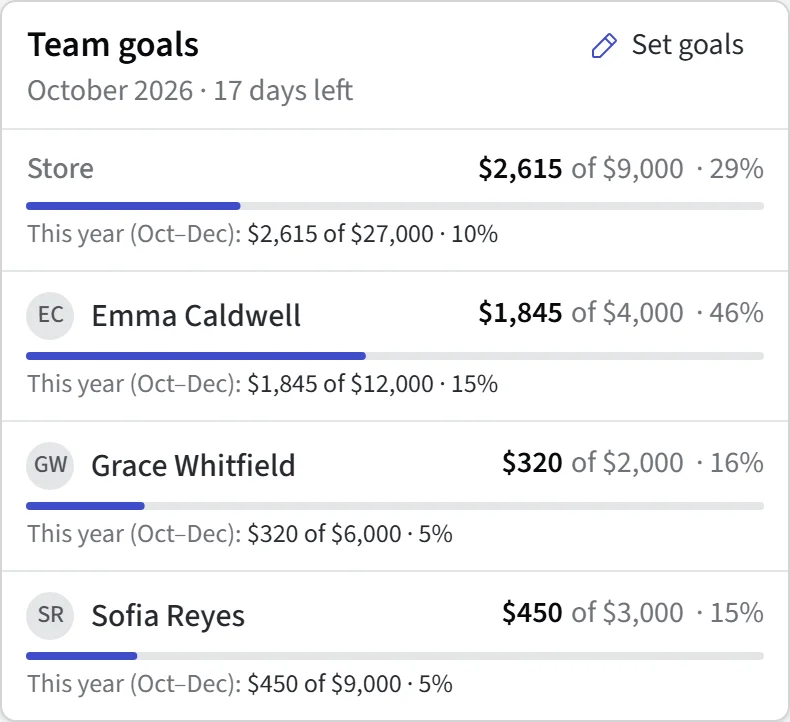
- The month and how many days are left.
- Store: the goals of everyone with a goal this month, added up, against their sales.
- A bar for each person with a goal this month: their net sales, their goal and the percentage. A green tick means the goal is reached; percentages carry on past 100%.
- This year: sales since the first month this year that had a goal, against the goals from that month through December added up. If the first goal came after January, the label shows the months, for example This year (Mar–Dec).
- Last month's result for each person along the bottom, with See report to open last month's Staff member sales report (for people who can run reports).
Before any goals are set, people with Set sales goals see a Sales goals card inviting them to start. Not now hides it for everyone in the store.
My Goal
When Each stylist sees their own goal on Home is ticked, people without See sales goals see a My goal card with their own net sales against their goal this month, and how last month ended. It appears only for someone with a goal this month, and shows nobody else's figures.
Reading Goals in the Staff Member Sales Report
People with See sales goals see goal figures when they run Staff member sales in Reports & Tools:
- Goal: each person's goals for the months in the date range, added up.
- Of goal: their counted sales as a percentage of that goal, with a progress bar.
- Counted for goal: the part of their sales that counts towards the goal. It appears when it differs from Net sale amount for anyone, because of fees, the item types goals count, or the report's own filters.
- Team goal tile: the goals of everyone who had one in the range, added up, against their counted sales.
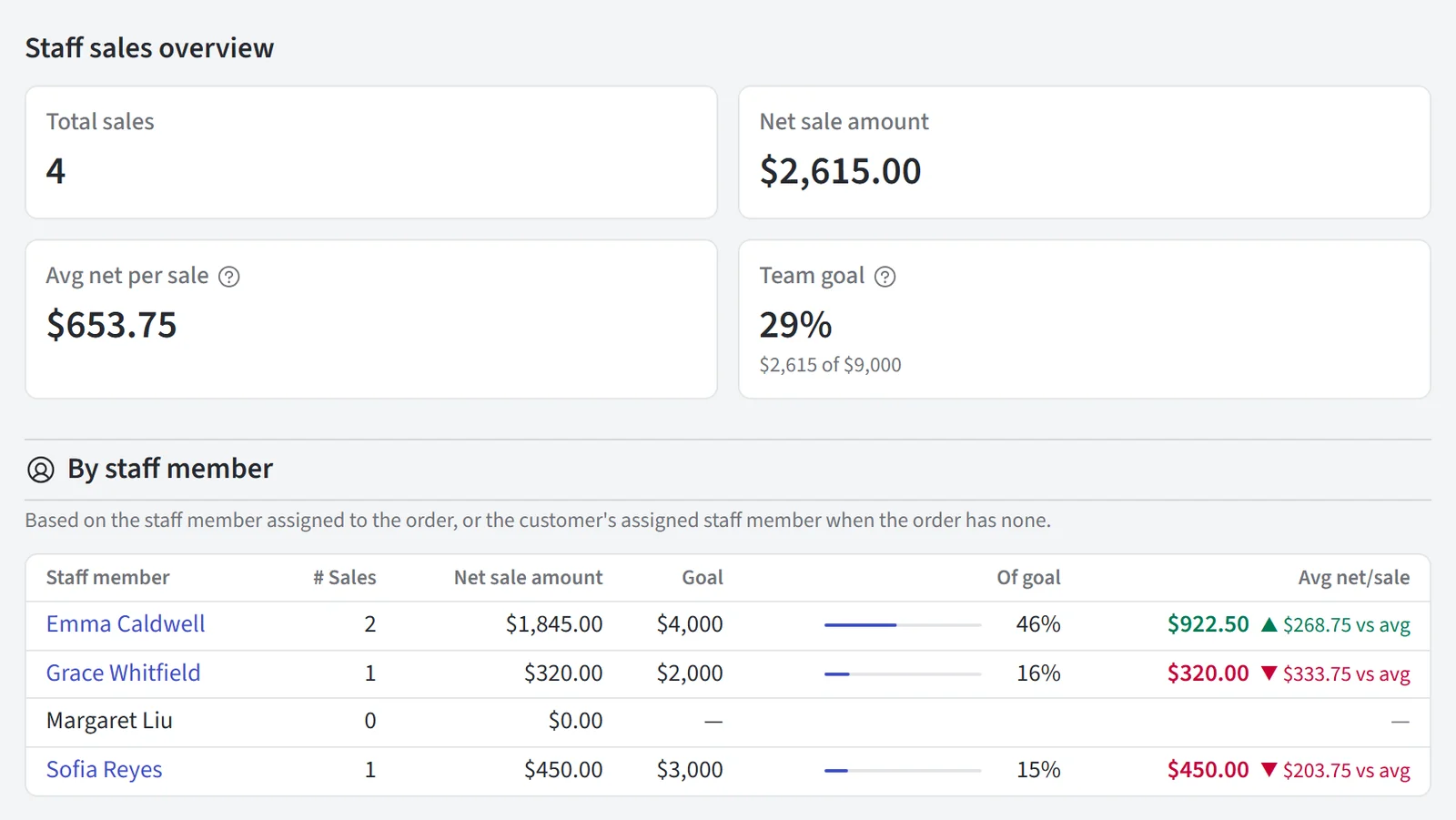
The goal figures always follow the rules in What Counts Towards a Goal — the report's own filters don't change them. Someone who has left still has a row while one of their goals falls in the range, even with no sales.
Date Ranges That Aren't Whole Months
A range covers whole months when it starts on the 1st and ends on the last day of a month — or today, so the month in progress is measured against its full goal, as on Home.
Any other range prorates each goal by day: each month's goal is split evenly across its days, and only the days in the range count. For example, a $30,000 goal in September is $10,000 for September 1–10.
- The columns become Prorated goal and Of prorated goal, and the tile Team goal (prorated).
- A prorated goal shows the pace over those dates, not how the month will end.
When Someone Leaves
Deactivating a staff member ends their goal from the current month. Earlier months keep their goals, so past reports still show them, and the team goal stops counting them from this month on.
Updated on: 19/10/2026
Thank you!