
Staff Scheduling & Time Tracking
Plan Requirement: Core or Ultimate
Staff management in CloudBridal allows you to both schedule staff for future shifts and track their actual worked hours. This comprehensive approach helps with staff planning, payroll, and performance analysis.
Staff Scheduling
Schedule your staff members' future shifts to plan coverage and coordinate with appointments:
Accessing the Schedule
- Navigate to the Staff Schedule page
- View the calendar display of all staff schedules
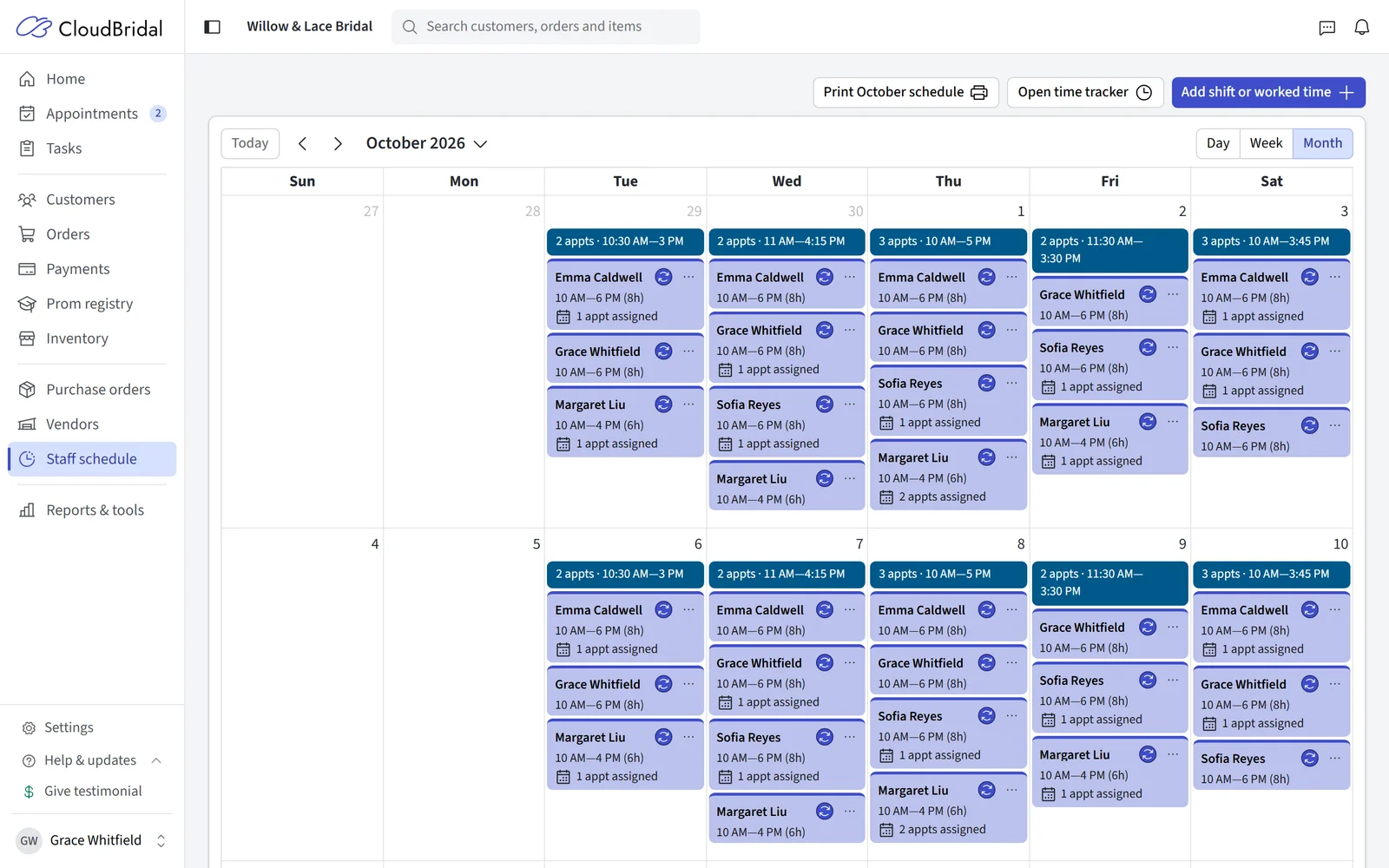
Creating Staff Schedules
To schedule a staff member for a shift:
- Click the Add Scheduled/Worked Time button
- Select the staff member
- Enter the schedule details:
- Date
- Scheduled start and end times
- Optional break times
- Notes for the day, if needed
- Toggle the Recurring option if this is a regular shift
- Save the schedule
If you plan to only use the clock in/out feature and don't want to create schedules, that's okay too. When a staff member clocks in, a record will be created for them automatically in the staff schedule calendar.
Recurring Schedules
For staff with consistent schedules:
- Enable the Recurring option when creating a schedule
- Set a start date for the recurring pattern
- That schedule will repeat weekly
Recurring schedules can be overridden or removed on specific dates as needed.
Schedule Notes
You can add notes to a staff member's schedule for a specific date:
- Click on an existing scheduled shift
- Add notes in the "Notes" field
- These notes will appear in the Staff Member Time report's shift details
Break Management
Staff breaks can be scheduled within their shifts:
- When creating or editing a schedule, click Add Break
- Enter the break start and end times
- Add optional break notes
- Save the schedule with the break included
Breaks are then surfaced in the staff time reports.
Time Tracking
Plan Requirement: Ultimate
Track actual hours worked by your staff for payroll and reporting:
Setting Up Time Tracking
- Navigate to the Staff Members settings page
- Scroll to the bottom to the Employee Time Tracker section
- Find the Direct link field with your unique tracking URL
- Set up a tablet or device in your store with this link bookmarked
Staff Clock In/Out Process
When staff members arrive for their shift:
- They select their name from the dropdown
- Enter their PIN code (configured in their staff profile)
- Click Begin day to clock in
- Confirm their check-in time
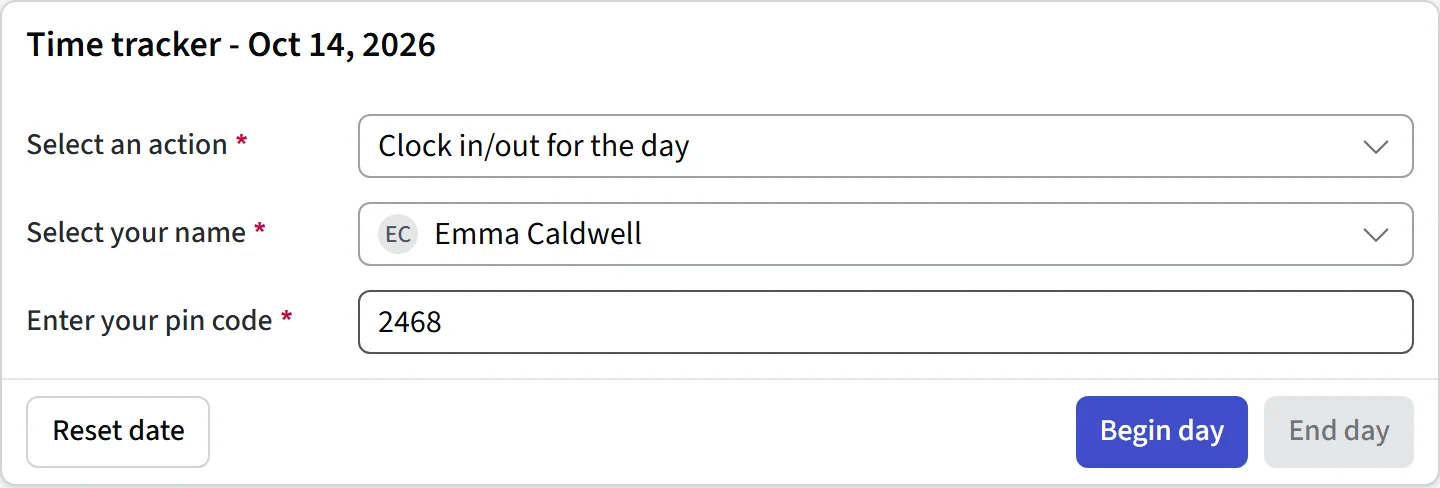
When leaving for the day:
- They select their name and enter their PIN again
- Click End day to clock out
- A summary displays their total worked time
Break Tracking
Staff can log their breaks during their shifts:
- During an active shift, the staff member can log in to the time tracker
- Click the Start break button
- When returning, log in again and click End break
- The break time is automatically tracked in their scheduled time
Manager Time Entry Management
As an administrator or manager, you can:
- View all staff time entries on the Staff Schedule page
- Click on any time block to see details
- Edit clock-in/out times if needed
- Add, modify, or remove breaks
- Mark shifts as complete or incomplete
- Add notes to shifts
Appointment Integration
Appointment availability can follow the staff schedules you create here:
- In Appointment Settings, edit an appointment schedule
- Under Availability & Staffing, base availability on Any capable staff member's schedule or Specific staff members' schedules
- Appointment slots then follow those staff members' scheduled working hours, and CloudBridal automatically assigns a staff member to each booking
This creates dynamic appointment availability based on your staff schedules. The Staff Schedule page keeps the connection visible:
- Each shift shows how many appointments are assigned to that staff member that day
- Daily summaries flag unassigned appointments — click to jump to that day's calendar
- Editing a shift shows which rooms it keeps bookable online, and deleting a room's only coverage warns you the room may no longer be bookable that day
Reports and Analysis
The Staff member time report analyzes staff time data at both levels:
- An overview per staff member: scheduled, worked and break hours, shift counts, and wages calculated from the hourly wage configured in each staff profile
- A detailed breakdown of each staff member's shifts: scheduled vs. actual start/end times, break duration, schedule notes, and completion status
Access it from the Reports page.
Updated on: 19/10/2026
Thank you!