
Design and templates
Your website's look comes from its template. Every template carries the same pages and words, so you can switch any time and keep everything you've written. The Design tab is also where you set your colors, fonts, logo and how your pages look in search results.
Choosing a Template
Open Website and choose Design. Under Template, your current template comes first, marked In use (or In your draft once you've switched but not published), and Other templates follow, each drawn with your own shop name, menu and banner:
- Preview with my content opens your whole site in that template, in a new tab, without changing anything
- Switch to switches your draft to that template
- A template made just for your shop shows Private to you
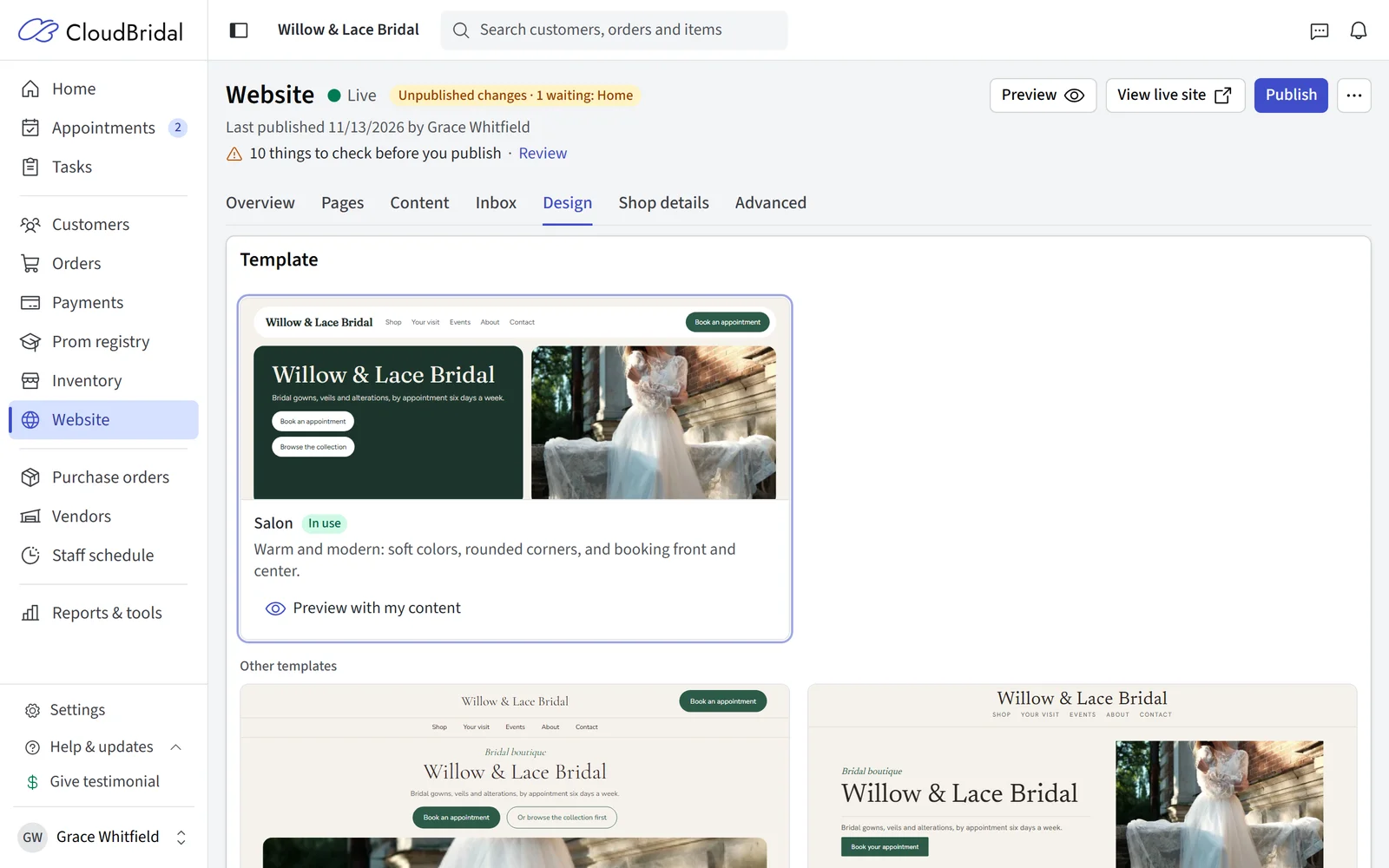
We add new templates over time, and every one works with the content you already have.
Switching Templates
- Click Switch to under the template you want
- Read the checks. CloudBridal points out anything that may not fit the new look:
- Texts longer than the layout is made for, with Review to shorten them
- Images that may crop badly, with Check focal point to choose the part of the photo that matters
- Styles the template doesn't draw
- Your custom CSS, if you have any: it's off in the preview, so check it after switching
- Under Colors, choose Keep my colors or Use the template's
- Click Switch template
Switching changes your draft only. Publish to make it live, and if you change your mind, Published versions can bring back the earlier version (see Publishing and history).
Colors and Fonts
The Colors and fonts card sets the look within your template:
- Buttons and links: your main color. CloudBridal checks that text on it stays easy to read and warns you if it won't
- Page background: the color behind your pages, checked the same way
- Fonts: a pairing of heading and body fonts made for the template, with a sample below
- Logo: shown in your header. Without one, your shop name shows in the heading font
- Browser tab icon: a square image of at least 512 pixels works best
- Style: how headings, lines and corners are drawn: Template's own, Classic boutique (capitals, fine lines, square corners), Soft or Modern
- More colors and corners: every other color the template uses (cards, text, secondary text, lines and borders, text on buttons, dark sections and text on dark sections), each with Use the template's to put it back, and Corners: Template's, Square, Slightly rounded or Rounded
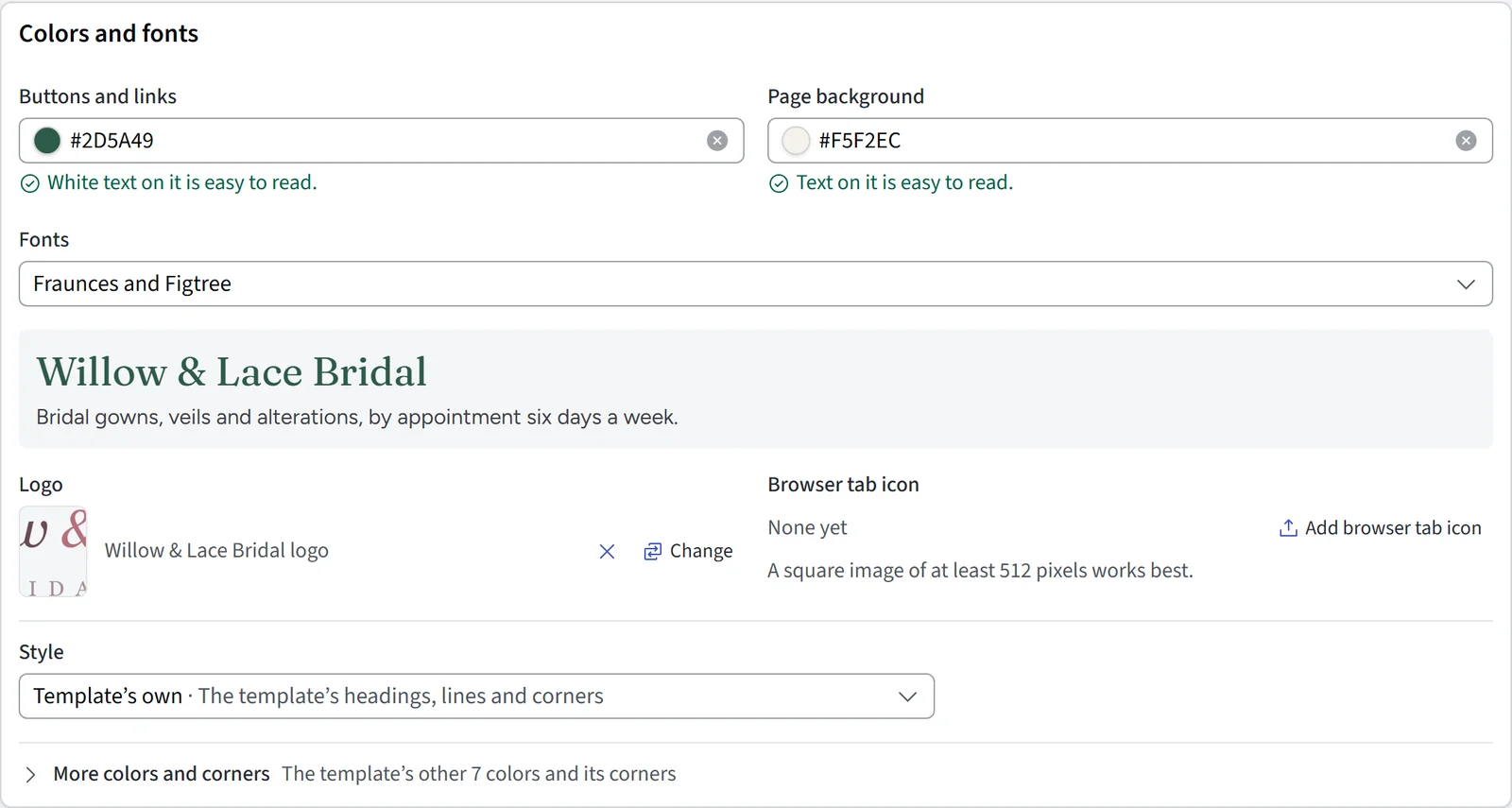
If your website has no logo yet and you have one in Branding, a Logo card at the top of the tab offers Use my logo from Branding.
Search and Sharing
- Title in Google and browser tabs: how each page's title appears, such as "About | Your Shop"
- Default description: shown in search results for pages without their own description (up to 160 characters)
- Sharing image: shown when a page is shared on social media and has no image of its own. 1200 × 630 pixels works best
Each page can have its own title and description under Search and sharing when you edit it on the Pages tab.
Related Articles
- Pages and sections
- Publishing and history
- Advanced: custom code, safe mode and testing on your live site
Updated on: 23/11/2026
Thank you!