
Tracking, cookie consent and conversion events
See how your website is doing without setting anything up: the Overview tab counts visitors and leads on its own, without cookies. If you also use Google Analytics, Google Ads, Meta, Pinterest or TikTok, add their IDs and your website loads them for you, under the right cookie rules for each visitor.
The Overview Tab
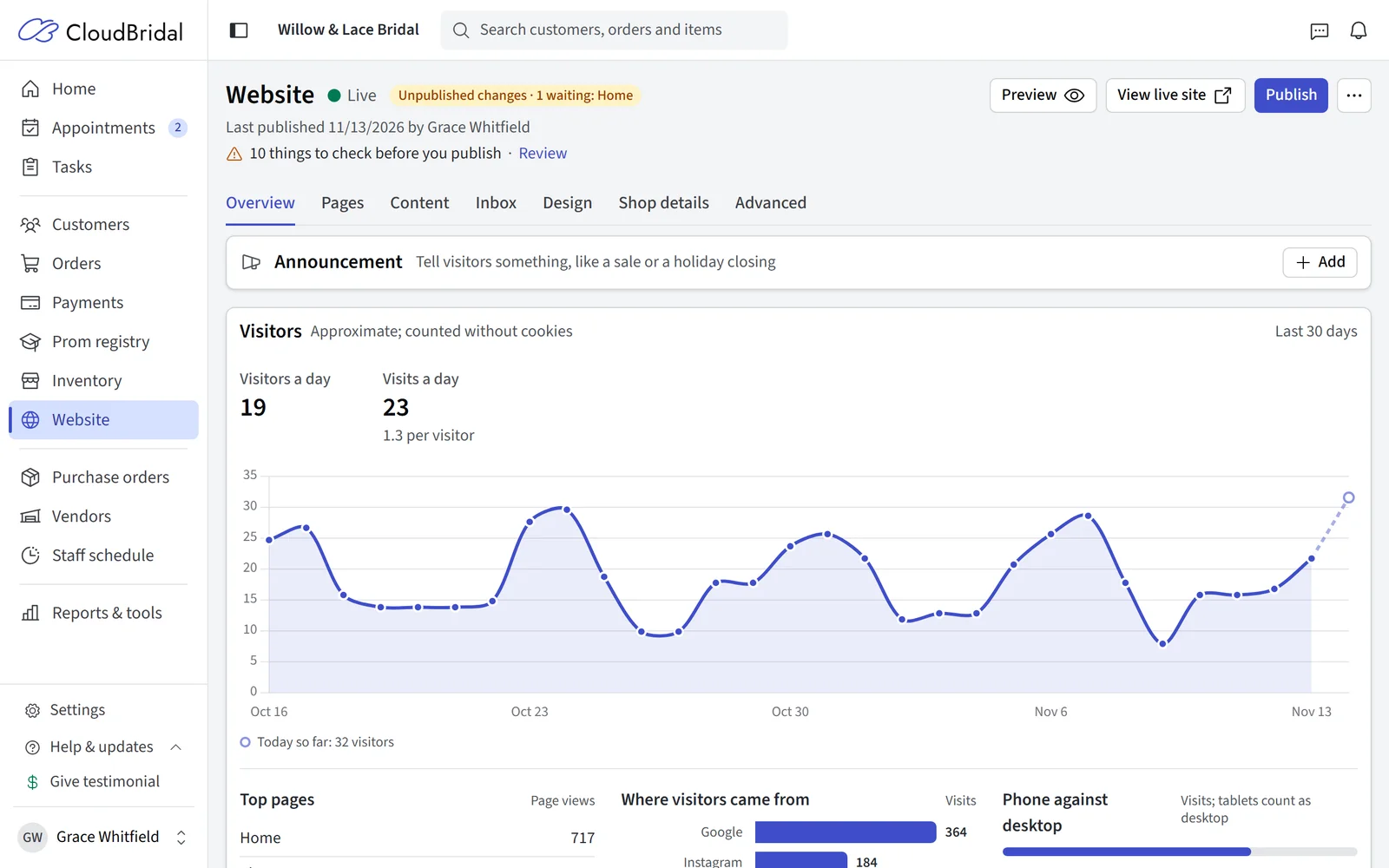
- Visitors: visitors a day over the last 30 days, top pages, where visitors came from, and phone against desktop. Counted without cookies, so the figures are approximate
- Most viewed items: the products visitors opened most
- Leads from your website: inquiries, online bookings, stories and newsletter sign-ups this month against last month, and where they came from
- From visit to sale: visits, then the people who reached out (booked online, sent a message, signed up or shared a story), how many of them came in for an appointment, how many bought, and their sales before tax. Pick a date range to see any period
The Overview tab needs the Manage website content permission.
Adding Tracking Tags
- Open Website and choose Advanced
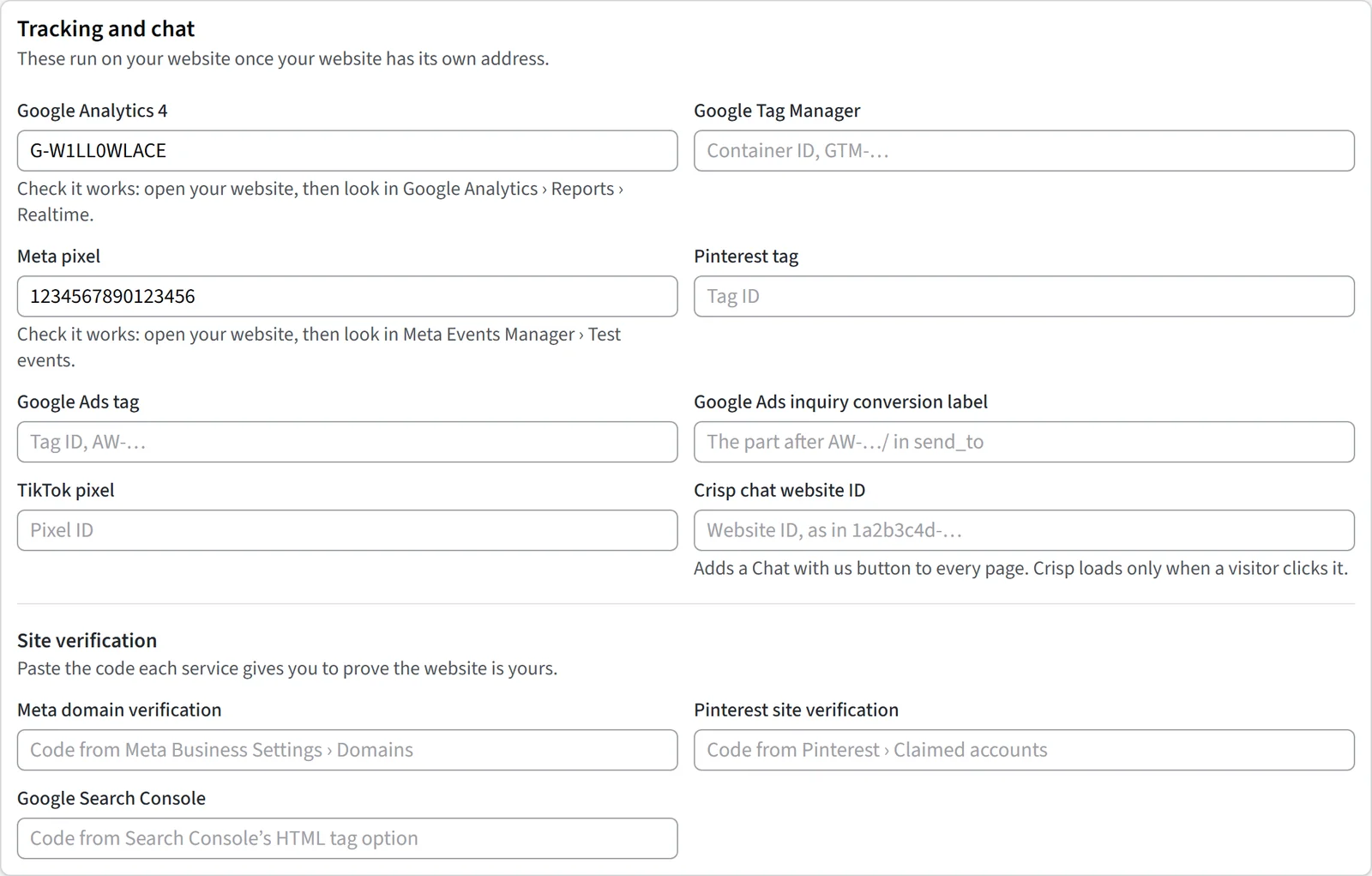
- Find Tracking and chat, at the top
- Paste the ID for each service you use:
- Google Analytics 4: the measurement ID, starting with
G- - Google Tag Manager: the container ID, starting with
GTM- - Meta pixel: the pixel ID (digits only)
- Pinterest tag: the tag ID (digits only)
- Google Ads tag: the tag ID, starting with
AW- - Google Ads inquiry conversion label: to count each inquiry as a Google Ads conversion (see below)
- TikTok pixel: the pixel ID
- Crisp chat website ID: adds a Chat with us button to every page; Crisp loads only when a visitor clicks it
- Google Analytics 4: the measurement ID, starting with
- Under Site verification, paste the code each service gives you to prove the website is yours: Meta domain verification, Pinterest site verification or Google Search Console. Paste only the code from inside
content="…", not the whole tag - Save and publish
The Advanced tab needs the Change custom code permission, and the Tracking and chat card also needs Edit the website.
These run only on your live site on its own domain. Previews and your preview address load no tracking at all. For anything not listed here, see Advanced: custom code, safe mode and testing on your live site.
Cookie Consent
Your website shows a cookie banner where the law asks for one, following both your shop's location and each visitor's (the stricter rule wins):
Where | What happens |
|---|---|
UK, EU and EEA, Switzerland, Quebec | Nothing but essential cookies until the visitor accepts. A refusal sends nothing |
The rest of Canada | Tracking runs, and the banner lets the visitor turn it off |
The US, Australia, New Zealand | No banner; tracking runs. A browser's Global Privacy Control signal turns marketing off |
Google Analytics counts as analytics. Tag Manager, Meta, Pinterest, the Google Ads tag and TikTok count as marketing.
Conversion Events
Your website reports these to every tag that's running:
Event | When |
|---|---|
| The contact form was received, or a visitor booked on your website |
| The newsletter form was received |
| The story form was received |
| A visitor followed a link to your booking page |
| A visitor tapped your phone number or email address |
| A visitor opened directions in Google Maps or Apple Maps |
Meta, Pinterest and TikTok receive the matching standard event where they have one (for example, Meta's Lead for an inquiry or a booking).
Completed Bookings in Google Analytics
A booking made on your website sends generate_lead with lead_source set to booking, and its fee as the value when it charged one. When your site has a Google Analytics 4 ID, your CloudBridal booking page uses the same Google Analytics, so a visitor who follows a link there from your website is counted as one visit through to the booking (a waitlist join sends lead_source set to waitlist).
generate_lead as a key event to count inquiries and bookings together, and use lead_source to tell them apart.Counting Inquiries in Google Ads
- In Google Ads, create a conversion action for inquiries
- Copy its conversion label: the part after the slash in
send_to: 'AW-123456789/AbC-D_efG-h12_34-567' - Paste it into Google Ads inquiry conversion label, with your Google Ads tag ID, and publish
Bookings made on your website count against the same label.
Related Articles
- Design and templates
- Advanced: custom code, safe mode and testing on your live site
- Tracking ad conversions, for the booking page on a website you run yourself
Updated on: 23/11/2026
Thank you!