
Advanced: custom code, safe mode and testing on your live site
The Advanced tab holds your tracking and chat, and the settings for shops that want to add their own code: a reviews widget, a tracking script CloudBridal doesn't list, or custom CSS. Most shops only need Tracking and chat, at the top: Google Analytics, Tag Manager, Google Ads, Meta, Pinterest, TikTok, Crisp chat and site verification codes (see Tracking, cookie consent and conversion events).
Important: Custom code is yours. It can slow down, break or change your website, and CloudBridal support can't fix code you add. If something goes wrong, turn on safe mode.
Who Can Use It
The Advanced tab, and HTML blocks on the Pages tab, need the Change custom code permission. The Tracking and chat card also needs Edit the website, and putting changes live needs Publish changes. Set permissions in Staff members & roles.
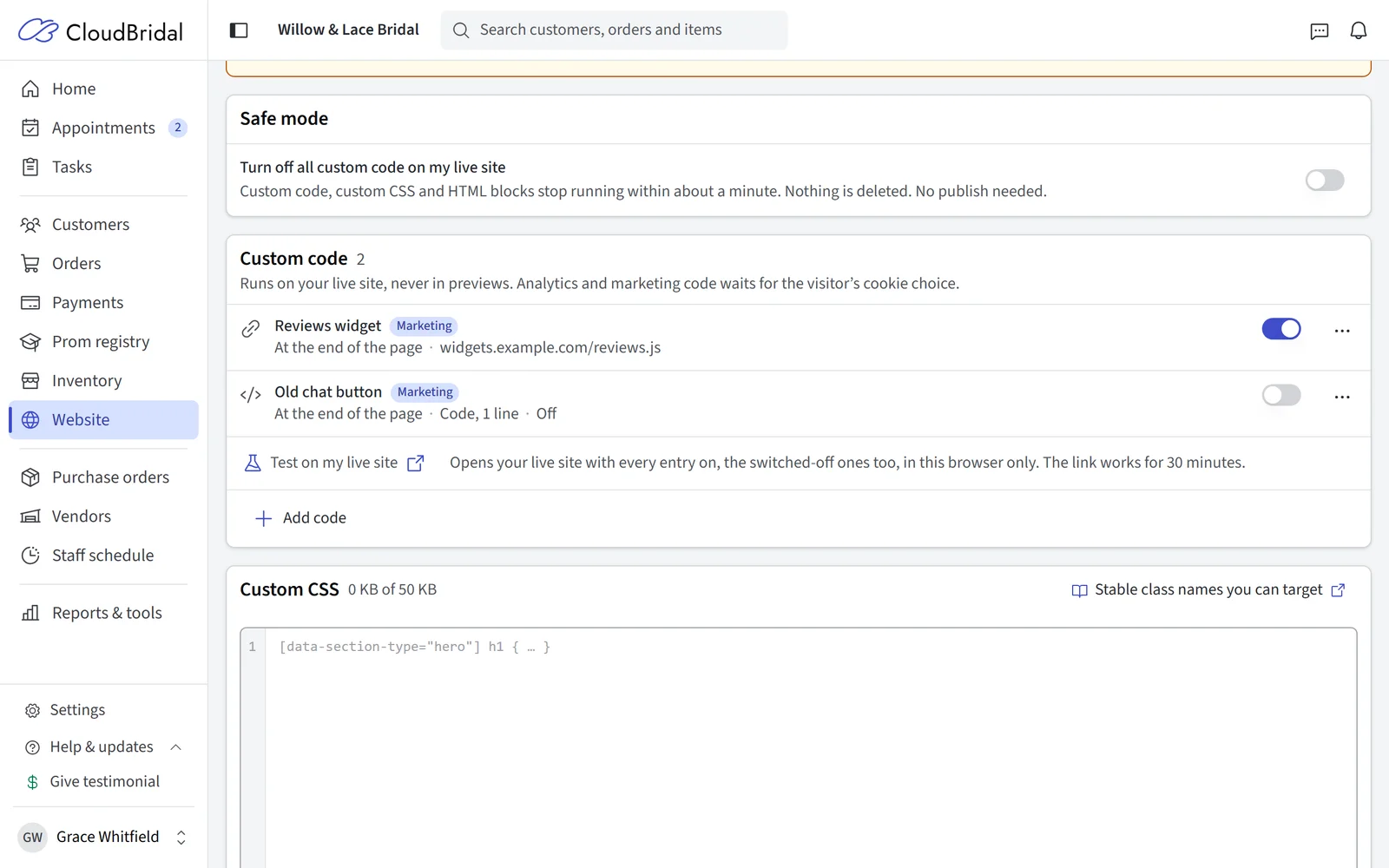
Safe Mode
If your site misbehaves after adding code, switch on Turn off all custom code on my live site:
- Custom code, custom CSS and HTML blocks stop running within about a minute
- Nothing is deleted, and no publish is needed
- The Website page shows Safe mode is on, with Turn off safe mode, until you turn it off again
- The Safe mode card appears once your site has custom code, custom CSS or an HTML block, and stays while safe mode is on
CloudBridal support can also turn safe mode on for you.
Custom Code
Each piece of code is an entry you can switch on and off. To add one:
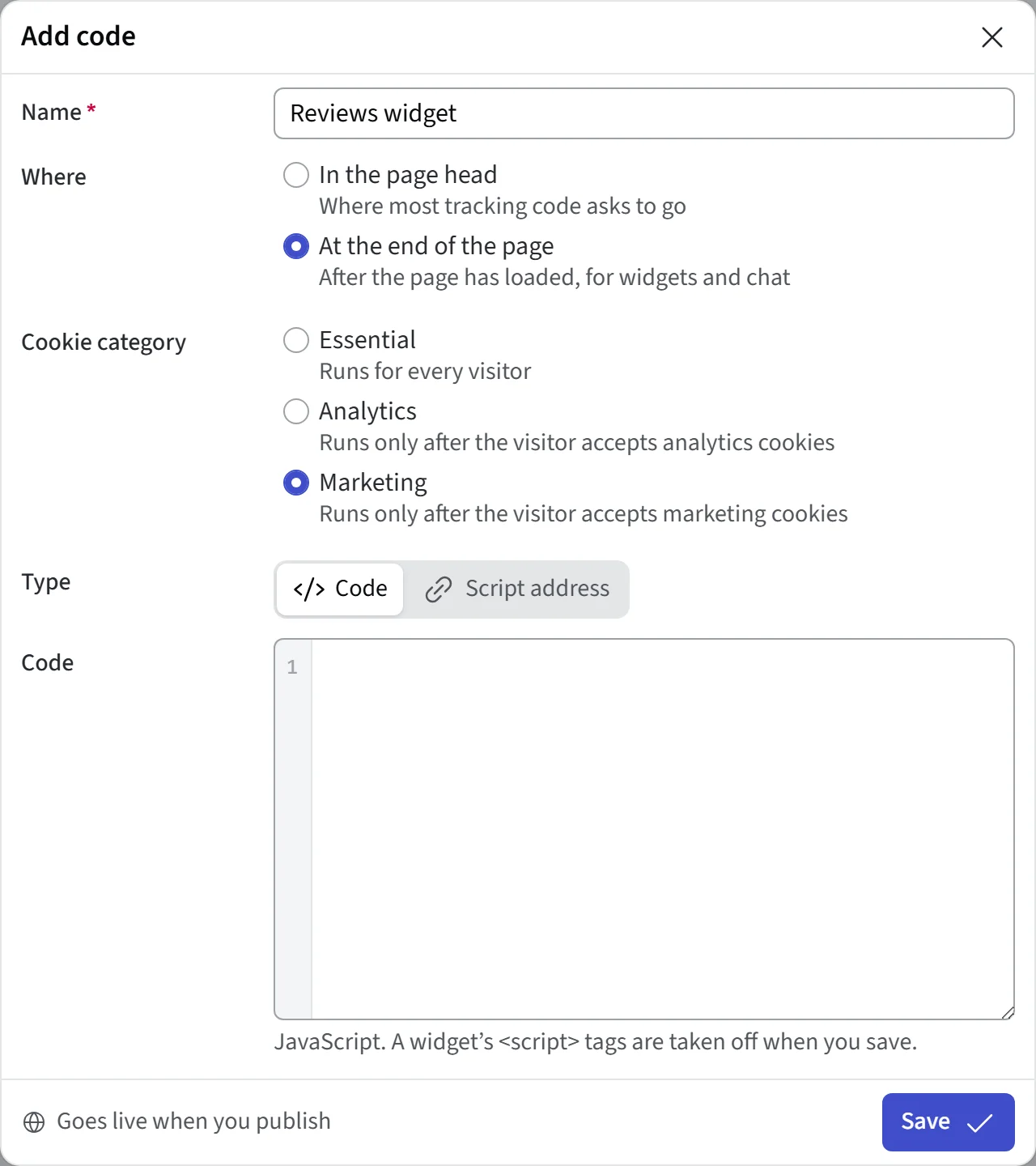
- Click Add code
- Give it a Name, such as "Reviews widget"
- Choose Where it goes: In the page head (where most tracking code asks to go) or At the end of the page (for widgets and chat)
- Choose its Cookie category:
- Essential: runs for every visitor
- Analytics: runs only after the visitor accepts analytics cookies
- Marketing: runs only after the visitor accepts marketing cookies
- Choose the Type: Code (paste the JavaScript; a widget's
<script>tags are taken off when you save) or Script address (thehttps://address of a script to load) - Click Save
- A site can have up to 20 entries
- Custom code runs only on your live site on your own domain, never in previews
- Saved code goes live when you publish
- Switch an entry off to stop it without deleting it; Edit and Remove are beside each one
Test on My Live Site
Before publishing, click Test on my live site. It opens your live site with your saved custom code, every entry on (switched-off ones too), in this browser only. Visitors keep seeing the published site, and search engines don't see the test. The link works for 30 minutes; click End test on the bar at the top of the page to stop sooner.
You need your website published and your own domain connected and showing it first. Until then the button is off, and pointing at it says which of the two is missing.
Custom CSS
One stylesheet, up to 50 KB, drawn after your template's own styles. The card shows how much of the 50 KB you've used. Target only the stable class names listed in Custom CSS: stable class names you can target, opened from Stable class names you can target on the card: the rest of the page can change when templates are updated.
Your CSS is turned off in template switch previews, because it was written for your current template. Check it after switching templates.
HTML Blocks
To place a widget in the middle of a page, add an HTML block section on the Pages tab (under Advanced in Add section):
- Description: what the block shows, read out by screen readers, such as "Our reviews on The Knot"
- HTML: runs in a safe frame, apart from the rest of your page, so widgets that need forms or sign-ins, such as booking or a newsletter sign-up, don't work here. For CloudBridal booking on a page, use a Booking section
- Cookie category: as for custom code
- Height: Fits its content (with the height it takes while it loads) or Fixed height in pixels
HTML blocks show in previews inside their safe frame. Staff without the Change custom code permission can move or remove an HTML block, but not change it.
Change History
Change history lists your latest 50 saves on the Advanced tab with who made each and when, and each time safe mode was turned on or off. View change shows the code before and after.
Related Articles
- Custom CSS: stable class names you can target
- Tracking, cookie consent and conversion events
- Publishing and history
Updated on: 23/11/2026
Thank you!