
Your domain
Put your website on the web address you already own, such as yourshop.com. You connect it yourself in three short steps, and your email keeps working exactly as it does today.
Before You Start
- You need to be able to sign in where you bought your domain (GoDaddy, Cloudflare, Squarespace, Namecheap or another company)
- Connecting needs the Edit the website permission
- Until a domain is connected, your site uses its preview address (shown under Web address), which search engines don't list
Connecting Your Domain
- Open Website and choose Shop details
- Under Web address, click Use your own web address (like yourshop.com)
- Your domain: type your domain, with or without
www, and click Continue. CloudBridal sets up bothyourshop.comandwww.yourshop.com - Add two records: CloudBridal lists the exact records to add. Use Copy beside each value
- Under Where is your domain?, choose your domain company (or Other) for step-by-step directions
- Add the records where you bought your domain, then click I've added them
- Checking: CloudBridal checks your domain. Click Check again to look again, or Done to close and come back later. Finish connecting under Web address takes you back to it
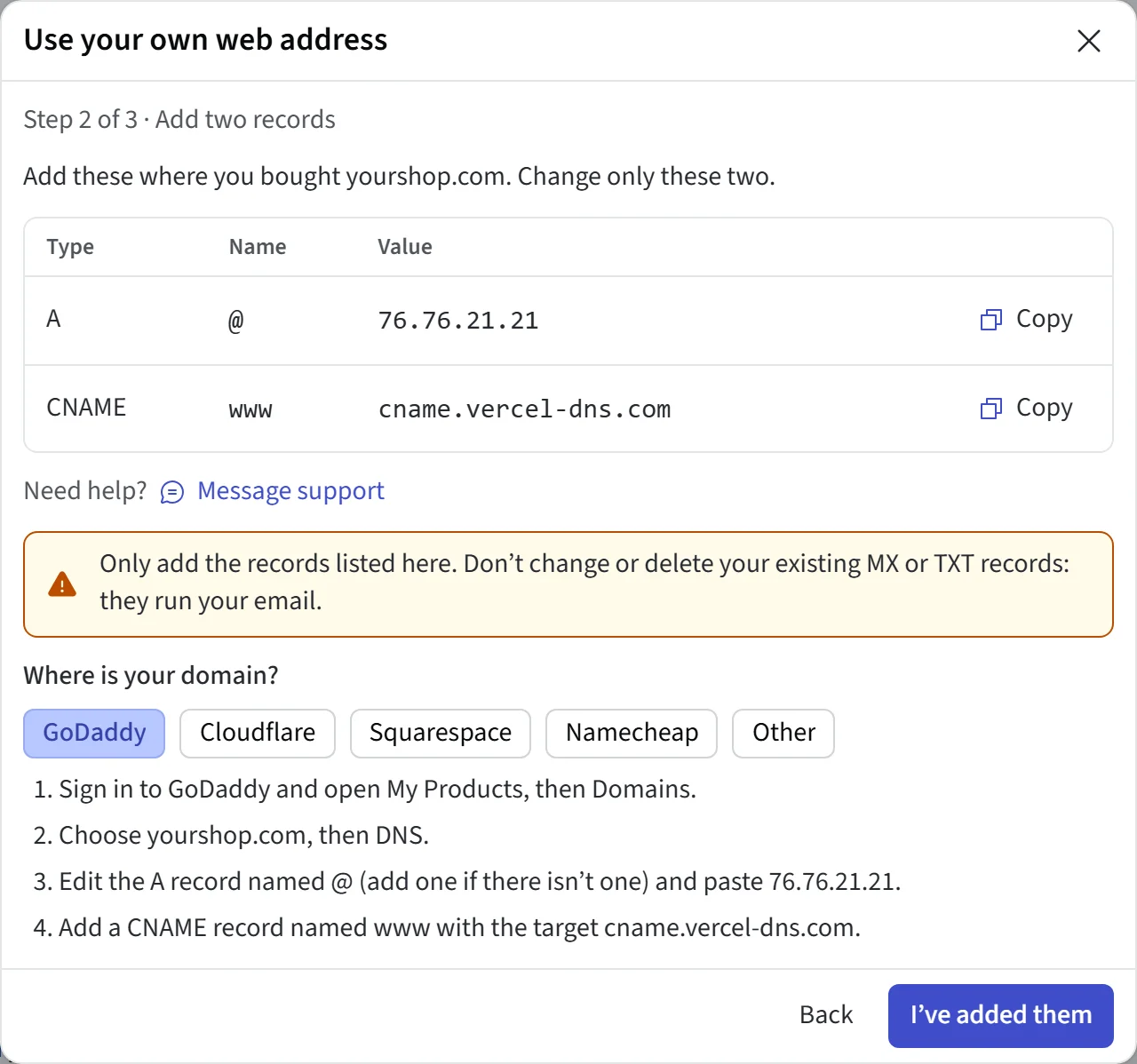
Important: Only add the records listed. Don't change or delete your existing MX or TXT records: they run your email.
DNS changes can take up to a day.
Tips for Your Domain Company
- GoDaddy: My Products → Domains → your domain → DNS. Edit the existing A record named
@rather than adding a second one - Cloudflare: DNS → Records. Set Proxy status to DNS only (the gray cloud) on the records you add
- Squarespace Domains: Domains → your domain → DNS. If Squarespace Defaults are listed, delete that preset: it points your domain at Squarespace
- Namecheap: Domain List → Manage → Advanced DNS. Delete any URL Redirect Record for
@orwww
Your Web Address
Once connected, Web address shows each address and how it's doing:
- Main address: your bare domain, such as yourshop.com. The
wwwaddress shows Forwards to it, and visitors who use it land on your main address - Secure: the address has its security certificate, so it opens with
https:// - Preview address, hidden from search engines: your site's CloudBridal address, which keeps working
Status | What it means |
|---|---|
Live | The domain points at your website and works |
Waiting for DNS | CloudBridal is waiting for your new records to take effect |
Checking | CloudBridal is checking the domain now |
Needs attention | Something stops the domain from working. The row says what, with a link to message support |
The ⋯ menu on each address can Make main address (to use the www address as the main one instead) or Remove it.
If Something Goes Wrong
- "That domain is connected to another CloudBridal website": message us at support@cloudbridal.com if it's yours
- "We couldn't reach our domain service just now": try again in a few minutes
- "You've connected a domain 10 times today": connecting is limited to 10 times a day to protect your site; try again tomorrow
- Still stuck? Click Message support under the records, or email support@cloudbridal.com with your domain name
Related Articles
Updated on: 23/11/2026
Thank you!