
Publishing and history
Work on your pages and design as much as you like: visitors see them only when you publish. Every publish is kept in Published versions, so you can bring back an earlier version, and you can download your content any time.
What Waits for Publish
Your pages, design, menu and footer, and custom code wait for Publish. Everything else shows on your website within a minute of saving: stories, questions, your team, blog posts, the announcement, store events, designers, appointment types, shop details and the products from your inventory showcase. A blog post dated later stays off your blog until that day.
Each place you save says which: Goes live when you publish or Shows on your website within a minute.
The top of the Website page shows where things stand:
- Live at your address, and how many changes are waiting, such as 2 waiting: Home, Menu
- Saving… and Draft saved as your draft saves itself. Changes not saved comes with Retry, and Changed somewhere else (someone else saved the draft first) with Reload
- N things to check before you publish, with Review
Publishing
- Click Publish at the top of the Website page
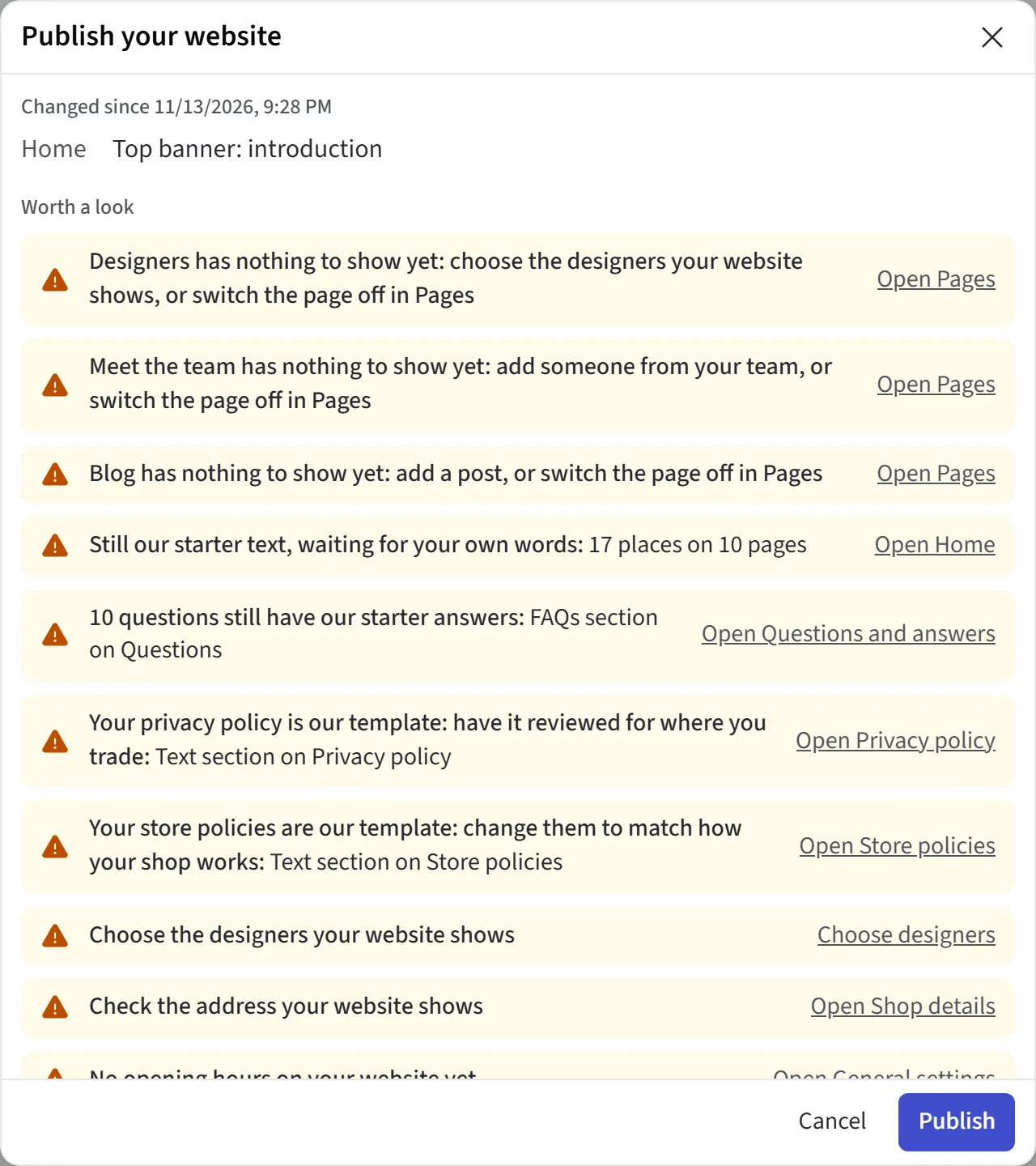
- Review what changed since your last publish, place by place
- Fix anything under Fix before publishing, such as a photo without alt text: each row has a button that takes you to the right place
- Look over anything under Worth a look, such as starter text you haven't replaced, places the starter left for your photos, or a page with nothing on it yet, which you can fill or switch off in Pages. These don't stop you publishing
- Click Publish
Your site confirms the new version, which takes about a minute. Then View site opens your live site.
Publishing needs the Publish changes permission. Staff without it see Ask a manager to publish.
Discarding Changes
To throw away everything you've changed since you last published:
- Click the ⋯ menu at the top of the Website page
- Choose Discard unpublished changes and confirm
Your draft goes back to exactly what's live, including changes other staff haven't published. What doesn't wait for Publish, such as your stories and posts, isn't touched. Only staff who can publish see this.
Published Versions
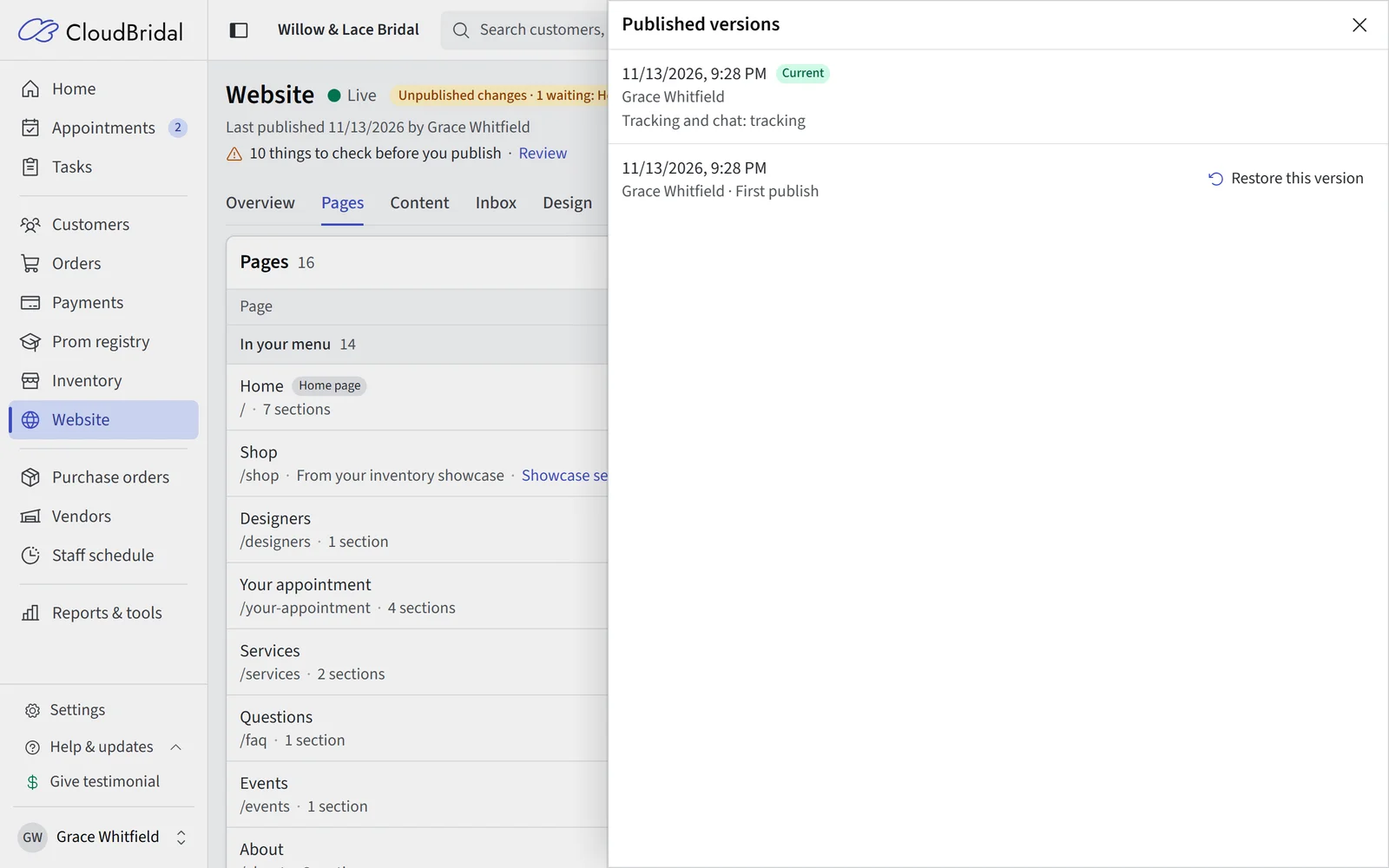
Choose Published versions in the ⋯ menu to see each version you published, newest first, with who published it and what changed. The one on your site is marked Current.
To bring back an earlier version:
- Click Restore this version beside it
- Read what will change and click Restore this version
Restoring publishes that version as a new one, so you can restore again if you change your mind. Page, menu and design changes you haven't published are replaced too. Your custom code, HTML blocks, tracking and chat stay as they are, and so do your stories, questions, team, posts, announcement and shop details. Restoring needs the Publish changes permission.
The list keeps your most recent versions and says when older ones are no longer listed.
Downloading Your Content
Your content is yours. To download it, choose Download my content in the ⋯ menu at the top of the Website page. You get a zip of your pages, posts, stories, questions, team, photos and redirects. Anyone who can open the Website page can download it.
Related Articles
- Getting started with your website
- Pages and sections
- Advanced: custom code, safe mode and testing on your live site
Updated on: 23/11/2026
Thank you!