
Inbox and stories
What visitors send from your website comes into CloudBridal, not into a separate inbox someone has to remember to check. The Inbox tab collects inquiries, job applications and the stories brides send, and the Website item in the sidebar shows how many are new.
Inquiries
Messages from your website's contact forms arrive under Inquiries. Open one to see:
- The visitor's name, email, phone and message
- Favorites: what they saved as favorites on your site before writing
- Sent from: the page they wrote from, and the campaign that brought them, when the link carried one
- Whether their email matches one of your customers
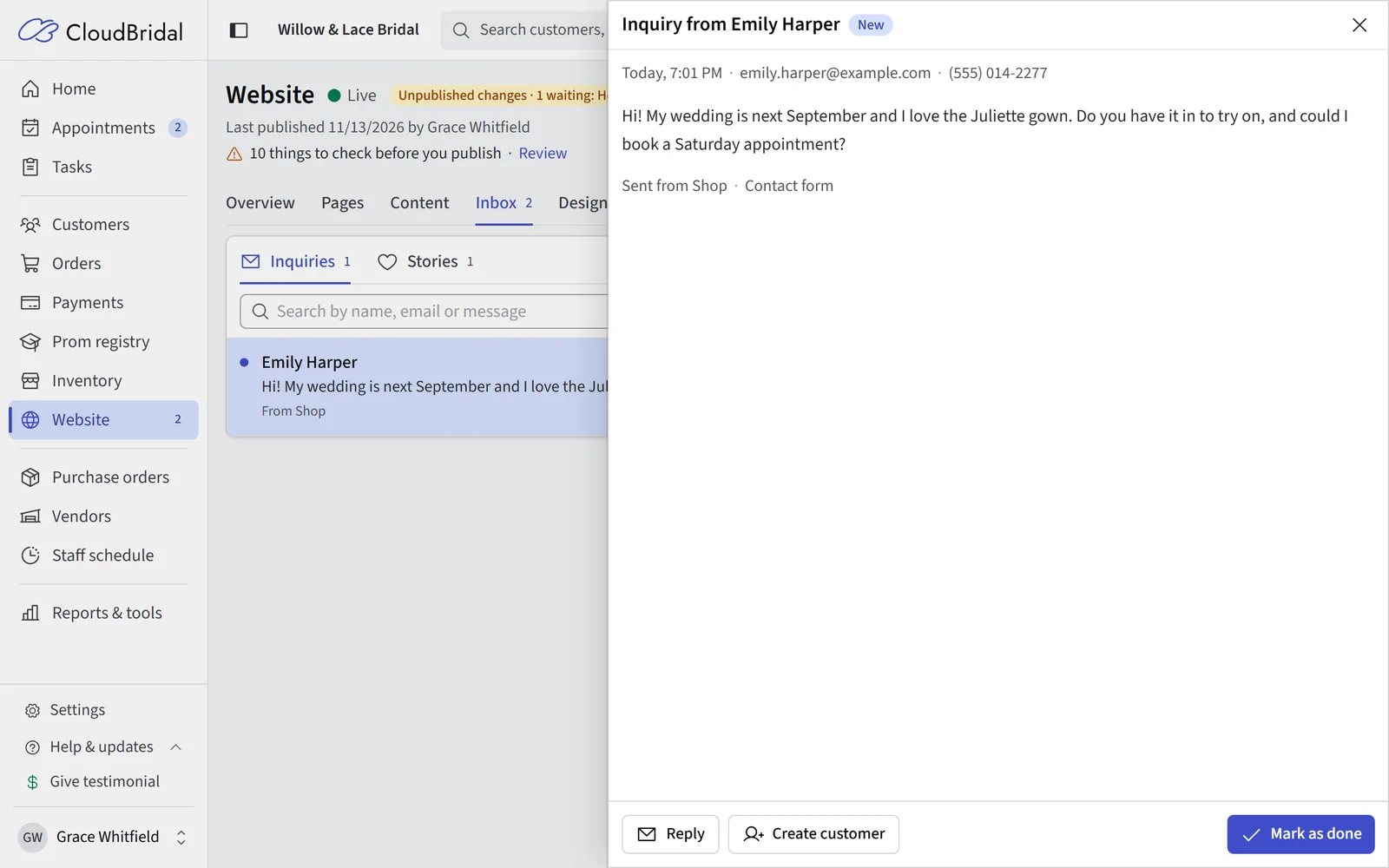
From there you can:
- Reply: write your answer and click Send reply; it goes to the visitor by email
- Open customer or Create customer: creating the customer adds the styles they love to their favorites
- Mark as done: moves the inquiry to Done. Move back to New brings it back
Use the Show filter to switch between new and done, and search by name, email or message.
Newsletter sign-ups don't appear in the Inbox: they go straight to Customers, with consent to email, unless the person opted out before.
Job Applications
Applications from your website's careers form arrive among your inquiries, marked Job application. Open one to read it and Reply by email. Only staff who can change settings, staff, roles and billing see them.
Stories
Brides can send you their story, a short testimonial and their photos. Stories arrive under Stories in two ways:
- The story form on your website: add a Share your story form section to any page (see Pages and sections)
- A personal story link: on a customer's page, choose Copy story link in the ⋯ menu and send it to the customer. The story is filed under their customer record. The message when you copy it says how long the link works (up to 60 days)
Open a story to read it and look at the photos (click a photo's enlarge button to see it large), then choose:
- Approve: turns it into one story on your website
- Dismiss: moves it to Dismissed
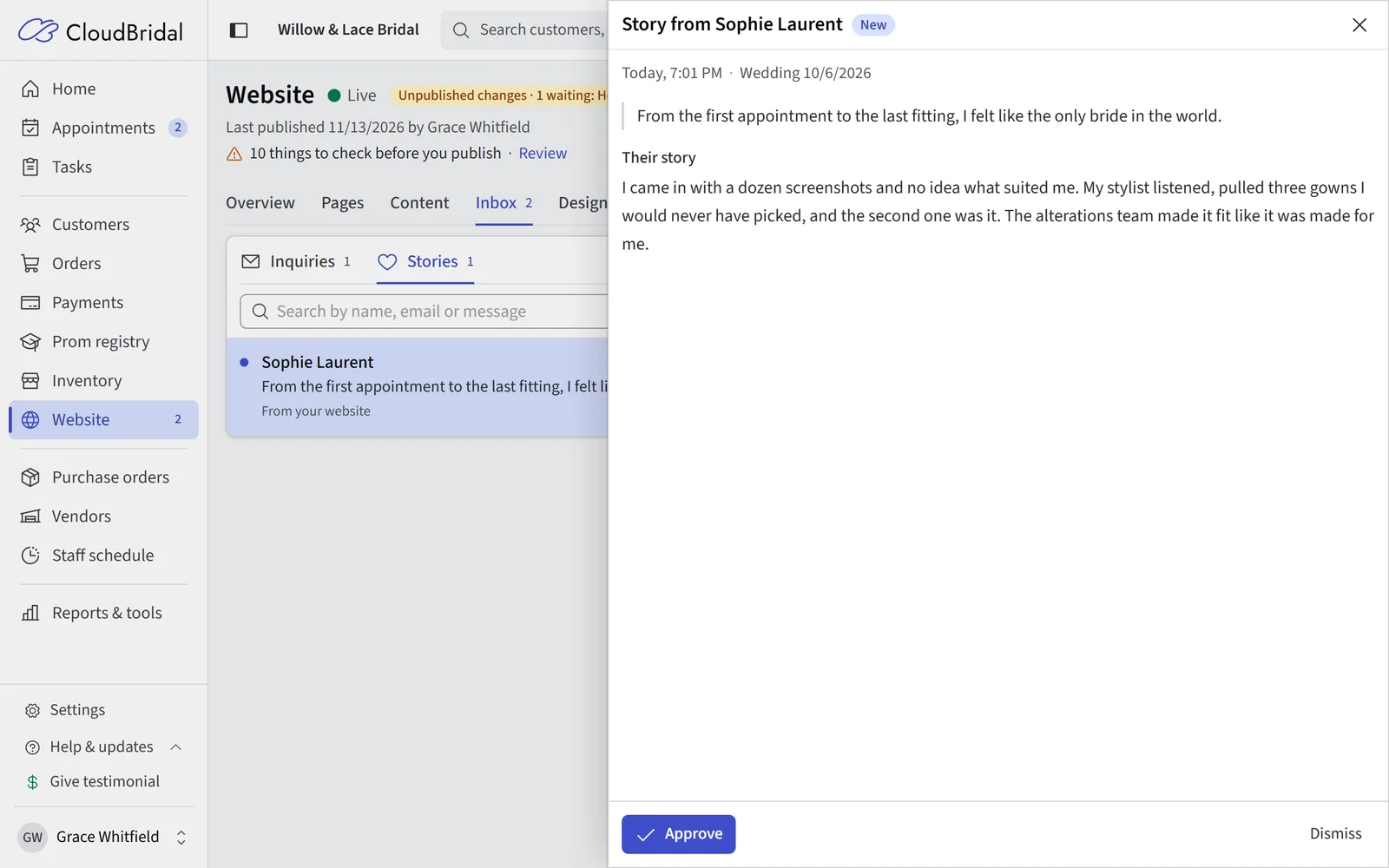
Approve opens the story ready to check:
- Photo: pick the photo the story shows (Use this photo), or No photo
- Name and Quote, filled in from what was sent
- Feature on Home: featured stories show first on your Home page
- Photo description: what the photo shows, for people who can't see it and for Google. It starts from the sender's first name; change it to say more
- More options: the gown, the designer, where it was left and a link to the review
The photos join your website's photos only if the sender agreed on the form to their use ("Agreed to us using these photos" shows under them). Otherwise they stay private, the story has no photo, and they're deleted 30 days after you approve the story. A dismissed story's photos are deleted 30 days after you dismiss it. An approved story is on your website within a minute, without publishing: the message that confirms it has See it on Home.
Your Stories List
Every story you approve, and every review you add yourself, is in Content › Stories from brides:
- Add story writes one by hand: a review from Google or The Knot, say
- Click the star on a row to Feature a story, and again to take it off
- Drag the rows into the order your website shows them in
A Stories section on a page shows them as quotes or, for stories with a photo, in a photo layout. Its Which ones setting is All stories (featured first) or Only featured stories.
Asking for Stories Automatically
The email and text template library has a Share your story starter in After the celebration, as an email and as a text, sent 42 days after a customer's event. It includes the customer's own story link through the {{WEBSITE_STORY_LINK}} merge field, which works for 60 days from sending.
- Until your website has a live story form, the starter says Needs a story form on your website, with a link to add one
- An automation using the story link waits until your story form is live, rather than sending without the link
- Share a favorite photo (21 days after an event) also asks for photos, so use one or the other
See Email & SMS Communications for setting up an automation from the library.
Related Articles
Updated on: 23/11/2026
Thank you!