
Dashboard & Alerts
Home is the first page every staff member sees. It shows what's happening today, what needs attention, and — for people who can see them — your store figures.
Today
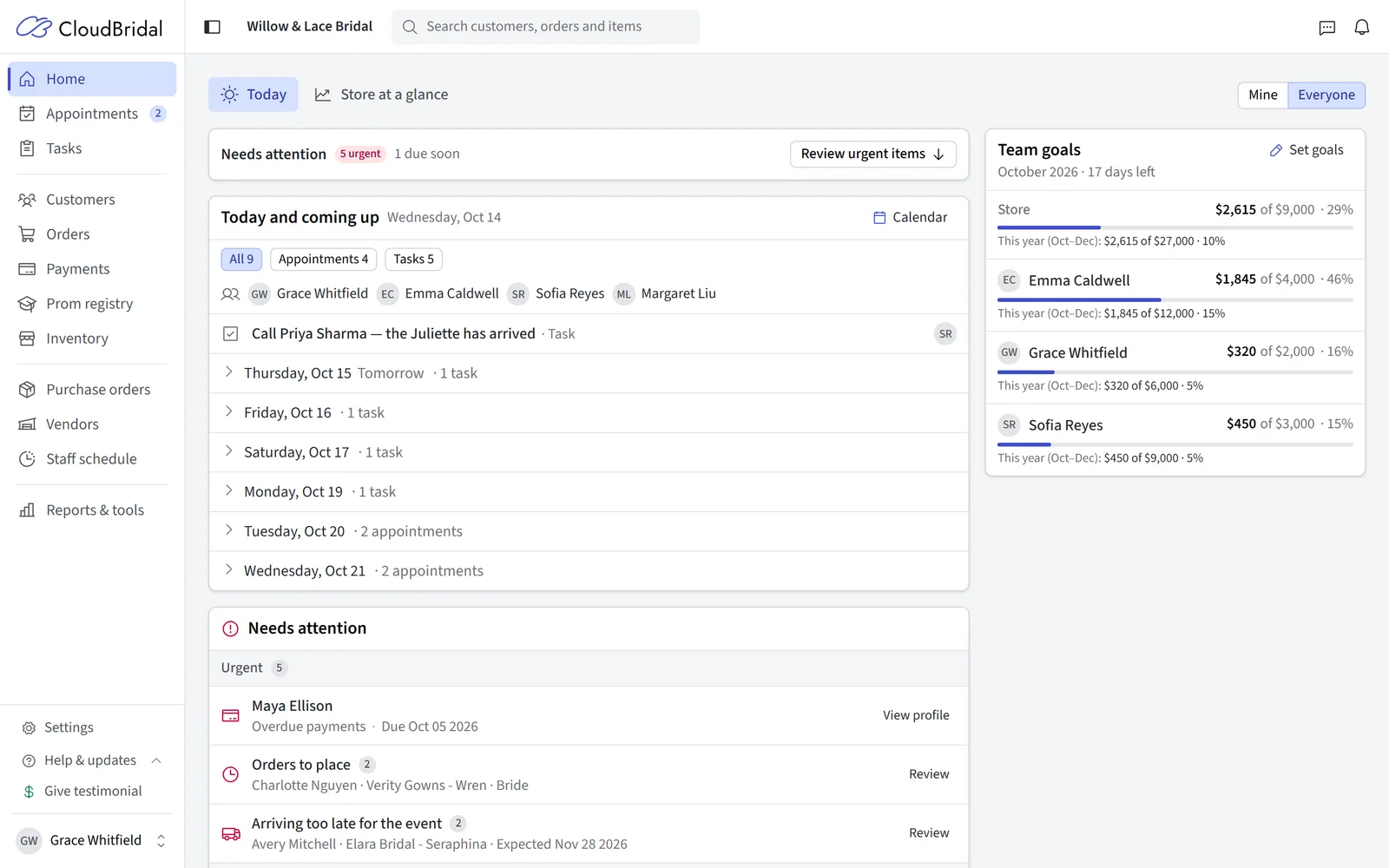
- Today and coming up: today's appointments, tasks, payments, orders and events, then one line per day for the next 7 days, including upcoming follow-ups. Follow-ups due today appear under Needs attention. Click a day to open it. Filter chips narrow the list to one kind of item.
- Needs attention: store alerts and overdue tasks, grouped into Urgent, Due soon and Tidy up.
- Mine | Everyone: switch between your own work and the whole shop. Shown to people who can see more than their own work. Store alerts appear under Everyone.
What you see depends on your role: someone without access to appointments, for example, won't see them on the timeline.
Needs attention
- Each alert type is one row with a count. Click Review to see the records in a side panel and act on them.
- Tidy up is collapsed; click it to expand.
- Urgent items older than 90 days are set aside in an Older than 90 days row, so old records don't bury new ones.
- Event passed, order still open: select orders in the review panel and click Mark picked up to close them in one go. Each is dated its event day. Needs permission to manage orders.
Store at a glance
A second tab, shown only to people who can view store figures:
- Orders: counts by status for a time range; each count opens the matching orders.
- Customers: new customers by type (when you have more than one customer type).
- Referral types: how customers found you.
- Event months: upcoming events by month, for planning busy seasons.
- Active items: stock by brand, linking to the filtered inventory.
Store alerts settings
Choose which alerts show and tune their timing in Settings › Store alerts. Some alerts appear only when the related feature is on (payment plans, purchase orders, rentals, e-signatures, pre-registration).
Urgent
- Overdue payments: a payment plan installment is past due.
- Late orders: an order hasn't arrived by its expected arrival date (optionally a set number of days after it).
- Orders to place: an order still needs placing with the vendor and its order-by date is close or past. Timing comes from vendor delivery times, or from the days you set per customer type.
- Arriving too late for the event: a placed order isn't expected until close to the event, or after it.
- Stock orders overdue: a stock purchase order has passed its expected arrival date.
- Picked up with a balance owing: an order picked up in the last year still has money owing.
Due soon
- Rentals due back soon: due back today or in the next two days.
- Waiting for a signature: a customer still needs to sign a document.
- Follow-ups due: a customer or prospect follow-up is due today or overdue.
- Texts not delivered: a text from the last 30 days didn't reach the customer.
- Emails not delivered: an email bounced, was blocked or marked as spam, or the person unsubscribed. You choose how many days back to check.
Tidy up
- Event passed, order still open: the event has passed but the order isn't Completed, Cancelled or In storage.
- No sales associate assigned: a customer has visited but has no sales associate.
- No seamstress assigned: a customer with an order in the statuses you choose has no seamstress.
- Missing an email address: a customer with an order has no email address (for the customer types you choose).
- Booked but not registered: a customer's first appointment is confirmed but they haven't pre-registered.
Days needed before the event
Set how many days you need to prepare an order (alterations, steaming, getting it ready) before the event. It's used by two alerts:
- Arriving too late for the event flags orders expected later than this.
- Orders to place counts vendor delivery times back from this point.
The default is 0 days: only orders expected on or after the event day are flagged.
Updated on: 19/10/2026
Thank you!