
Email & SMS Communications
Plan Requirement: Core or Ultimate
Great communication is the foundation of a memorable bridal experience. CloudBridal gives you flexible tools to connect with your customers by email or SMS—whether you want to send a quick message, automate reminders, or streamline your workflow with templates. This guide will help you get started and make the most of these features.
Communication Overview
CloudBridal supports both email and SMS for customer communication. Email is best for detailed updates and formal messages, while SMS is perfect for quick reminders and conversational exchanges. Both channels are fully integrated, so you can manage, automate, and review all your communications in one place.
Accessing Communication Tools
The easiest way to get started with customer communication is right from the customer's profile. Simply open any customer, switch to the Communications tab, and you can send emails or SMS messages directly from there. This is the most direct and common workflow for boutiques who want to reach out quickly or handle one-off conversations.
Visit Settings > Communications to manage your templates, built-in customer messages, and email design. It opens on an overview, with an Email / Text switch:
- Your templates: your own messages, with New template and a link to the Template library.
- Built-in messages: the messages CloudBridal sends for appointments, payments, documents, the customer portal and other shop activity, in groups that show whether they're sending.
- Email design: your email style and signature.
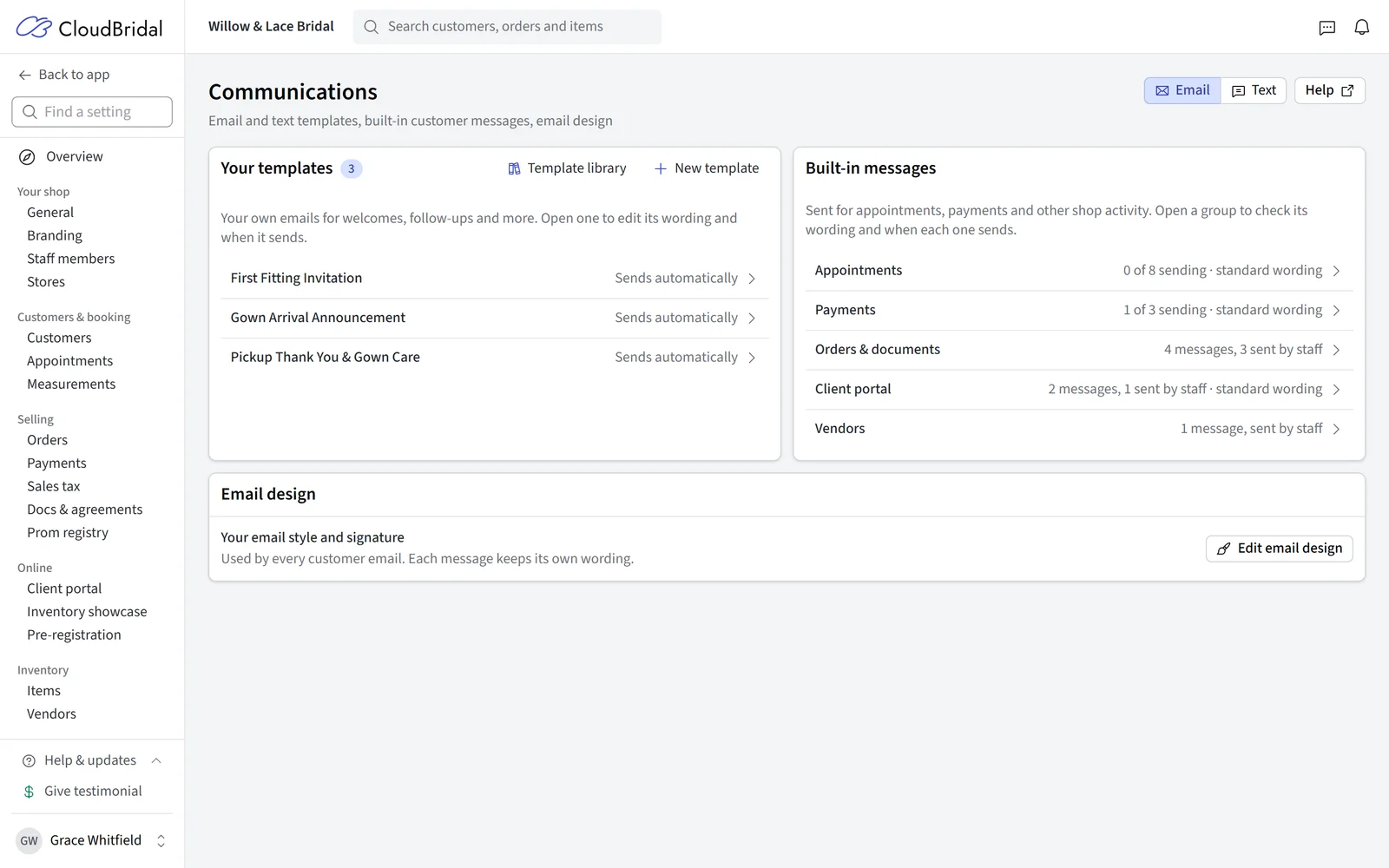
Open any message to edit it; the sidebar then lists every message, and Find a message jumps straight to the one you want.
Starting from the Template Library
Template library offers ready-written email and text starters, grouped as Visiting the store, Orders & fittings, Pickup & care, and After the celebration. Each starter says when to use it.
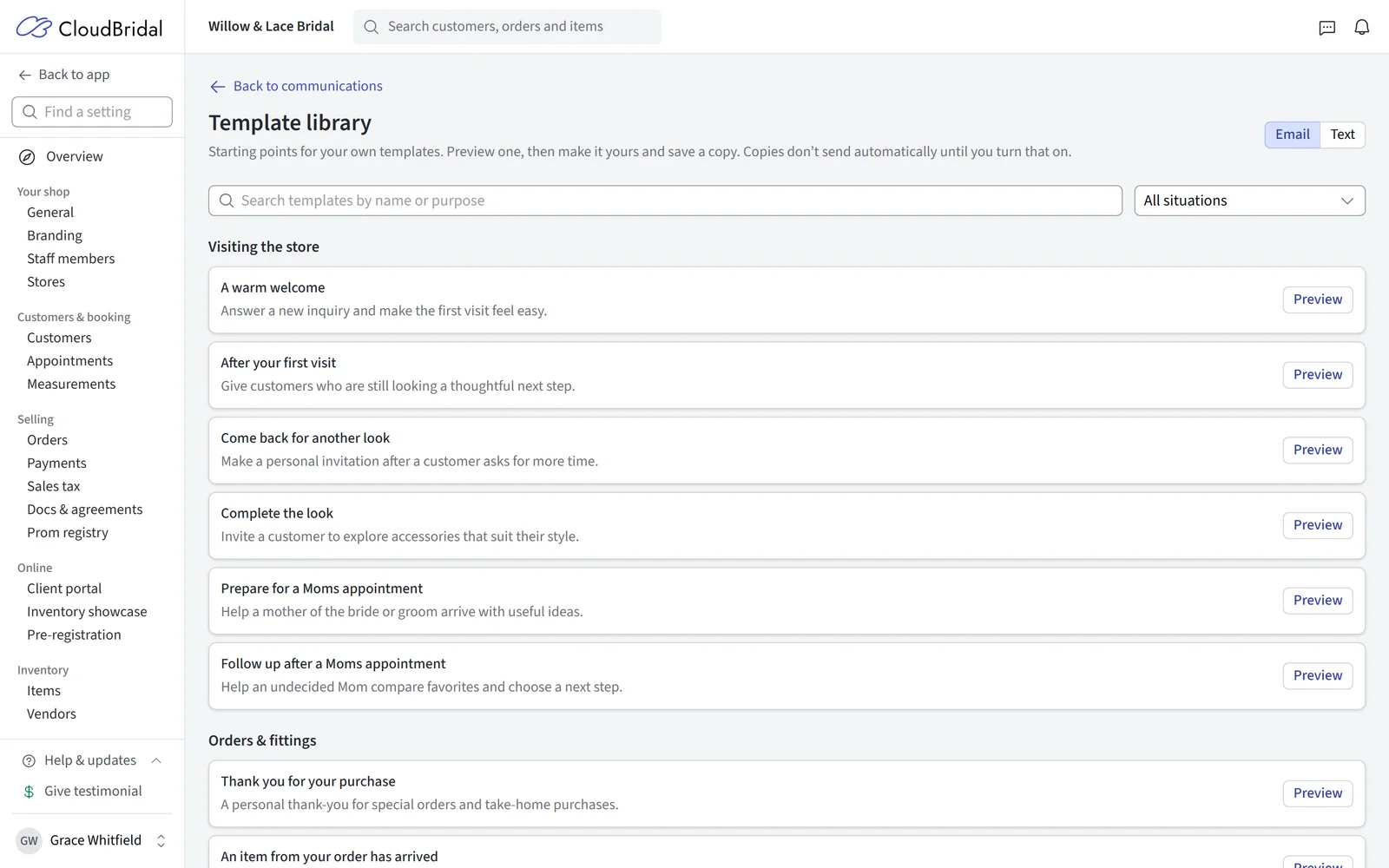
Use template opens a new, unsaved template with its subject, wording, and purpose already filled in. Some starters also include a suggested automation rule and timing; automatic sending starts off. Adjust anything you like and save, or cancel without adding a template. Starters you have already used point to the template they created.
The customer send form lets you choose a saved template. Use Communications to create or edit the reusable template itself.
Email Design, Signature, and Preview
Open Email design at the bottom of the sidebar, or Edit email design on the overview. Choose a design and edit your Email signature, then save through the settings bar. Simple uses your logo, message and signature without a decorative design; the other designs — Banner, Card, Editorial, Boutique, and Modern — each add their own framing and typography. All of them use the colors, logo, and heading font from Branding.
Customize header fine-tunes the header on top of whichever design you picked: logo size, header alignment, a white or transparent logo background, and how much breathing room the header gets. Leave any of these on the design's own default, or click Reset to theme defaults. The Example picker previews the design with any of your messages.
Existing formatting you applied inside a message takes precedence, so preview older templates when changing designs.
The editor reflects the email's typography. Preview shows the subject and final email with sample customer details, including unsaved changes. Switch between Desktop and Phone views, or click Send test to send one to yourself. Previewing alone sends nothing. Required payment details, security codes, and action links remain generated even when you customize the surrounding wording.
Message History
Each message editor has a History action showing every send of that message. For texts, the Delivery column shows Delivered or Not delivered; point at Not delivered to see the carrier's reason. Incoming SMS messages are labeled Received. Customers who never qualify for an automation do not generate history records — use their upcoming-message timeline to understand current eligibility. Email replies remain in your business inbox.
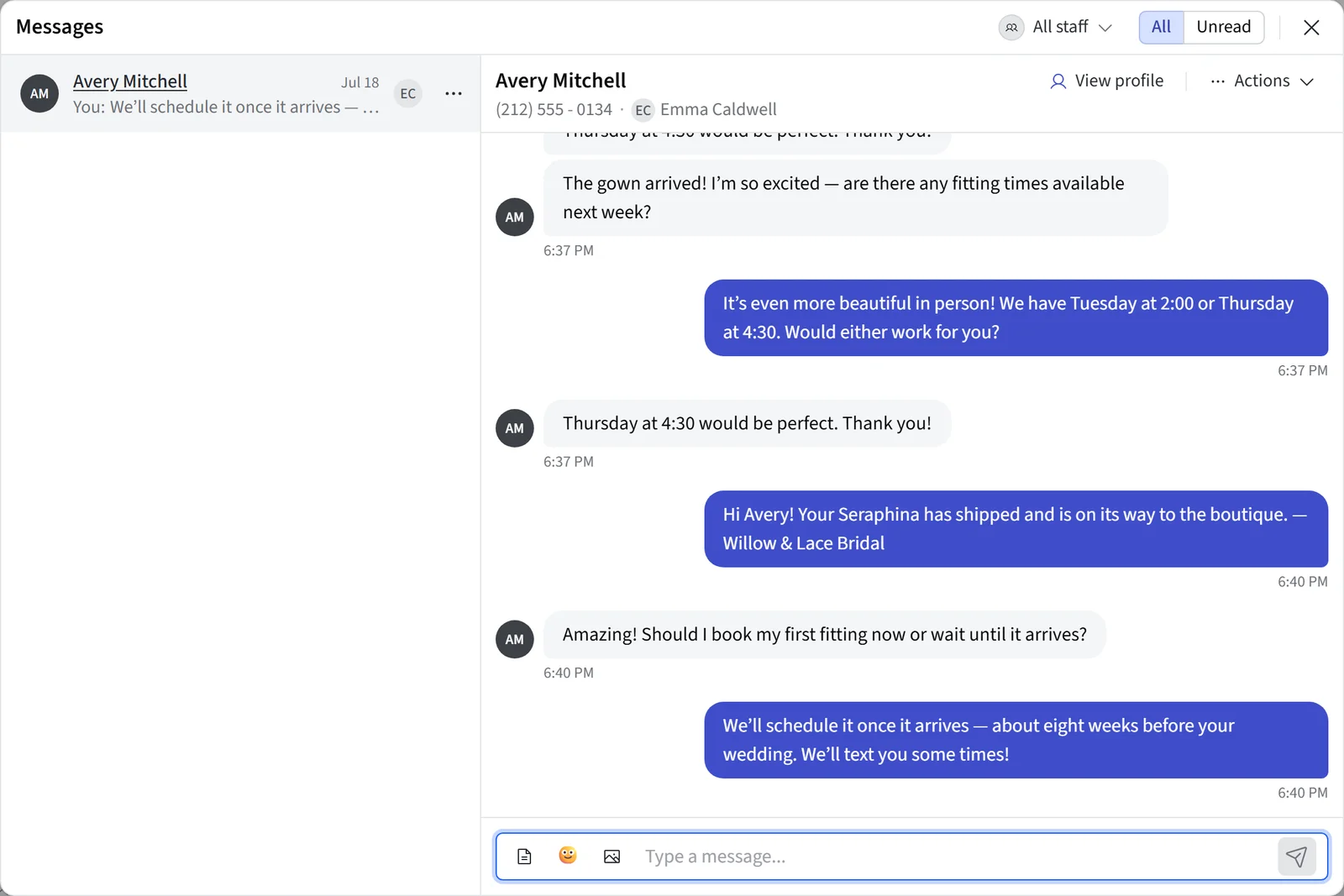
For a bird's-eye view of all SMS activity, Messages acts as your business-wide SMS inbox, making it easy to keep up with every conversation across your team. Open it from the speech-bubble icon at the top right, beside the notifications bell.
Communicating from the Customer Profile
The customer profile is your main workspace for managing all communications with a client. In the "Communications" tab, you can:
- Send emails or SMS messages directly to the customer, whether it's a quick update, a follow-up, or a more detailed message.
- View the full history of messages, including delivery status for emails and whether messages were sent automatically or manually. This helps you keep track of every conversation and follow-up.
- See an automated message timeline of the emails and texts coming up next for this customer. From there you can preview each message, send it early without waiting for its scheduled time, or Skip it — a skipped message moves to a Skipped section, won't send, and can be restored at any time. When a customer has several events, each event-date message appears once per event and is labeled with the event it's for, so you can skip one without affecting the others.
- Sending a template manually (from the customer or appointment screen) replaces its scheduled automated copy, so customers never receive duplicates. A manual send covers the customer for all of their events, not just one.
- See a "What this customer can receive" panel showing, per channel, whether texts and emails can be sent — including missing contact info, paused communications, STOP/unsubscribe status, and whether Updates vs. Marketing messages will go out.
- Use templates for efficiency if you have them set up, but you can always write a custom message on the spot.
- See alerts for unread SMS messages, so you never miss a customer's reply or inquiry.
- Pause all future communications for a customer if they request it, right from their profile.
- Through a mobile device, call the customer directly from their profile for quick phone follow-ups.
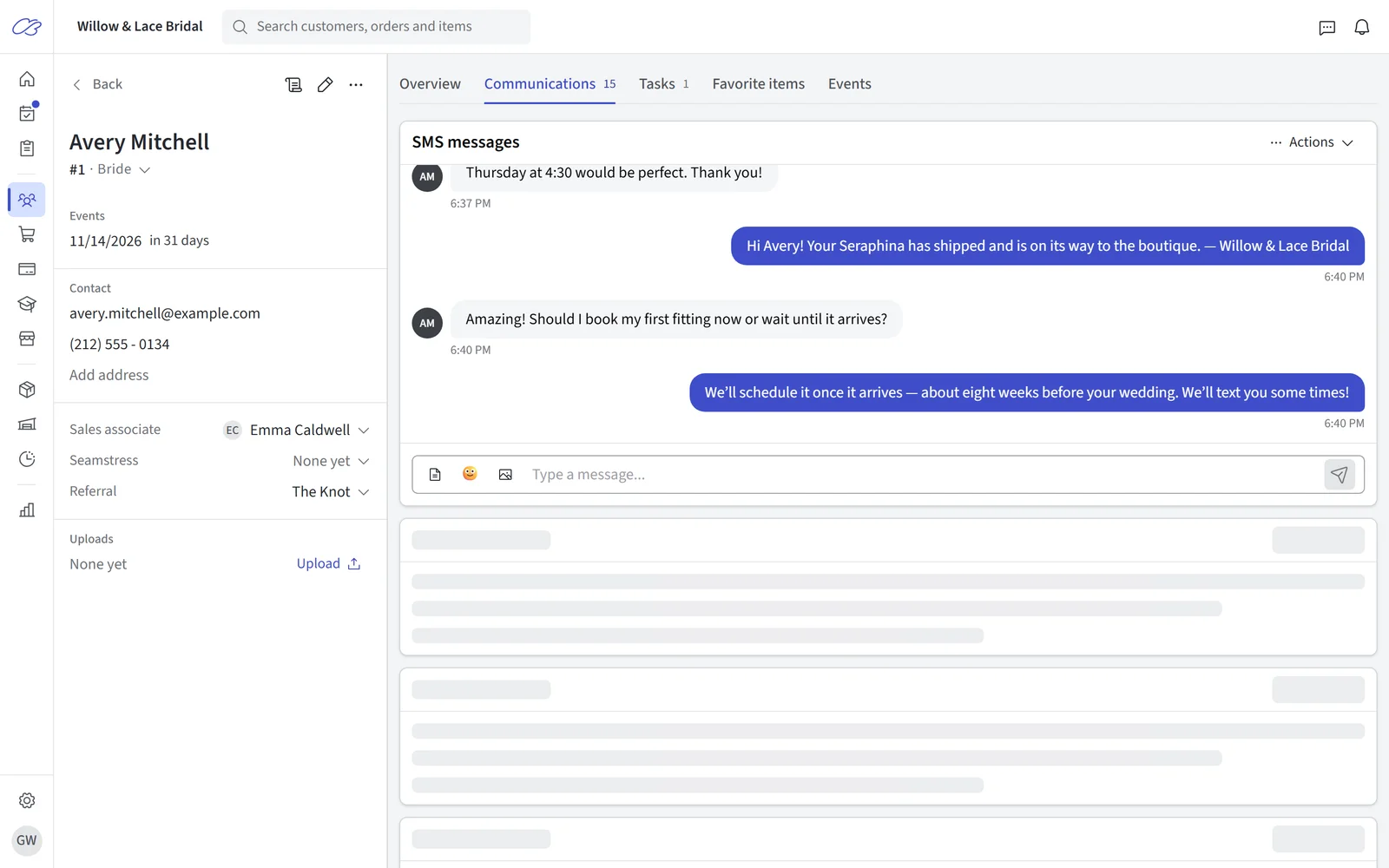
This makes the customer profile the best place to handle day-to-day communication, follow-ups, and customer service—all in one place.
Appointment Communication
Appointment messages are edited in Communications alongside your other customer messages. Pick the situation from the sidebar — request received, confirmation, reschedule, cancellation, decline, reminder, registration invitation, or being added to or removed from the waitlist. Each is its own message with its own wording.
Wording and delivery are separate. At the top, the Appointment type picker chooses whose wording you are editing: the store-wide default, or one specific appointment type. Its subject and message can each inherit independently — use Edit subject or Edit message to customize, and Use standard subject or Use default message to go back to the generated wording. Customized types are listed beneath the picker, and Preview reflects whichever one you have selected.
Beneath that, the Sending block holds the delivery settings for that message: whether reminders are on by default, how many days ahead they go out, and email or SMS exceptions for the selected appointment type.
Appointment settings and the appointment-type editor link directly to the appropriate message. Staff notifications and the on-screen booking confirmation page are in appointment settings. See Appointment Settings for booking setup.
Document and Signature Requests
Select the document email or signature request in Communications, then choose the Document template. Each document can have its own subject and message. Blank fields use the default wording shown in Preview. The PDF attachment or signing link is generated automatically. Document settings link to these wording editors while retaining the document's layout and signature configuration.
Quote Accepted
When a customer accepts a quote in the client portal, the Quote accepted email confirms it and links to the quote in their portal. It's on by default; turn off Send when a customer accepts a quote on that message to stop it.
Choosing Between CloudBridal Native SMS and Twilio Integration
By default, CloudBridal lets you send SMS messages right away using our built-in phone numbers—no setup required. This is great for most boutiques who want a simple, reliable way to text customers. However, if you want more advanced features (like automated SMS reminders, longer messages, or image support), or if you're in the UK where regulations require you to use a dedicated number, you may want to set up Twilio (or Twilio/Vonage in the UK). Twilio gives you more control and helps future-proof your communications. For a detailed comparison and setup instructions, see the Twilio Integration documentation.
Email Communication
Sending Emails
You can send emails to your customers at any time—no template required. Just open a customer profile, click Send email, and write your message. Every email you send is tracked, so you can always see the delivery status and message history.
Email Automation
- In Communications, create or select an email template.
- Compose the subject and message using Smart Fields where useful. Add any reusable files under Attachments.
- Click Change sending and turn on Send this email automatically.
- Under When, choose a date and the number of days before or after it. Available dates include appointments, customer events, profile creation, and order milestones.
- Under Only when, add the conditions customers must match. Review the summary of the rule, then save.
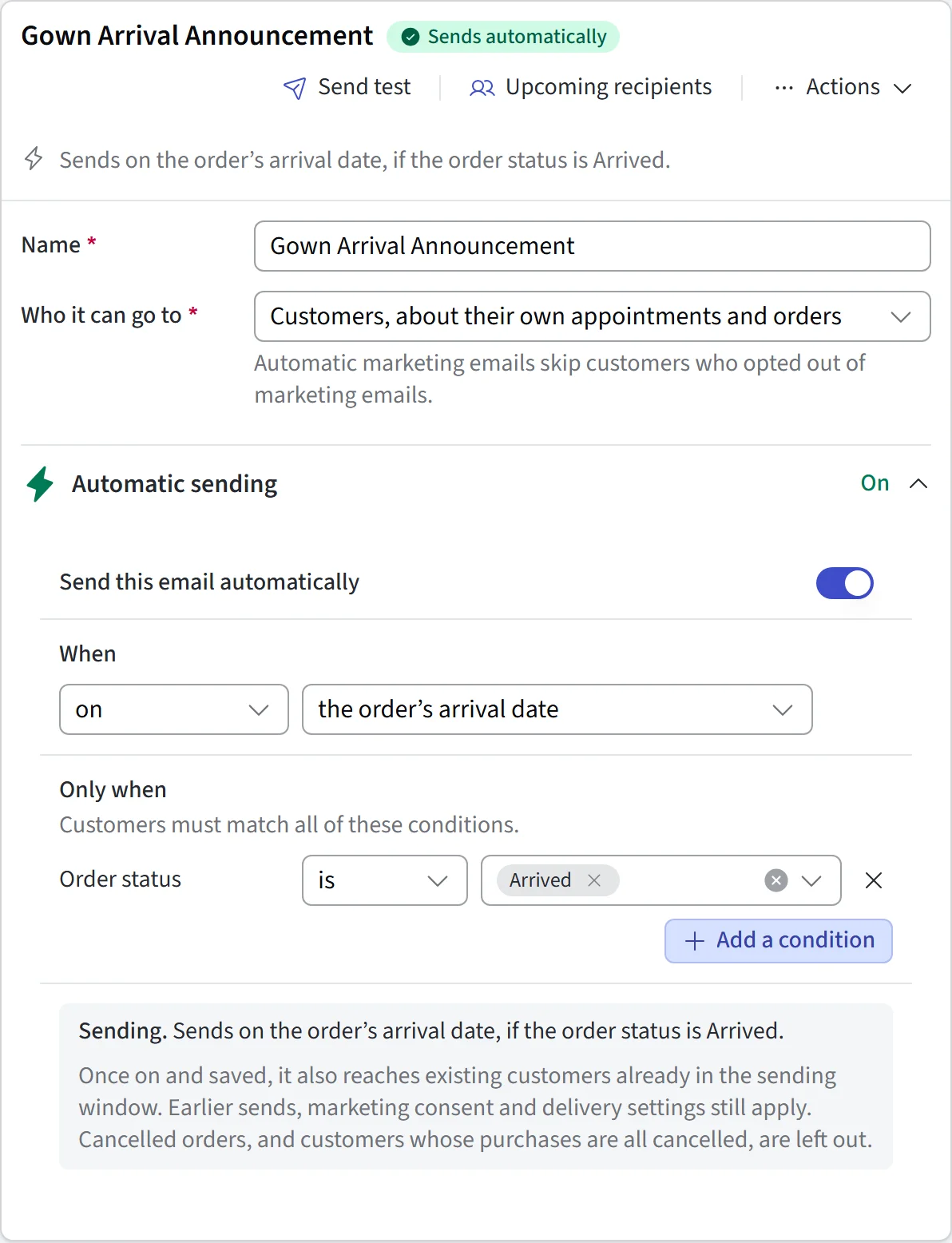
Once enabled and saved, the rule applies to customers whose current data matches, including existing customers in the sending window. Previous sends, consent, and delivery settings still apply. Warnings about overlapping messages help you review similar schedules; they do not change either rule automatically.
A message set to send 0 days from an appointment date goes out an hour after that appointment ends, so a same-day thank-you never lands while the customer is still in the store.
Choosing Who Receives It
Conditions narrow a rule to the right customers — appointment type, customer category, customer type, referral source, assigned staff, vendor, item type, order or rental status, payment method, and more. Two things are worth knowing:
- Any condition can be flipped to Is not, so you can exclude a group instead of listing every group you want. "Referral source is not Walk-in" is often simpler than naming the five sources that qualify.
- You can add up to three custom-field conditions on your own customer, order, or appointment custom fields. The comparisons on offer depend on the field's type — text fields can check whether a value matches or contains something, number and currency fields compare greater or less than, date fields compare on or after a date, and any field can be checked for being filled in or left empty.
The same conditions are available on email, SMS, and automated task rules.
Customer and Prospect use the same distinction as the Customers and Prospects tabs. Separately, automated templates skip customers whose purchases are all cancelled, and never send follow-ups anchored to a cancelled order — refunds and adjustments do not count as another purchase. A customer with another live purchase still qualifies, prospects without purchases still receive appropriate follow-ups, and built-in transactional notices are unaffected.
Previewing Who Will Get It
Before you turn an automation on, open Upcoming recipients from the message's Actions menu. Pick a date range — it starts at the next 30 days — and you get two lists:
- Expected — the customers who will receive it, with the date each one is due.
- Not receiving — everyone the rule matched but who will be skipped, each with the reason in plain language: no email address, opted out of communications, texted STOP, needs a marketing opt-in, already sent, skipped by staff, a previous send that failed, or all of their purchases cancelled.
If nothing would actually send — the message is switched off, Twilio isn't connected, or your plan's automatic sending limit is already used up — a note at the top says so, and the lists still show you who would qualify.
Automations and Events
Customer event date automations run per event. A customer with two events gets one message for each, timed off that event's own date — so a bride whose wedding is in June and who is a bridesmaid in a September wedding gets each reminder at the right time.
The customer types you select on a template are matched against the role the customer holds in that event, not just their profile type. A customer whose profile says Bride but who is listed as a bridesmaid in a friend's event matches your bridesmaid templates for that event. For order-triggered automations, the role comes from the order's event; customers with no role fall back to their profile customer type.
Example Automations
- Congratulate customer on their wedding: [X] days after Customer Event Date
- Ask customer to leave a review: [X] days after Appointment date, filtered to customers who purchased
- Ask customer for feedback: [X] days after Appointment date, filtered to prospects
- Schedule follow-up appointment when special order arrives: [X] days after Order Arrival Date, filtered to arrived orders
You can get creative with your automations based on your business needs.
Email Deliverability & Best Practices
While CloudBridal does everything possible to deliver your emails, it's important to know that email delivery is not always guaranteed. Sometimes, emails can end up in a customer's spam or junk folder due to factors outside of CloudBridal's control. Here are a few tips to help improve deliverability:
- Use professional, consistent wording
- Avoid ALL CAPS or excessive punctuation in your subject lines and body
- Keep your content clear and relevant to the recipient
- Regularly check your email history for bounces or delivery issues
If you notice emails aren't being delivered, review your trigger and filter settings, make sure customer data is accurate, and try sending a manual message. For persistent issues, CloudBridal support can help troubleshoot.
SMS Communication
Sending SMS
Just like with email, you can send SMS messages to customers at any time—no template required. Open a customer profile, appointment, or Messages, and type your message. You can add emojis, and if you're using Twilio, you can even include images. Native SMS is limited to 150 characters, but the Twilio integration removes this restriction. Every SMS conversation is saved in the customer's history, and you'll get notifications for new incoming messages. You can also mark messages as unread for easy follow-up.
Every SMS editor shows Sends as ~N text messages as you type, so you can see the cost of a message before it goes out.
Text Delivery Status
CloudBridal shows whether each text reached the customer. This works with Twilio and Vonage, with nothing to set up.
- In a conversation, a delivered text shows a tick. A text that didn't arrive shows Not delivered in red, with the carrier's reason.
- If a text you sent yourself isn't delivered, you get a message on screen straight away.
- An appointment whose latest text wasn't delivered shows a warning with View texts.
- Needs attention on Home lists customers whose latest text in the last 30 days wasn't delivered, under Texts not delivered. You can turn this alert off in Settings > Store alerts.
SMS Automation
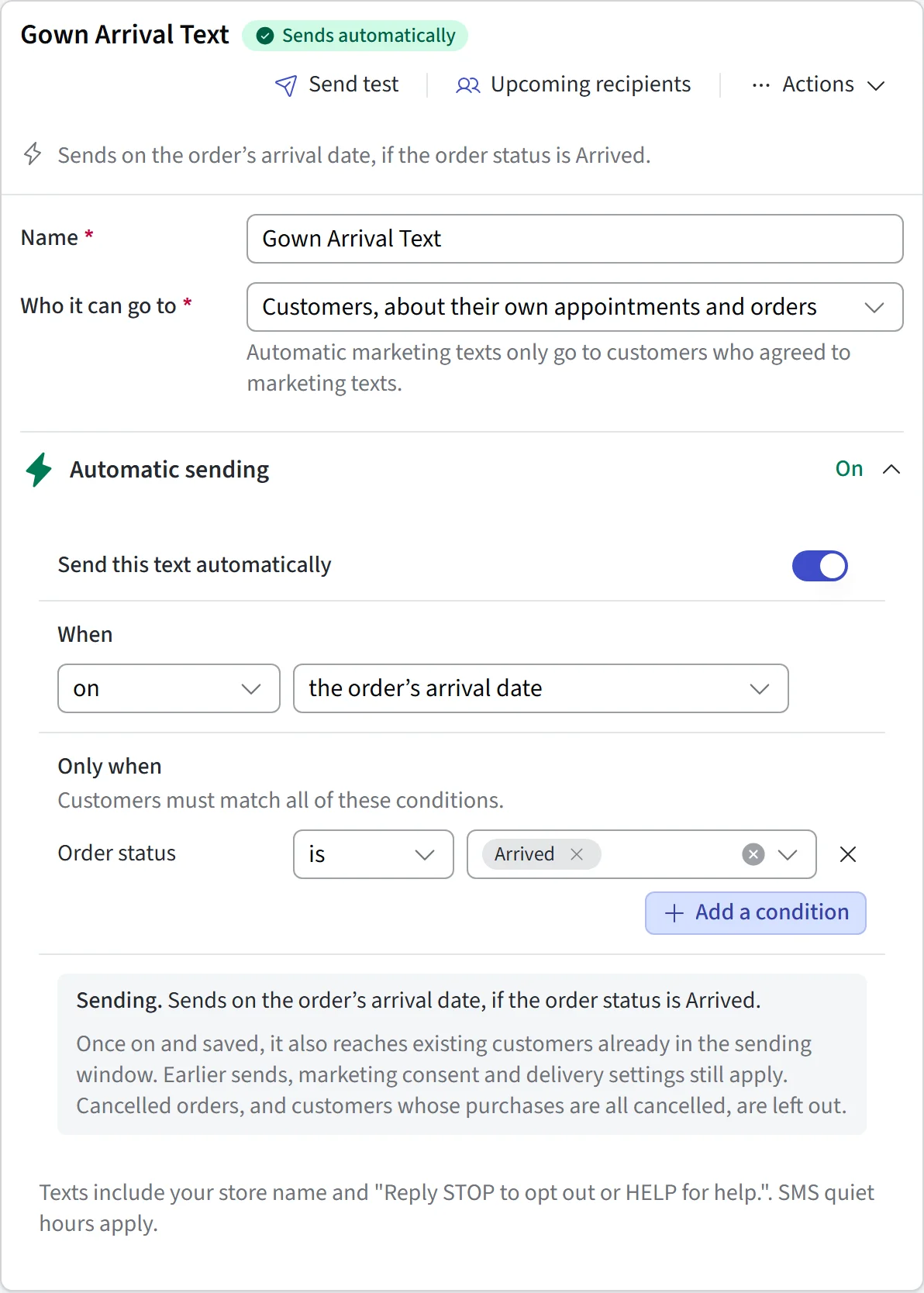
SMS messages can be automated just like emails - feel free to review the above Email Automation section for instructions. The main difference is that SMS automations require using your own Twilio account. We also recommend keeping text messages short and direct. For longer messages, emails are a more appropriate channel.
Automatic Compliance Text
Mobile carriers require automated texts to identify the sender and include opt-out instructions. CloudBridal handles this for you: every automated text — automated message templates, appointment confirmations, and reminders — starts with your business name (from Settings > General) and ends with "Reply STOP to opt out or HELP for help." (US and Canada; other countries receive "Reply STOP to opt out."). Payment link and receipt texts start with your business name too, but skip the opt-out line — the customer just asked for those, so there's no reason to prompt them to opt out of all your texts. If your message already starts with your business name or includes opt-out wording, CloudBridal won't add it twice. CloudBridal also converts "smart" punctuation (curly quotes, long dashes, ellipses — usually auto-inserted by phones and word processors) to standard equivalents at send time, because a single such character switches the whole message to a costlier encoding that fits only 67 characters per segment instead of 153. Emoji can't be converted, so they still carry that cost — the character counts under each message editor and in Preview show the exact final message, its segment count, and a note when emoji are increasing it. Texts staff write and send by hand are conversations, not automated notifications, so nothing is added to those.
Messages
Messages is your hub for SMS. Open it from the main navigation to see all your business's SMS conversations in one place. You can filter by unread messages, reply directly from the inbox, and jump to the relevant customer profile. The assigned staff member shows next to each conversation, making it clear who should reply.
Each customer has one conversation, the same in Messages, on their profile and when you send a text from an appointment. New replies are marked as unread there, and Mark unread puts a conversation back on your list to deal with later.
Consent & Opt-Outs
Every email and text — automated or sent by staff — passes a consent check before it goes out. If a message is blocked, the reason is shown (communications paused, customer texted STOP, marketing text without opt-in, or marketing email opted out), so staff always know why something didn't send.
Template Purpose: Transactional vs. Marketing
Every email and SMS template has a Purpose set in the template editor:
- Transactional: about the customer's own appointments, orders, or payments — reminders, notices, follow-ups. Can go to any customer.
- Marketing: promotes something — sales, events, special offers. Marketing texts only send to customers who opted in to marketing texts; marketing emails skip customers who opted out of marketing emails.
Templates that look like marketing are flagged with a Review suggested badge in Settings > Communications. Open the template, confirm or change the Purpose, and save to clear the flag.
Text Message Opt-Outs (STOP / START)
- A customer who texts STOP (or a similar keyword like UNSUBSCRIBE, CANCEL, or OPT OUT) stops receiving all texts from your business.
- Only the customer can undo this by texting START — staff cannot clear a STOP opt-out.
- The message must contain only the keyword. "STOP sending reminders" is not an opt-out — this matches how mobile carriers handle these keywords.
- HELP is answered automatically when you use Twilio; with Vonage it arrives as a regular inbound message for staff to answer.
- If a mobile carrier reports that a recipient has unsubscribed, CloudBridal captures that opt-out automatically as well.
Marketing Consent
On the customer's edit form, click Change beside Messages and portal to open the Marketing texts and Marketing emails fields, each set to Not set, Opted In, or Opted Out:
- Marketing texts require an explicit opt-in — Not set counts as opted out. Customers can opt in from the public booking form (see appointment settings), or staff can record consent the customer gave directly.
- Marketing emails send unless the customer has opted out — Not set counts as opted in. Customers can opt out via the unsubscribe link in any email.
- Neither field affects transactional messages about the customer's own appointments, orders, and payments.
Pausing All Communications
On the customer's edit form, click Change beside Messages and portal and turn on Pause all messages to block every automated and manual email and text to that customer.
Tips for Effective Communication
- Keep messages short, clear, and relevant
- Personalize with variables for a friendly touch
- Preview and test templates before saving
- Opt-outs and marketing consent are enforced automatically on every send — no manual list management needed
- Use templates for efficiency, but don't hesitate to send custom messages as needed
Integrations & Advanced Features
For advanced SMS features, automation, and regulatory compliance, you'll need to set up Twilio or Vonage. The Twilio Integration guide walks you through the process. You can also send payment links and receipts via email or SMS (Stripe integration required for payments, Twilio for SMS). Appointment reminders and status updates can be automated through both channels, and you can customize these settings for each appointment type. See Appointments Setup for more information about configuring appointment-related communications.
FAQs
Can I automate both email and SMS messages?
Absolutely. Both channels support automation based on triggers like appointment dates, order status, and more. SMS automation requires Twilio or Vonage.
What happens if a customer opts out of SMS?
If a customer texts STOP, all texts to them are blocked automatically. Only the customer can re-enable texting by replying START — staff cannot clear a STOP opt-out.
What happens if a customer opts out of email?
Customers can opt out of email by clicking the unsubscribe link in the footer of any email, which blocks further emails to that address. Customers can also opt out of just marketing emails while still receiving messages about their own appointments and orders.
Are there limits on message length or attachments?
Native SMS is limited to 150 characters, but Twilio removes this limit and allows images. Email supports rich text and attachments.
Can I see all communications with a customer in one place?
Yes! The Communications tab in the customer profile shows all email and SMS history, and Messages provides a business-wide SMS inbox.
How do I pause all communications for a customer?
Edit the customer profile and turn on "Pause all messages" to stop all automated and manual messages.
If you need more details or run into any issues, don't hesitate to contact CloudBridal support or check out the relevant integration documentation.
Updated on: 19/10/2026
Thank you!