
Tasks System
Plan Requirement: Core or Ultimate
CloudBridal's task management system helps you organize and track work items across your store. From in-store tasks to follow-ups, you can assign responsibilities and ensure nothing gets missed.
Getting Started
To access the task management system, click on the Tasks tab in the main navigation, or use this link.
Task Views
Switch views with the By status / By due date toggle at the top. Both views share a search box, a tag filter, and an assignee filter — pick Me to see only your own work.
- By status: a tab for each status — Pending, In Progress, Paused and Completed
- By due date: choose Overdue and next 30 days, Later, or No due date
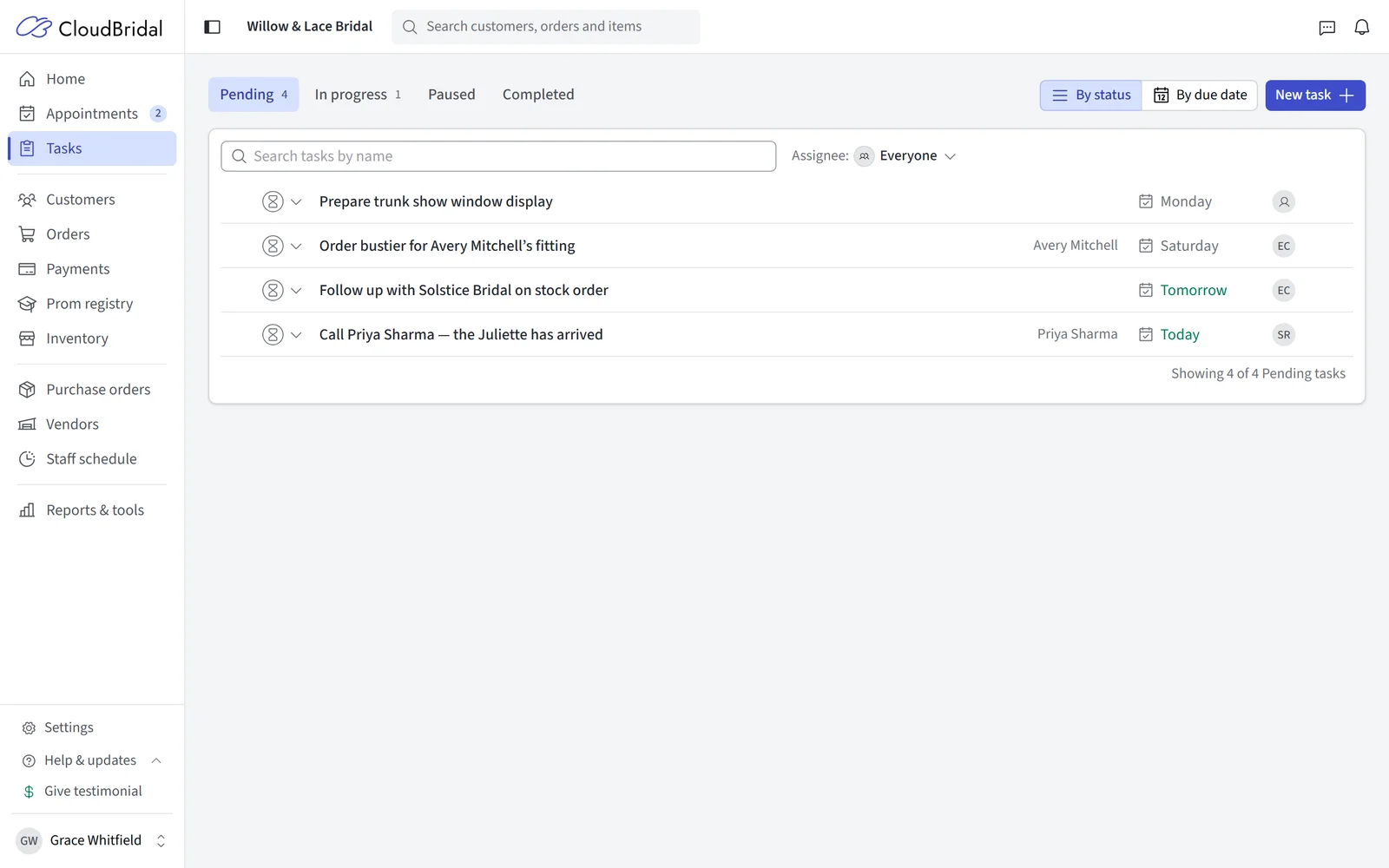
Creating Tasks
To create a new task:
- Click the New task button in the top-left corner
- Fill out the task details:
- Title: A clear name for the task
- Status: Current state of the task
- Assignee: Staff member responsible for the task
- Due date: When the task needs to be completed
- Tags: Optional labels to categorize tasks
- Description: Detailed information about what needs to be done
- Subtasks: A checklist of the steps involved
You can also click a time on the appointment calendar in Day or Week view and choose Task to create a task due that day.
Subtasks
Subtasks break a task into steps your team can tick off individually. Task lists show the progress, such as "2 of 5 complete", so you can see at a glance how far along something is.
- Press Enter at the end of a line to add the next one
- Drag a subtask to move it up or down
- Task templates can carry their own checklist, so every task created from one starts with the same steps
Working on a Task
Click a task, or the arrow at the end of its row, to open its details. The task slides in as a panel beside the list, so you keep your place. Your edits save as you go, and closing with anything unsaved asks you first.
You can also work through the list from the keyboard: the up and down arrows move between tasks, and Enter, Space or the right arrow opens the one you're on. With the panel open, the arrows move you to the next or previous task.
Each task keeps an activity history recording status, assignee and due date changes alongside edits to the title, description, linked record and subtasks — plus every comment.
Linking Tasks to Records
Tasks can be connected to other items in CloudBridal to provide context about the task:
- Customers: Link to a specific customer's profile
- Orders: Link to a specific customer order
- Appointments: Link to a specific appointment
- Payments: Link to a specific payment
To link an item, use the Customer or booking field when creating or editing the task and search for the relevant record. Alternatively, you can navigate to the customer's profile and create the task from their Tasks tab.
Dynamic Due Dates
Instead of picking a fixed date, you can base a due date on a date CloudBridal already knows — the customer's event date, the date of the order, the appointment date and more.
In the Due date field, choose the date to work from, then whether the task is due on it or a number of days before or after it. Dates that belong to a linked record become available once the task is linked to a customer or order.
Dynamic due dates adjust automatically if the date they're based on changes, so your tasks stay properly scheduled relative to important customer milestones.
Task Templates
Task templates are reusable task setups — a title, description, assignee, tags, subtask checklist and due date rule — that you can apply in one click, or hand to CloudBridal to create automatically.
Manage them in Settings > Task management. The sidebar lists your templates alongside the overview page and the template library; selecting one opens it in the editor.
Starting from the Template Library
The Template library holds 17 ready-made templates covering appointments, orders, team operations and recurring shop routines. Each one comes with a description, a subtask checklist your team can follow, and suggested timing.
- Open the Template library from the sidebar
- Search, or filter by situation, to find one that fits
- Click Use template to open it in the editor as a draft
- Adjust the wording, assignee and timing to match how your store works, then save
Automatic creation starts switched off, so nothing is created until you review the draft and turn it on.
Creating a Template from Scratch
Click New task template in the sidebar and fill in:
- Title: The default title for tasks created from this template
- Assignee: Who tasks are assigned to by default. Can be dynamically set based on the staff member on record for the linked customer/order
- Due date: A fixed rule or a dynamic due date based on the linked customer or order
- Tags: Any tags that should be pre-selected. Useful for later filtering tasks by tag
- Description and Subtasks: The default content for tasks created from this template
Using Task Templates
- When creating a new task, click Create from template
- Select a template from the list
- The task form is pre-filled with the template's values, including its subtask checklist
- Make any necessary adjustments before saving
Task Automation
Plan Requirement: Ultimate
A task template can create tasks on its own, either in response to what happens in your store or on a repeating schedule. Open the template, choose how it should create tasks, and save.
From Customer Activity
Choose whether the task is created the moment a record changes, or a set number of days from a date:
- When a record is created or updated: pick Customer, Order, Appointment or Payment, and a task is created whenever a record of that type changes
- Relative to a date: pick a date such as the customer's event date, an expected arrival date, an appointment date or a payment due date, then set whether the task is created on it, or a number of days before or after
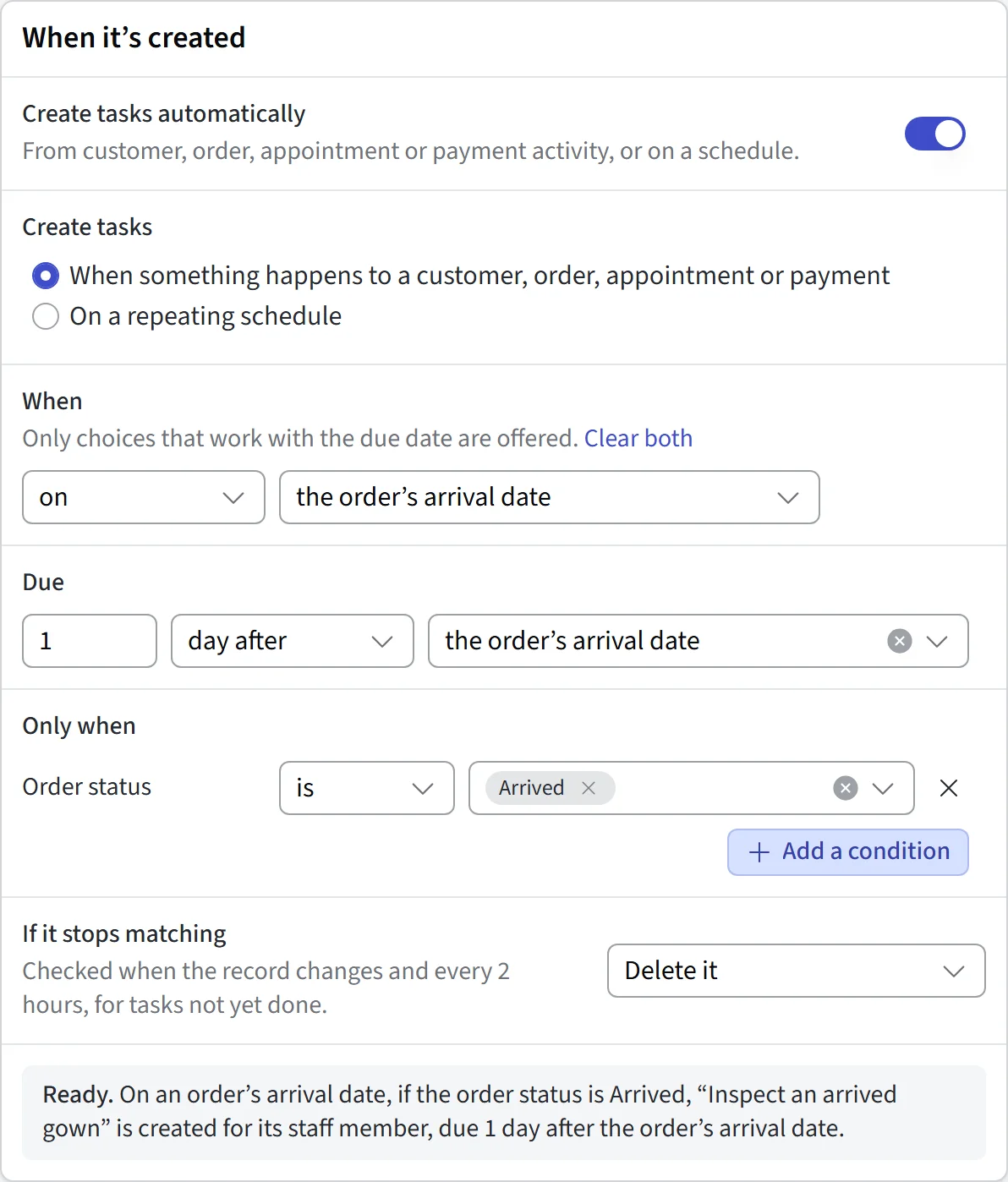
CloudBridal will not create a duplicate automated task for the same record and event.
On a Repeating Schedule
Use a repeating schedule for the routines that come around regularly — closing the store, weekly delivery reviews, a monthly stock check.
- Open the template and choose to create tasks on a repeating schedule
- Pick Daily, Weekly, Monthly or Yearly, then the interval, the weekdays or day of the month, and the date the schedule starts
- Check the schedule preview, which shows the next three due dates
- Save and enable the template
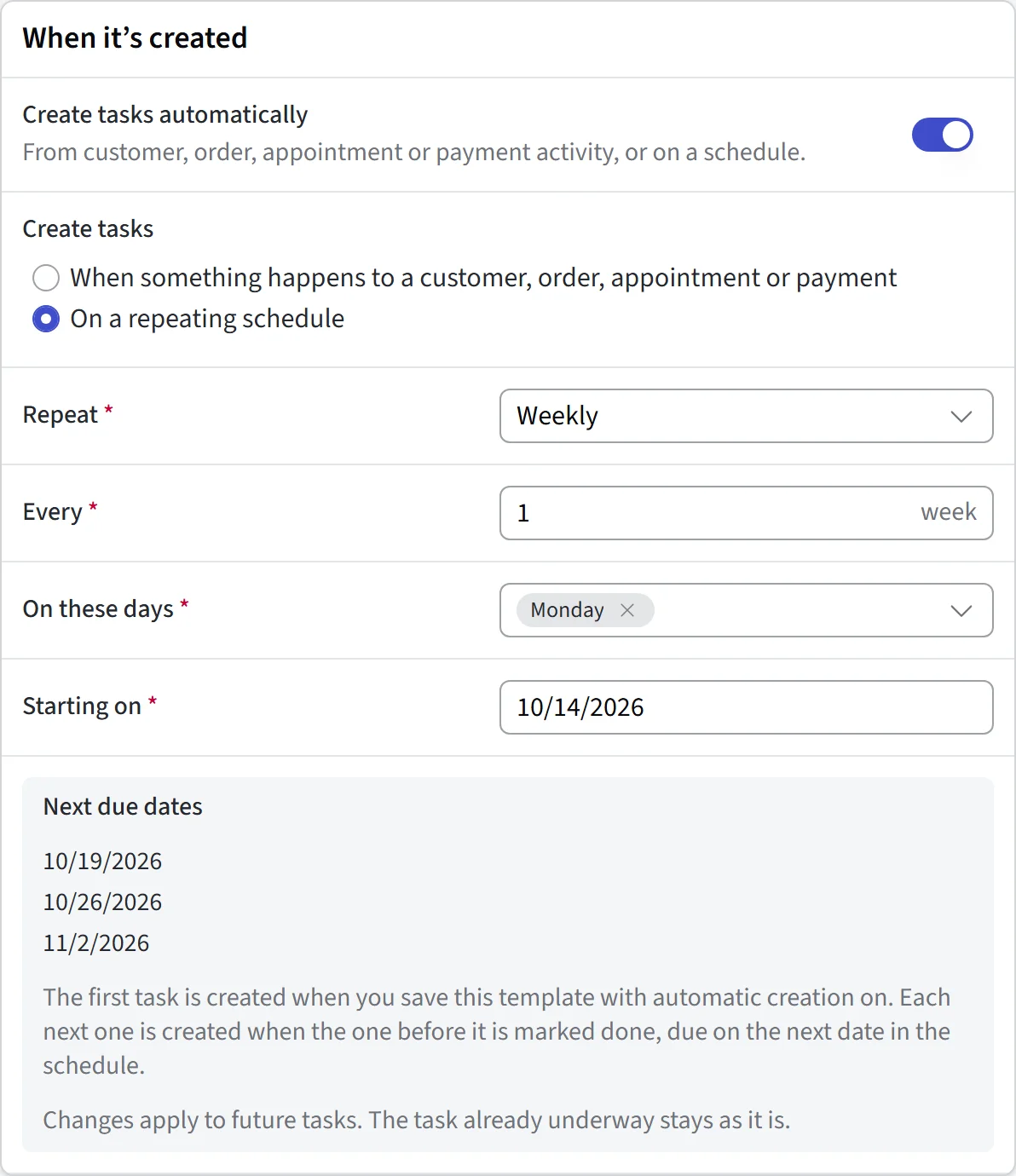
Only one task from a schedule is ever open at a time. The first appears as soon as you enable the schedule, and the next is created when your team completes the current one. If a date passes while the previous task is still open, it's skipped rather than piling up a backlog.
Repeating tasks aren't tied to a customer or an order, so assign them to a specific staff member or leave them unassigned.
Changes to a schedule apply to future tasks — the task already underway stays as it is.
Conditions
Conditions let you narrow which records trigger task creation. They work the same way as the conditions on automated messages: filter on customer, order, appointment and payment details, on the customer's referral source, and on up to three of your own custom fields. Any condition can be reversed to match records that are not a given value.
When multiple conditions are set, all must match for the task to be created. If no conditions are set, the automation applies to all records of the trigger type.
For the full picture on building automations, see Getting the Most From Automation.
Checking Upcoming Tasks
Before you turn an automation on — or any time you want to be sure it's behaving — open the template's actions menu and choose Upcoming tasks.
Pick a date range of up to 90 days within the next year, and CloudBridal shows the tasks the template expects to create: the record each one relates to, who it's assigned to, and its creation and due dates. The Not creating tab lists the records it's leaving out and why.
This is a preview only. Nothing is saved and no tasks are created.
Task Organization
Using Tags
Tags help categorize and filter tasks:
- Add tags when creating or editing a task
- Use existing tags or create new ones on the fly
- You can filter tasks by tags to focus on specific types of tasks
- You can add task custom fields in the settings that display based on the tags selected. This is a great way to define what information is needed for each type of task.
Task Priority & Order
Tasks can be prioritized in two ways:
- Due Dates: Set deadlines to automatically prioritize tasks. Upcoming tasks are then shown in the due date view, as well as the appointment calendar per-day.
- Manual Ordering: Drag the handle on the left of a task to move it up or down within its status group.
Task Management
Changing Status
Tasks can be in one of four states:
- Pending: Not yet started
- In progress: Currently being worked on
- Paused: Temporarily on hold
- Completed: Finished
You can change a task's status by clicking the status icon directly on the task list, or by opening the task and changing it there.
Task Assignment
Tasks can be assigned to specific staff members:
- Click the avatar icon on the task
- Select a staff member from the dropdown
- Choose "Me" to assign it to yourself
Task Comments
Staff members can discuss tasks using comments:
- Open the task details
- Scroll to the comments section at the bottom
- Type your comment and press Enter to post
Comments are preserved in the task's history and help track discussions and decisions.
Managing Tasks from Customer Profiles
You can manage tasks directly from a customer's profile:
- Navigate to the customer's profile
- Click on the Tasks tab
- View existing tasks for this customer
- Create new tasks that are automatically linked to this customer
- Update task status directly from this view
This integration makes it easy to manage customer-related tasks without leaving the customer profile.
Custom Fields
If you need to track additional information on tasks, add your own fields:
- Go to Settings > Task management
- Under Your own fields, click Add field
- Configure the field:
- Name
- Answer type (text, number, date, etc.)
- Require an answer
- Task tags: Show the field only on tasks with these tags
Your fields appear on the task form under Additional details. See Custom Fields for more information.
Roles & Permissions
Task management permissions can be configured for different staff roles. The Admin role has full access by default. Other roles can be customized to have specific permissions:
- View Tasks: Can view tasks and their details
- Manage Tasks: Can create, edit, and delete tasks
- View Assigned: Can only view tasks assigned to them
- Manage Assigned: Can manage tasks assigned to them
- Delete: Can delete tasks
To configure roles:
- Go to Settings > Staff members
- Create or edit a role
- Under the Tasks section, select the appropriate permissions
Updated on: 19/10/2026
Thank you!