
Prospects & Customers
CloudBridal provides a comprehensive system for managing both prospects and customers throughout their journey with your boutique. This guide will help you understand how to effectively use these features to grow and manage your business.
Understanding Prospects vs Customers
In CloudBridal, contacts are categorized as either prospects or customers:
- Prospects: Individuals who have not yet placed an order
- Customers: Individuals who have at least one order in the system
When a prospect places their first order, they are automatically categorized as a customer. Both types share most management features, allowing for a seamless transition through the sales process.
Managing Your Contact List
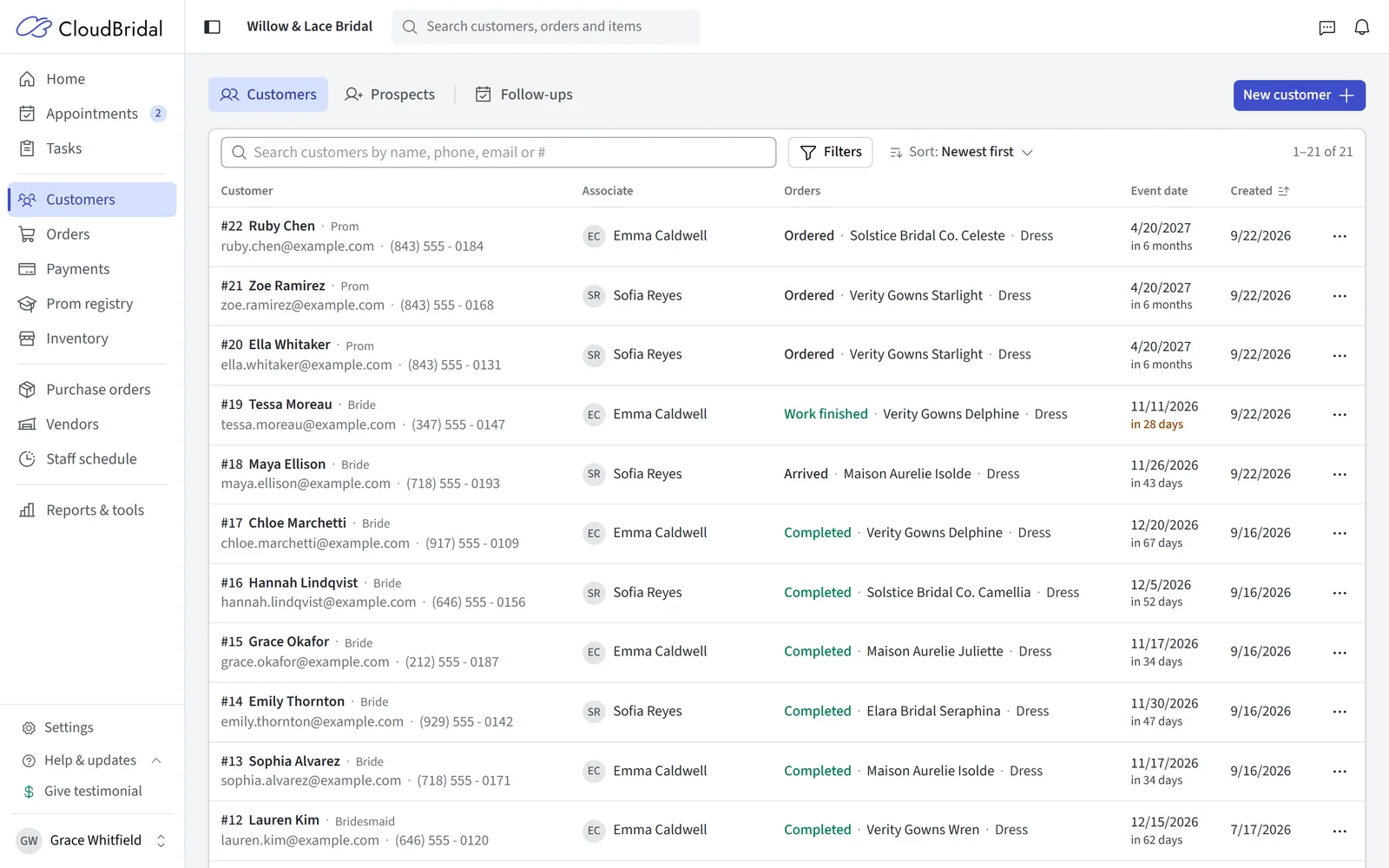
Everyone lives in one Customers section, with three tabs:
- Customers: people with at least one order
- Prospects: people who haven't ordered yet
- Follow-ups: everyone you've set a follow-up for, prospects and customers together
If you search on one tab and the person is on the other, the list tells you and takes you there with one click.
Creating New Contacts
You can add new prospects or customers in several ways:
- First-time confirmed appointment bookings are automatically converted to prospects - Recommended
- Click New customer above the list (or New prospect on the Prospects tab)
- Add a member to a customer's event from their Events tab
Follow-Ups
A follow-up is a reminder to get back in touch with someone: "they loved two dresses, call them Tuesday." Each person can have one follow-up at a time, with a date and an optional note.
Adding a Follow-Up
Choose Follow up… from any of these:
- The ⋯ menu on a row in the Customers, Prospects or Follow-ups list
- The ⋯ menu on the contact's profile
- The Actions menu on one of the contact's appointments
Pick Tomorrow, In 3 days, Next week or a date, and add a note about what to follow up on.
Working Your Follow-Ups
The Follow-ups tab is your call list, grouped into Overdue, Today, Upcoming and No date. Each row has buttons to call, text or email the person, and Done.
When you click Done, you can note What happened — it's saved to the contact's Internal Notes — and choose whether to follow up again on a new date.
A contact with a follow-up shows it at the top of their profile, with the same Done and contact buttons, and appointments show a "Follow up" badge on the customer. Follow-ups are never cleared on their own: placing an order or sending a message doesn't remove one — only Done (or removing it) does.
The Follow-ups tab shows how many are due, and the Customers item in the sidebar gets a dot. Needs attention on Home also lists them under Follow-ups due; you can turn that alert off in Settings › Store alerts.
Adding and completing follow-ups requires the Customers > Manage permission.
Contact Profiles
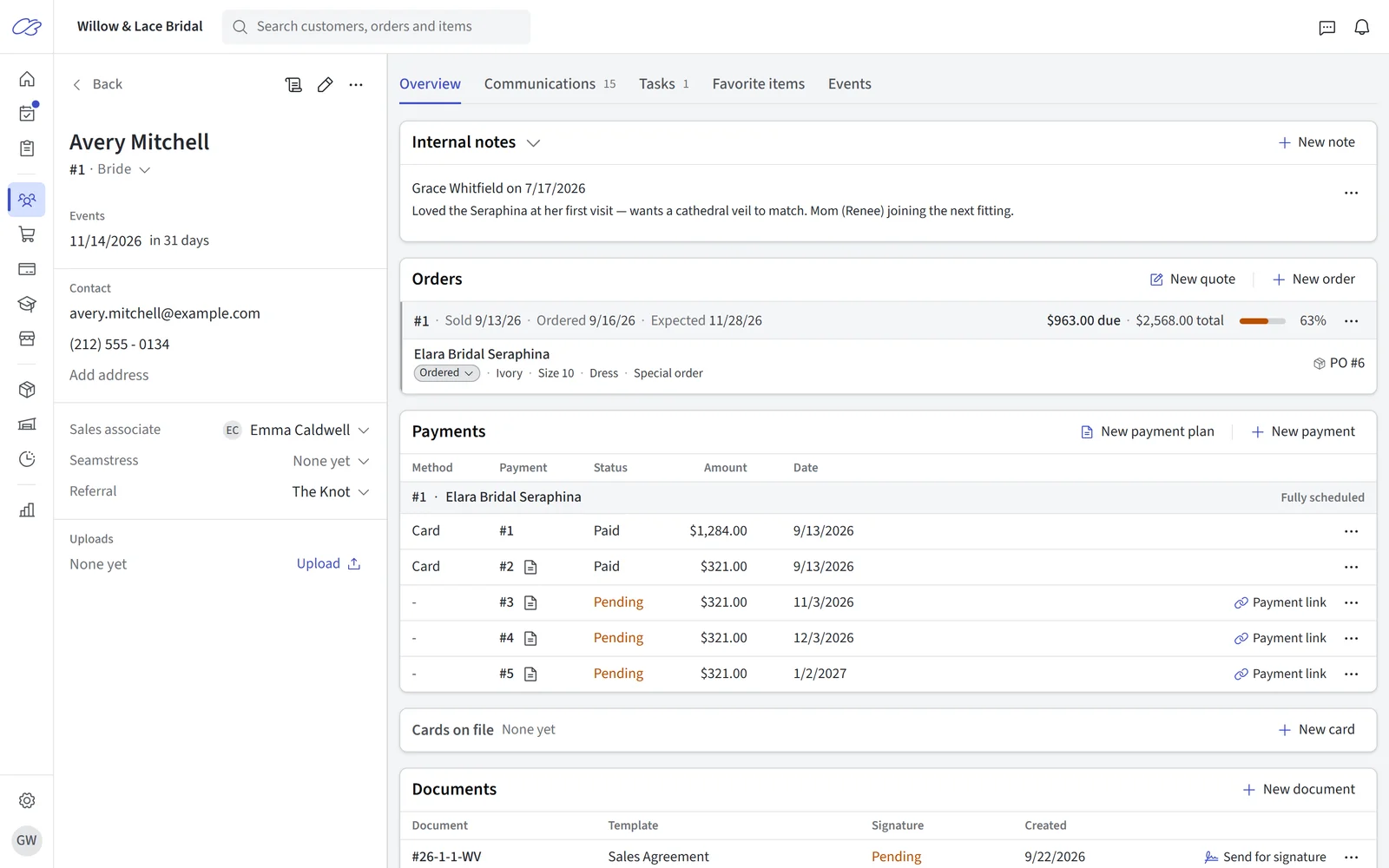
A contact's profile serves as their central hub for managing their relationship with your boutique. This includes everything from their order history, their communications with you, and much more.
Info Panel
The info panel on the left side of the profile serves as a way to quickly access key information about the contact, such as their name, contact details, and customer type. Key features include:
- Editing the contact's information by clicking the "Edit" button (pencil icon)
- Inviting the contact to your client portal in the actions menu (ellipsis icon)
- Uploading images and documents to the contact's profile in the uploads section
- An Events section listing each of the contact's events with its date and countdown — click any row to jump to the Events tab
A phone number and email address are required when adding or editing a contact. If the customer genuinely has neither, tick They don’t have a phone or They don’t have an email to save without one; CloudBridal clears the flag as soon as a real value arrives.
Overview Tab
The overview tab provides the core actions for managing the contact, including:
- Internal notes: Allows you to capture important information about the contact that you can use as a reference throughout the customer journey. This area also surfaces appointment notes and first-time appointment custom fields.
- Orders: Shows all orders/sales associated with the customer and allows you to create new orders. Also shows the customer's overall balance due.
- Payments: Shows all payments associated with the customer and allows you to record new payments. If you use the Stripe Integration, you can also process payments from this section.
- Order Documents: Shows all documents that have been generated for the customer related to their orders. This can include documents like order summaries, sales agreements, pickup agreements, and more.
- Appointments: Shows the customer's upcoming and past appointments and allows you to book new follow-up appointments.
- Measurements: Shows all measurements associated with the customer and allows you to create new measurements.
Communications Tab
Plan Requirement: Core or Ultimate
The communications tab provides a view of all email and text communications that you have had with the customer. To read more about communications in CloudBridal, you can refer to Email & SMS Communications.
The emails section shows all Outbound emails sent to the customer. It includes key details like the delivery status so that you can see if the email was opened or bounced.
SMS
The SMS section shows all text messages sent and received with the customer. Whenever you receive a new text message, you will also be notified both in Messages and in the customer's profile.
Communication Consent
The Messages and portal line on the contact's edit form sums up what reaches the customer and what they can reach: for texts and emails, whether they get updates and marketing (with the reason when they don't, such as no phone number yet, paused messages, STOP or unsubscribe), and whether they can sign in to the portal. Click Change to open its controls:
- Marketing texts / Marketing emails: records the contact's marketing consent (Not set, Opted In, or Opted Out). Marketing templates only send to consenting customers; messages about the customer's own appointments, orders, and payments are unaffected.
- Pause all messages: blocks all outbound emails and texts to the contact.
- Block portal sign-in: stops the contact opening their client portal (shown when you use the client portal).
Customers can also opt out themselves — by clicking the unsubscribe link in an email, or by texting STOP (which blocks all texts; only the customer can undo it by texting START — staff cannot clear it). Every send is checked against these rules automatically, and blocked sends show the reason. See Email & SMS Communications for the full behavior.
Tasks Tab
Tasks allow you to standardize your workflow and ensure that nothing falls through the cracks. When linked to a contact, you can even leverage automatic due dates based on fields like the event date, order date, etc. To learn more about tasks and how to use them, check out the Tasks documentation.
Favorite Items Tab
The Favorite items tab allows you to keep track of the contact's favorite items. There are two types of favorites:
- Showcase Favorites: These are items that the contact has favorited from the Inventory Showcase.
- In-Store Favorites: These are items that you have added as favorites to the contact's profile. Many times, clients are not ready to purchase an item right away, so you can add it to their favorites list to keep track of it for later.
This tab is also where you can print a Pricing sheet — an informal price list of the customer's favorite items — using the Pricing sheet button. For a detailed, customer-acceptable quote that the customer can sign and accept (and pay a deposit on) from the client portal, see the Quotes guide.
Customer Preferences Analysis
After you create one or more favorite items (or if a customer favorites items through the Inventory Showcase), CloudBridal will begin tallying the customer's preferences as long as you've entered item attributes during your inventory setup. Once enough items have been favorited, you can start to build up a better understanding of your customer's preferences which can help you suggest items that are more likely to sell. At any time, you can click the Find compatible button which will surface other items in your inventory that best match the customer's preferences.
Events Tab
An event is the wedding, prom, or party a contact is shopping for. It holds the date, the venue, and the group attending together — so bridesmaids and the bride are managed in one place, and their orders and communications can be handled together.
A contact can have more than one event. A bride who is also a bridesmaid in a friend's wedding gets an event for each, with her own role in each one.
Customers can supply the venue themselves — it's an optional field on the appointment booking form and on the pre-registration questionnaire, both off by default.
Managing an Event
Each event is a card on the tab. From it you can:
- Add member: search for an existing contact, or type a name to create a new prospect, then set their role. If the contact you pick already has an event of their own, you can join them to this one instead of keeping two copies of the same wedding in step — CloudBridal asks which role they hold when it can't tell from their profile type.
- Edit a member: change their role, or make them the group's primary contact
- Bulk update order status: move every member's orders to a new status at once
- Copy order to members: duplicate a member's order onto the rest of the group — ideal for matching bridesmaids dresses
- Print group summary and Print group orders
Use Add another event to give the contact a second event, and Delete event to remove one. Deleting keeps everyone's profiles and orders — but orders assigned to that event become unassigned, tasks tied to its date lose their due dates, and members whose only event this was have their event date cleared.
The Active Event
When a contact has several events, the next upcoming one is marked Active (or the most recent past one if nothing is upcoming). The event date and venue shown elsewhere on their profile come from that event.
Because of this, the event date on the Edit Profile form is read-only once a contact has two or more events — manage those dates on the Events tab instead.
Orders and Events
Every order belongs to an event. When a contact has a single event, new orders are assigned to it automatically and there's nothing to do.
When a contact has two or more events, the order form shows an Event dropdown so you can pick which one the order is for, and their profile warns you about any orders still unassigned. This matters because the order's own event date drives its alerts and reminders — a bride's gown and the bridesmaid dress she's buying for a friend's wedding each track against the right date.
Permissions
Viewing events requires the Customers > View permission, and adding or editing events and members requires Customers > Manage. Removing a member from an event is limited to admins.
Updated on: 19/10/2026
Thank you!