
Making a Sale
CloudBridal streamlines the sales process, from item selection to payment processing and order tracking. This guide walks you through creating different types of orders and managing the sales workflow.
Types of Orders
CloudBridal supports three different types of orders:
- Special order: For items not in your current inventory that need to be ordered from vendors. This tracks the process from initial order to final pickup.
- From inventory: For items you currently have in stock, or for services your store provides.
- Rental: For items you rent out to customers from your inventory, tracking from rental to return.
Creating an Order
You can create orders in two ways:
- From the Orders page by clicking New order
- From a customer's profile by clicking New order in the Overview tab
Walk-in Orders
For quick transactions without creating a full customer profile:
- From the Orders page, click New order
- Select Walk-in Customer option
- A temporary "Walk-in" customer profile is created
- Complete the order as normal
- You can convert this to a full customer profile later if needed
Special Order Process
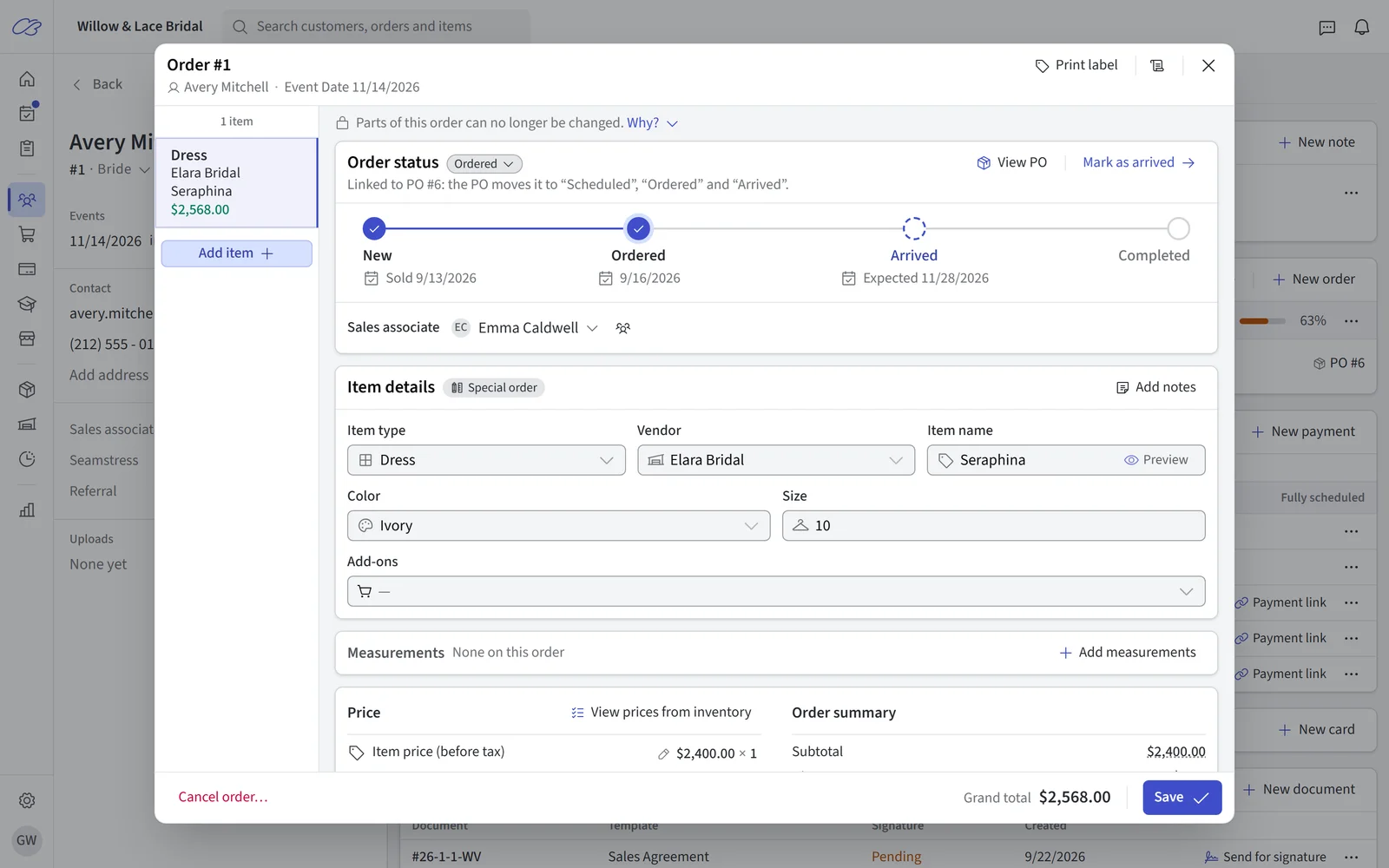
When creating a special order:
- Select Special order as the order type
- Fill out the order details:
- Order status: Begins as "New", or "Ordered" if your shop places orders right away (Where special orders start in Orders settings)
- Vendor: Select from your vendor list
- Item: Search for an inventory item or enter manually. Items for the customer's type are listed first
- Color: Select the desired color
- Size: Enter based on measurements
- Add-ons: Extras such as a rush shipping fee. Pick the vendor's add-ons in the Add-ons field; they're listed in the Add-ons section of the price, where you can change each one's name, notes and price. Alterations, additional work, additional fees and custom add-ons are under Other add-ons. See Vendor Addons Docs and Inventory Addons Docs for setup
- Internal notes: Notes about the order for your team
- Measurements: See Measurements on an Order
- Price Information: System uses inventory prices by default
- Sales associate: The staff member credited with the sale, in the Associated staff card. When you have two or more active sales associates, click the split icon beside the field to split the sale between staff members: Add staff member and set each person's percentage, and the sales associate keeps the remainder. Reports credit the money and the sale by those percentages — see Reports & Tools.
- Event: Appears when the customer has more than one event. Pick which event the order is for — required on a new order. With a single event, the order is assigned to it automatically. See Prospects & Customers.
- For items with orderable varieties, you can select specific varieties with different price points. See Inventory Item Varieties Docs for more information.
- Adding Additional Items: Click Add item to include more items, services, etc. These follow the same process, as each line item is its own order.
Measurements on an Order
A new order starts from the customer's newest measurements, and says so ("Filled from the measurements taken" and the date). Click Clear to start empty. Values you've already typed, and orders already saved, are never overwritten.
Measured by starts as Taken by the shop; change it if the customer gave you their measurements. Measurements saved from an order to the customer's profile show who took them and which order they came from.
From Inventory Process
For items you have in stock:
- Select From inventory as the order type
- Search for the item by name
- Select the specific variant (size, color) from your inventory
- The system will automatically decrease inventory quantity. If the item doesn't have quantities enabled (e.g. services), the quantity is disregarded. If the sale is later cancelled or returned, you can put that stock back with Return to stock — see Returns, Refunds & Exchanges.
Rental Process
For rental items when renting out of your stock:
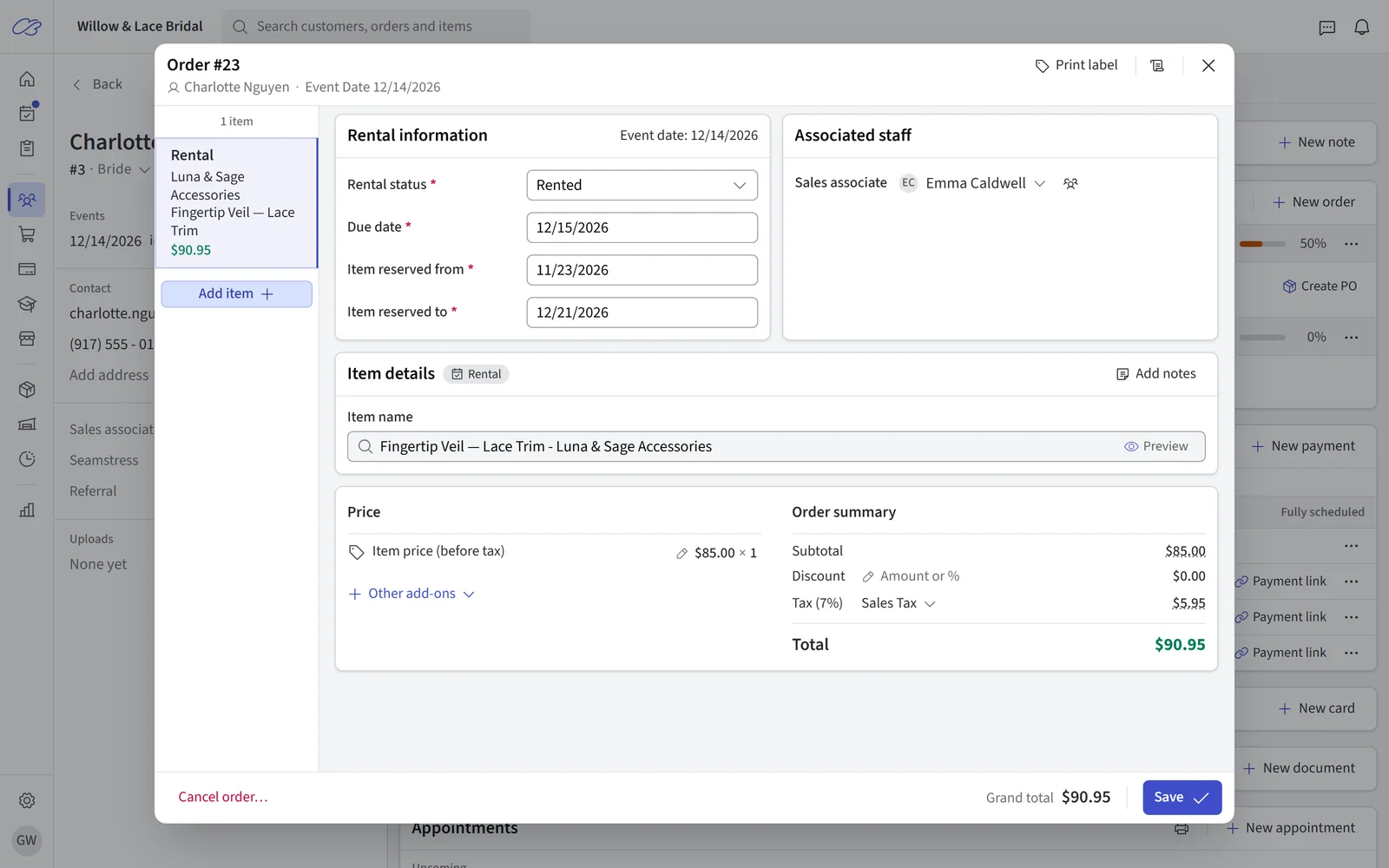
- Select Rental as the order type
- Fill out standard order information plus:
- Rental status: Defaults to "Rented"
- Due date: When the item must be returned
- If rental tracking is enabled for the item type, you'll also see reservation dates
Order Documents
While creating a new order or quote, click Preview document in the header to see the customer-facing document — with your terms and the order details filled in — before anything is saved. The preview is watermarked, and the order number is assigned when you save.
After creating an order, generate order documents for the customer. See Documents & Agreements Setup for more information on how to configure your document templates.
- If Customers sign off on new orders is on in Orders settings, the order document opens after you create a new order, before payment
- CloudBridal will automatically select a document template for the order based on the current status of the order and how your templates are configured.
- Preview the document before saving the document
- Choose how to finalize the document
Signature Options
- Digital Signature (Ultimate Plan): Have the customer sign in store — on your device's signature pad or on your Stripe smart card reader — or send a signing link by email or direct link
- Physical Signature: Print the document for physical signature. You can then click the Save button to store a copy of the document within CloudBridal.
E-Signed documents are saved to the customer's profile for future reference. See Documents & Agreements Setup for the full set of signing options.
Payments
See Payments & Processing for more details about how payments are recorded and processed within CloudBridal.
Smart Order Helpers
Plan Requirement: Ultimate
This feature automatically applies add-ons, fees, or discounts based on predefined rules. See the Order Settings documentation for more information.
Updating the Order Status
Click the order's status badge, on the order form or on the order in the customer's Orders card, and choose the step to move it to.
- When a step has a date, such as the ordered or arrival date, CloudBridal asks for it. Moving to Ordered shows the ordered date (today) and the expected arrival from the vendor's lead time.
- Moving an order back to an earlier step clears the dates of the later steps, and CloudBridal says which before you save. Only admins can move an order back.
- On an order that's on a purchase order, Scheduled and Ordered show Set by PO #n: the purchase order moves the order. See Purchase Orders.
To cancel or return an order, use Cancel order or Record a return instead of the status menu.
Post-Sale Actions
After recording a sale, you may have various actions to take in the future. For example:
- For special orders, you will need to process the order through the vendor. You can use the Purchase Orders feature for tracking this process.
- You will need to ensure that the customer's order status is updated as the order progresses. The goal is to eventually move it into the Completed status.
- If the customer has not paid in full, you will need to record any future payments.
- When the customer picks up their item, you may want to generate a pick-up agreement.
- If the sale falls through or the customer returns an item, use Cancel order / Record a return from the order rather than changing its status. See Returns, Refunds & Exchanges.
This list is not exhaustive, and you will need to determine what actions are needed for your business based on your own workflows.
Related Documentation
- Tracking Alterations in CloudBridal — a single alteration fee, an itemized alterations menu, and fittings as appointments
- Payments & Processing
- Returns, Refunds & Exchanges
- Quotes
Updated on: 19/10/2026
Thank you!